
Authelia
Single sign-on and two-factor authentication for your Federated Core apps.
- Use instead of
Okta,Microsoft Entra ID,Auth0,Duo- Typical address
auth.example.com- Project website
- www.authelia.com
- Official docs
- www.authelia.com/overview/prologue/introduction
Overview
Authelia is the sign-in portal that sits in front of many of the applications on your server. Instead of signing in to each app separately, you sign in once with Authelia and it lets you through to every app you’re allowed to use. It also adds a second layer of protection, two-factor authentication (2FA), so a stolen password on its own isn’t enough to get into your account.
What Authelia does for you:
- Single sign-on (SSO). One sign-in covers all connected apps until your session expires or you sign out.
- Two-factor authentication using an authenticator app (one-time codes), a hardware security key such as a YubiKey, or a passkey stored on your phone or computer.
- Access rules. Administrators can decide which groups can reach which applications, and which apps require 2FA.
- Self-service password reset by email.
- OpenID Connect provider, so applications can use “Sign in with” your organization’s account.
What it replaces
Authelia covers the parts of identity services like Okta, Microsoft Entra ID (Azure AD), and Auth0 that most small and medium organizations use: SSO, 2FA, and access policies. Paired with the user directory managed in Superpanel, you don’t need a separate per-user identity subscription.
Signing in
Open any connected application, or go directly to the Authelia portal address shown in Superpanel.
Enter your username and password.
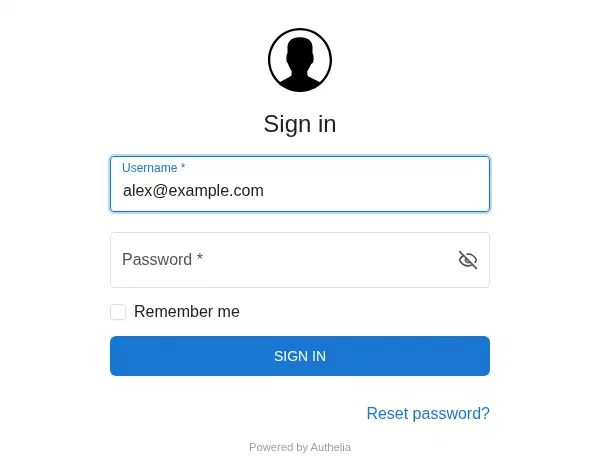
The Authelia sign-in page. If 2FA is required, approve the second step: type the six-digit code from your authenticator app, touch your security key, or confirm your passkey.
Authelia sends you back to the app you were trying to open.
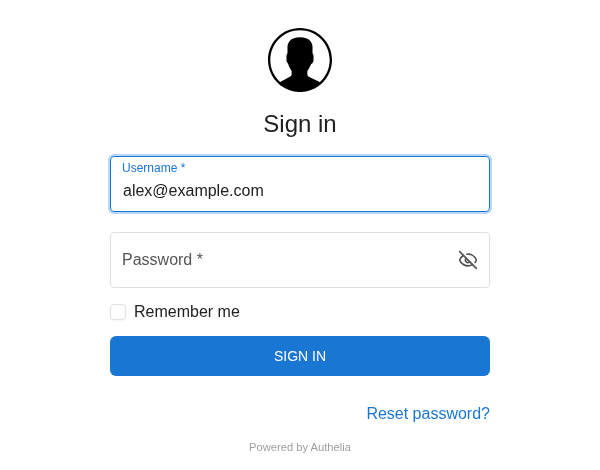
Tick Remember me only on your own devices. It keeps your session open longer.
Set up two-factor authentication
You can register more than one method. Registering two (for example, an authenticator app and a security key) means you won’t be locked out if you lose one.
Authenticator app (one-time password)
- Install an authenticator app on your phone. Good options include Aegis (Android), 2FAS, Ente Auth, or the iOS Passwords app. You can also store the code in Vaultwarden.
- Sign in to Authelia and open Settings, then Two-Factor Authentication. (On first sign-in you may be prompted to register a method straight away.)
- Choose to add a one-time password. Authelia verifies your identity by emailing you a one-time code. Enter it.
- Scan the QR code with your authenticator app, then enter the six-digit code it shows to confirm.
Security key or passkey (WebAuthn)
- In Settings, then Two-Factor Authentication, choose to add a WebAuthn credential.
- Confirm your identity with the emailed code.
- Give the key a name you’ll recognize, such as “Blue YubiKey” or “Work laptop”.
- Follow your browser’s prompt to touch the key, or use your fingerprint, face, or device PIN.
Reset a forgotten password
On the Authelia sign-in page, select Reset password.
Enter your username. A reset link is emailed to the address on your account.
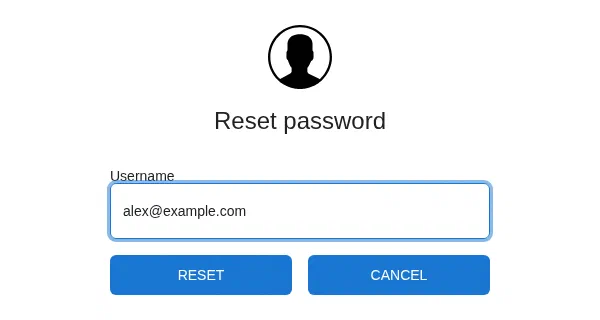
Enter your username and choose Reset. Follow the link and choose a new password. Your new password works in all connected apps right away.
If you can’t receive the email, ask an administrator to reset your password in Superpanel.
Lost your second factor
If you lose your phone or security key and have no other method registered, an administrator needs to reset your 2FA registration. Contact your administrator or Federated Computer support. Afterwards, register a new method and remove the lost device from your Authelia settings.
Signing out
Signing out of Authelia ends your SSO session, so you will need to sign in again before opening another connected app. Some apps also keep their own session; sign out of those too on shared computers.
Superpanel settings
Authelia doesn’t have its own admin screen. Its behavior is controlled by Federated Computer and by the options in Superpanel:
- People and groups. Users and group membership in Superpanel decide who can sign in and which applications each group can reach.
- Two-factor requirement. Where available, choose whether 2FA is required for all users or only for selected applications.
- Password resets. Administrators can reset passwords and help users who have lost their second factor.