
Baserow
Spreadsheet-style databases for tracking anything, plus forms, kanban boards, and simple apps.
- Use instead of
Airtable,Smartsheet,Google Sheets,Notion databases- Typical address
baserow.example.com- Project website
- baserow.io
- Official docs
- baserow.io/user-docs
Overview
Baserow is a no-code database. It looks like a spreadsheet, but each column has a type (text, number, date, single select, link to another table, file, and more), so your data stays consistent and tables can be connected to each other. It’s a good fit for inventories, content calendars, applicant tracking, event planning, and any list that has outgrown a spreadsheet.
Main capabilities:
- Workspaces that hold databases, which hold tables.
- Over 20 field types, including links between tables, lookups, rollups, formulas, files, and collaborators.
- Views of the same table: grid, gallery, form, kanban, and calendar, each with its own filters, sorts, and hidden fields.
- Forms that anyone can fill in to add rows, without seeing the rest of the data.
- Real-time collaboration, row comments, and change history.
- Application Builder for simple internal tools and portals on top of your data.
- A REST API and webhooks for connecting to n8n and other tools.
What it replaces
Baserow replaces Airtable and Smartsheet, and the database features of Notion. Some features are labelled Premium or Advanced in Baserow; whether they’re available depends on whether your installation includes a Baserow licence.
Signing in
Open your Baserow address and sign in. You may be invited by email to a workspace by a colleague; follow the invitation to join.
Create your first database
On the dashboard, choose + Create new, then Database. Start from scratch, or choose a template to start with example tables and views.
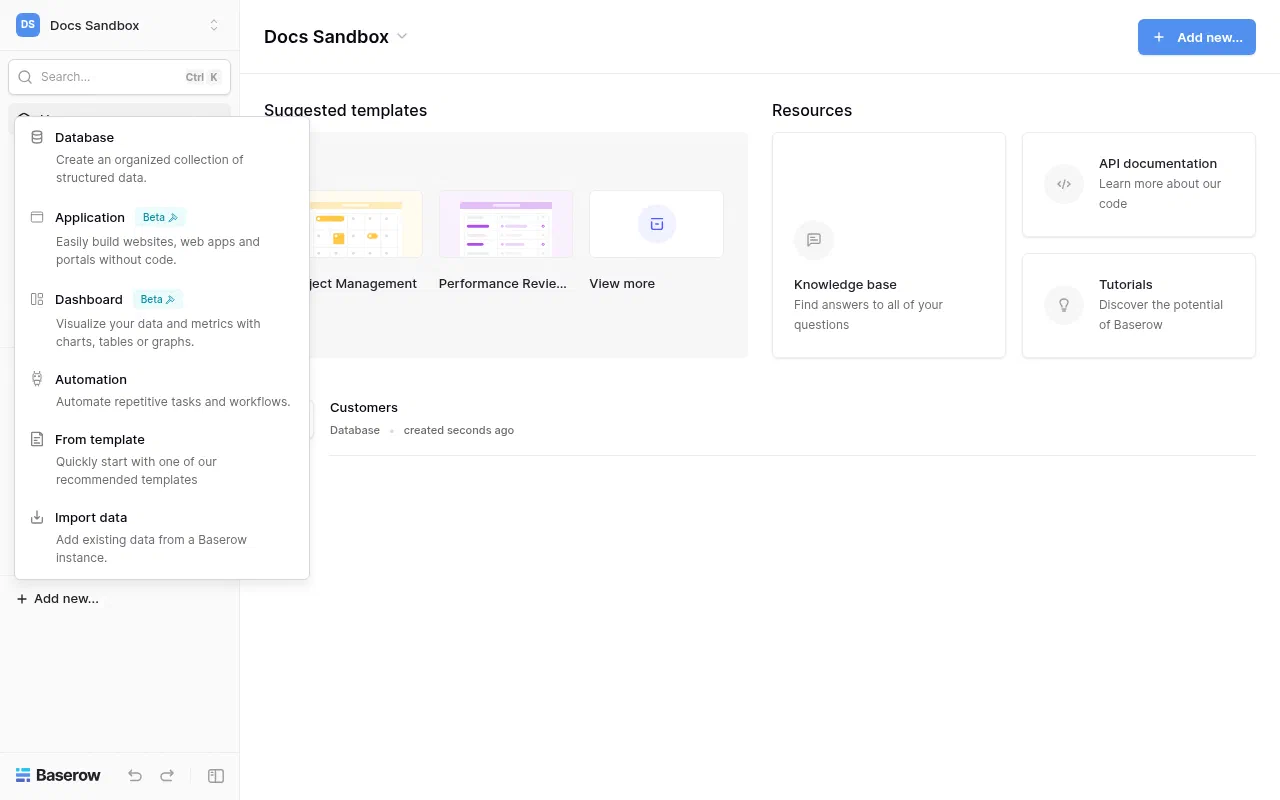
The Add new menu in a Baserow workspace. Rename the default table and add fields with the + at the end of the column headers. Pick the right field type now: it’s what makes filtering and linking work.
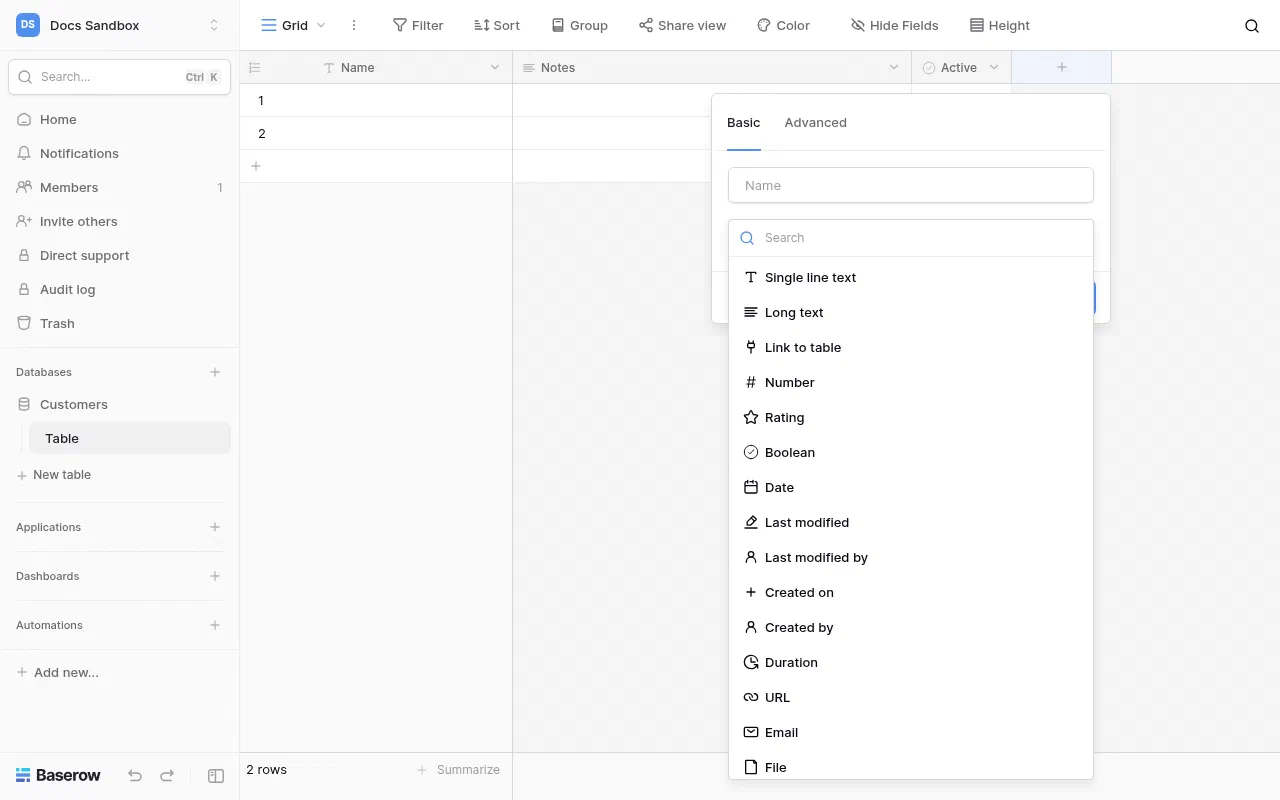
Adding a field. Choose the field type from the list. Add rows directly in the grid, paste from a spreadsheet, or import a file (see below).
Link tables together
Use a Link to table field to connect records, for example linking each Task to a Project. Then add a Lookup or Rollup field to pull values across, such as a project’s deadline onto each task, or a count of open tasks onto each project.
Use views
Every table can have many views. Create one from the view menu at the top left:
- Grid: the spreadsheet view. Add filters, sorts, and groupings, and hide fields people don’t need.
- Kanban: cards grouped by a single select field, such as status. Drag cards to change the status.
- Calendar: rows shown by a date field.
- Gallery: cards with a cover image, good for products or people.
- Form: a shareable form that creates new rows. Choose which fields appear, add descriptions, and set a thank-you message or redirect.
Views can be collaborative (everyone sees the same filters) or personal (only you).
Import data
- CSV, Excel, JSON, or XML: choose + Create table in a database and import the file. Check the field types after import and convert them where needed.
- Airtable: create a shared link to your Airtable base, then use Import from Airtable when creating a new database. Fields, views, and attachments come across.
Share and collaborate
- Invite colleagues from the workspace’s Members page and choose their role (admin, builder, editor, commenter, or viewer, depending on your edition).
- Share a view publicly with a read-only link from the view’s Share view option. You can password-protect it.
- Mention colleagues in row comments to notify them.
Administer Baserow
Instance administrators see Admin in the left sidebar, with pages for users, workspaces, health, and settings. Under Settings you can control whether new people can sign up, and whether to allow workspace creation by everyone.
Superpanel settings
- Access: choose which groups can use Baserow.
- Administrators: choose who is an instance administrator.
Baserow sends email (invitations, notifications) through your server’s mail settings, which Federated Computer configures.