
DocuSeal
Send documents for electronic signature and keep a verifiable audit trail.
- Use instead of
DocuSign,Adobe Acrobat Sign,Dropbox Sign,PandaDoc- Typical address
docuseal.example.com- Project website
- www.docuseal.com
- Official docs
- www.docuseal.com/docs
Overview
DocuSeal lets you turn a PDF or Word document into a fillable, signable form, send it to one or more people, and collect a completed, signed copy with a full audit trail. It’s used for contracts, NDAs, onboarding forms, consent forms, and approvals.
Main capabilities:
- A drag-and-drop template builder with signature, initials, date, text, number, checkbox, radio, select, image, file, stamp, and phone fields.
- Multiple signers in a set order or all at once, each with their own fields.
- Email and link delivery, with automatic reminders.
- Audit log recording each view, field entry, and signature, plus a signed PDF with a verification certificate.
- Templates you can reuse, organized into folders.
- Bulk send from a CSV or spreadsheet.
- API, webhooks, and embedding to add signing to your website or connect to n8n.
What it replaces
DocuSeal replaces e-signature services such as DocuSign, Adobe Acrobat Sign, Dropbox Sign (HelloSign), and PandaDoc’s signing features, without per-envelope or per-sender fees.
Signing in
Open your DocuSeal address and sign in with the account created for you. People you send documents to don’t need an account.
Create a template
Choose Create (or Upload) and upload a PDF, Word document, or image. You can add several documents to one template.
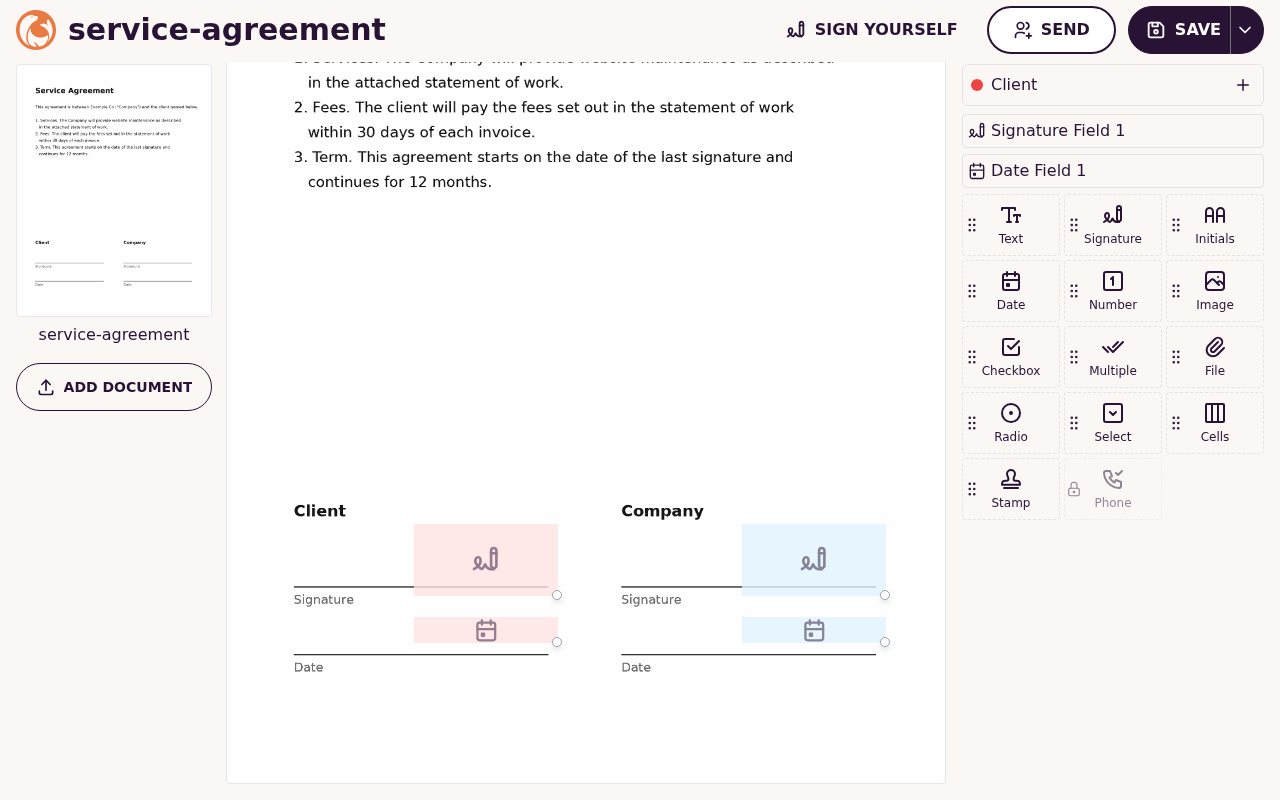
In the builder, pick a field type from the right-hand panel and draw it on the page.
Assign each field to a party, for example First party (your customer) and Second party (you). Rename parties to make them clearer, such as “Client” and “Company”.
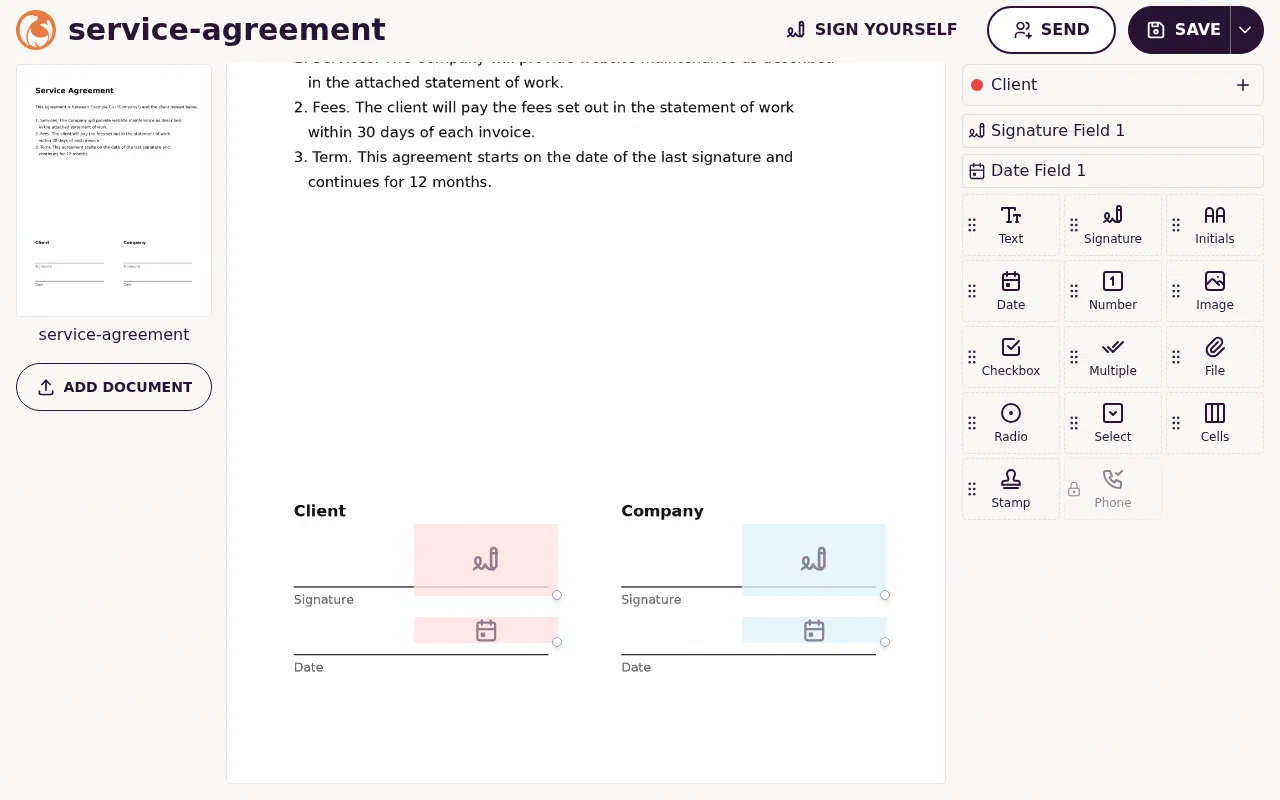
Signature and date fields for two parties, renamed Client and Company. The field types are on the right. Open a field’s settings to make it required, set a default value, or add a description.
Save. The template is ready to send.
Send for signature
Open the template and choose Send (or Add recipients).
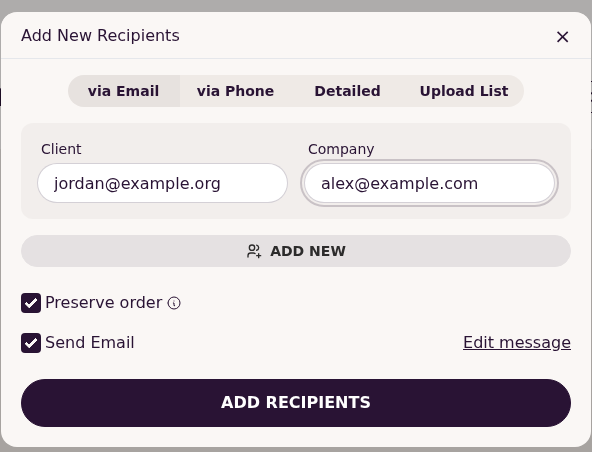
Enter each party’s name and email address. Turn on Preserve order if signers must go one after another.
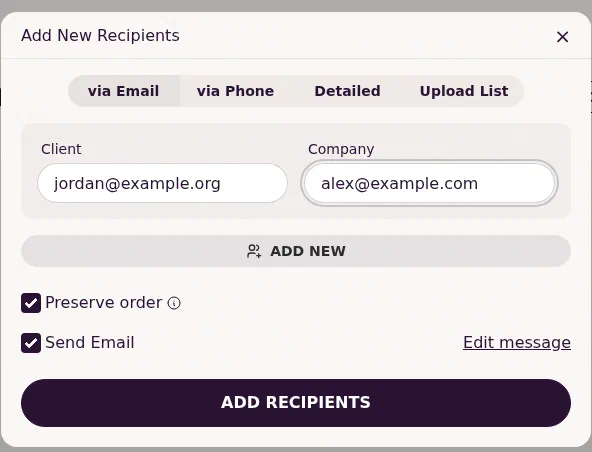
The Add New Recipients dialog. Edit the email message if needed, then send. Alternatively, copy the signing link and send it yourself.
Track progress on the template’s page: each submission shows who has opened, completed, or is still pending.
To sign yourself as one of the parties, choose Sign it yourself or open your own signing link.
Download completed documents
When everyone has signed, all parties receive an email with the completed PDF. In DocuSeal, open the submission to download the signed document and the audit log. Keep both: the audit log is your evidence of who signed and when.
Administer DocuSeal
Open Settings to manage:
- Account: company name, time zone, and language.
- Personalization: your logo, email templates, and the message shown after signing.
- Users: invite colleagues who can create and send templates.
- Email: the outgoing mail settings. On Federated Core these are normally set up for you.
- API and Webhooks: tokens and callback URLs for integrations.
Superpanel settings
- Access: choose which groups are given the DocuSeal address and account.