
Element
Secure team chat, rooms, and calls, built on the open Matrix network.
- Use instead of
Slack,Microsoft Teams chat,Discord,WhatsApp groups- Typical address
element.example.com- Project website
- element.io
- Official docs
- element.io/help
Overview
Element is a chat app for teams. It connects to a Matrix homeserver running on your Federated Core server, so your messages are stored on your infrastructure. Matrix is an open standard: like email, people on your server can talk to people on other Matrix servers.
Main capabilities:
- Rooms for teams and topics, and direct messages for one-to-one or small group chats.
- Spaces to group rooms, like Slack workspaces or Teams teams.
- Threads, replies, reactions, mentions, message editing, and file sharing.
- End-to-end encryption by default for direct messages and private rooms.
- Voice and video calls in direct messages and rooms.
- Desktop and mobile apps for Windows, macOS, Linux, iOS, and Android.
- Federation with other organizations on Matrix, and bridges to other chat networks where configured.
What it replaces
Element replaces Slack, Microsoft Teams chat, and Discord for internal communication, and WhatsApp or Signal groups for working with partners, while keeping message history on your own server.
Signing in
Web: open your Element address and choose Sign in. Use your organization account; you may be sent to the Authelia portal.
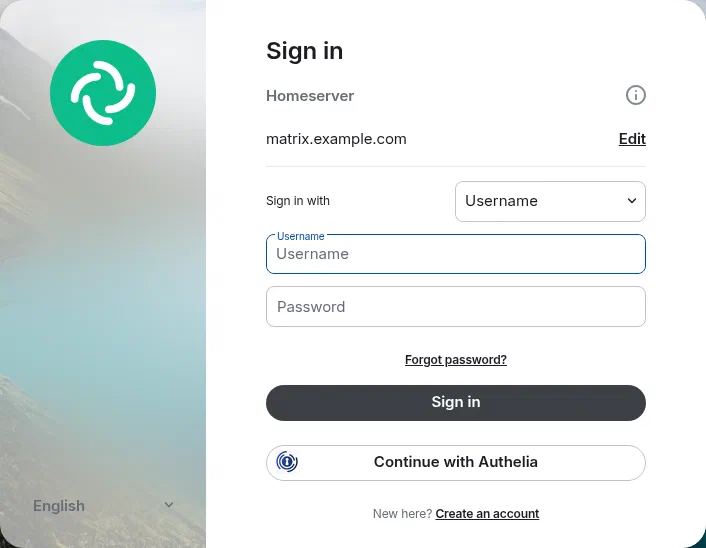
Element’s sign-in page. Choose Continue with Authelia to use your organization account. Apps: install Element (or Element X on mobile) from element.io/download. On the sign-in screen, choose Edit next to the server name and enter your homeserver, for example
example.comormatrix.example.com, as shown in Superpanel.
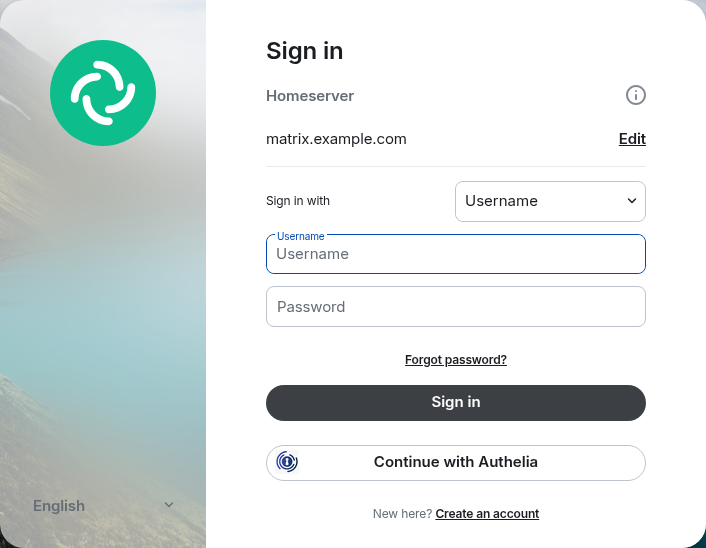
Your Matrix ID looks like @yourname:example.com. Share it with people on other servers so they can message you.
Set up encryption on your first sign-in
Because messages are end-to-end encrypted, each device needs the keys to read them. Element walks you through this the first time:
Set up recovery (also called Secure Backup). Element creates a recovery key. Save it in Vaultwarden or another safe place.
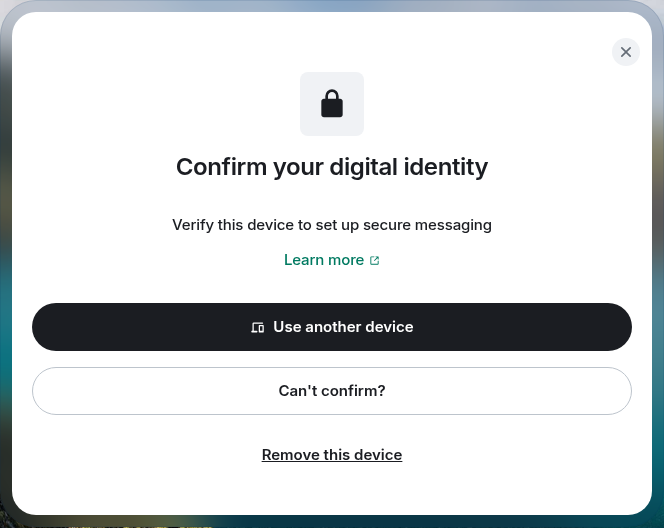
When you sign in on another device, verify it from a device you’re already signed in on, by comparing emoji or scanning a QR code, or enter your recovery key.
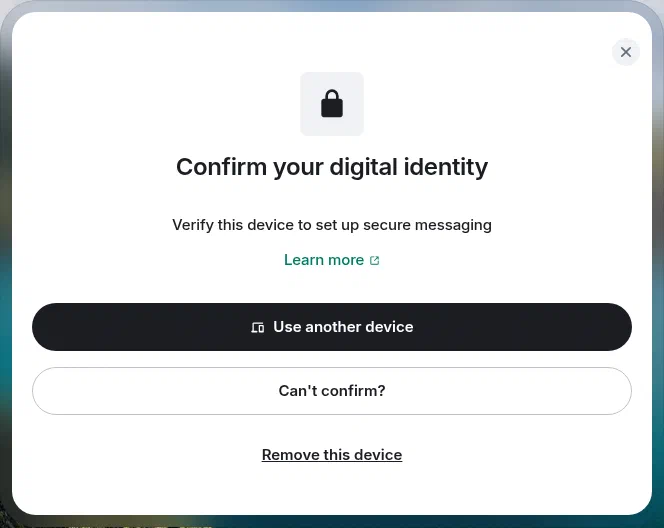
What a new device shows until you verify it.
Everyday use
Join and create rooms
- Select + next to Rooms (or in a space) to create a room or explore public rooms on your server.
- Choose private (invite only, encrypted) or public (anyone on the server can find and join).
- Invite colleagues by name or Matrix ID from the room’s Invite button.
Organize with spaces
Create a space for each department or project and add rooms to it. People who join a space can see and join its rooms. Spaces can contain other spaces.
Threads, mentions, and notifications
- Hover over a message and choose Reply in thread to keep side conversations tidy.
- Type
@to mention someone. Use@roomto notify everyone in a room (use sparingly). - Adjust notifications per room from the bell icon: all messages, mentions and keywords, or off.
Calls
Start a voice or video call from the phone or camera icon in a direct message or room. Group calls in rooms may use Jitsi or Element Call, depending on how your server is set up.
Talk to other organizations
Because Matrix is federated, you can start a direct message with someone on another Matrix server by entering their full Matrix ID, such as @alex:partner.org. Rooms can include people from several servers. Your administrator can restrict federation if your organization requires it.
Administer rooms
Room admins can open Room settings to change the name, topic, and avatar; set who can join and who can see history; and change members’ power levels (moderator, admin). To remove someone, use Remove or Ban from their profile in the member list.
Superpanel settings
- Access: choose which groups can sign in to the Matrix homeserver.
- Federation: where offered, choose whether your server can talk to other Matrix servers.
- Registration: accounts come from your directory, so self-registration is normally off.