
FreeScout
A shared help desk inbox so your team can answer customer email together.
- Use instead of
Zendesk,Help Scout,Freshdesk,Front- Typical address
freescout.example.com- Project website
- freescout.net
- Official docs
- github.com/freescout-help-desk/freescout/wiki
Overview
FreeScout turns a support address like support@example.com into a shared inbox. Every incoming email becomes a conversation that can be assigned, discussed internally, and tracked until it’s resolved, so nothing falls through the cracks and customers get one consistent reply.
Main capabilities:
- Mailboxes connected to your support addresses.
- Assignment, statuses (Active, Pending, Closed, Spam), and follow to stay informed.
- Internal notes visible only to your team, with @mentions.
- Saved replies for common answers.
- Collision detection so two people don’t answer the same email.
- Customer profiles with conversation history.
- Auto-replies, signatures per mailbox, and notification settings per person.
- Modules (some free, some paid) for knowledge bases, satisfaction ratings, live chat, reports, and more.
What it replaces
FreeScout replaces email-based help desks such as Help Scout, Zendesk, Freshdesk, and Front for teams that support customers mainly over email.
Signing in
Open your FreeScout address and sign in with the account your administrator created. FreeScout keeps its own user list; ask an administrator to add you to the right mailboxes.
Handle conversations
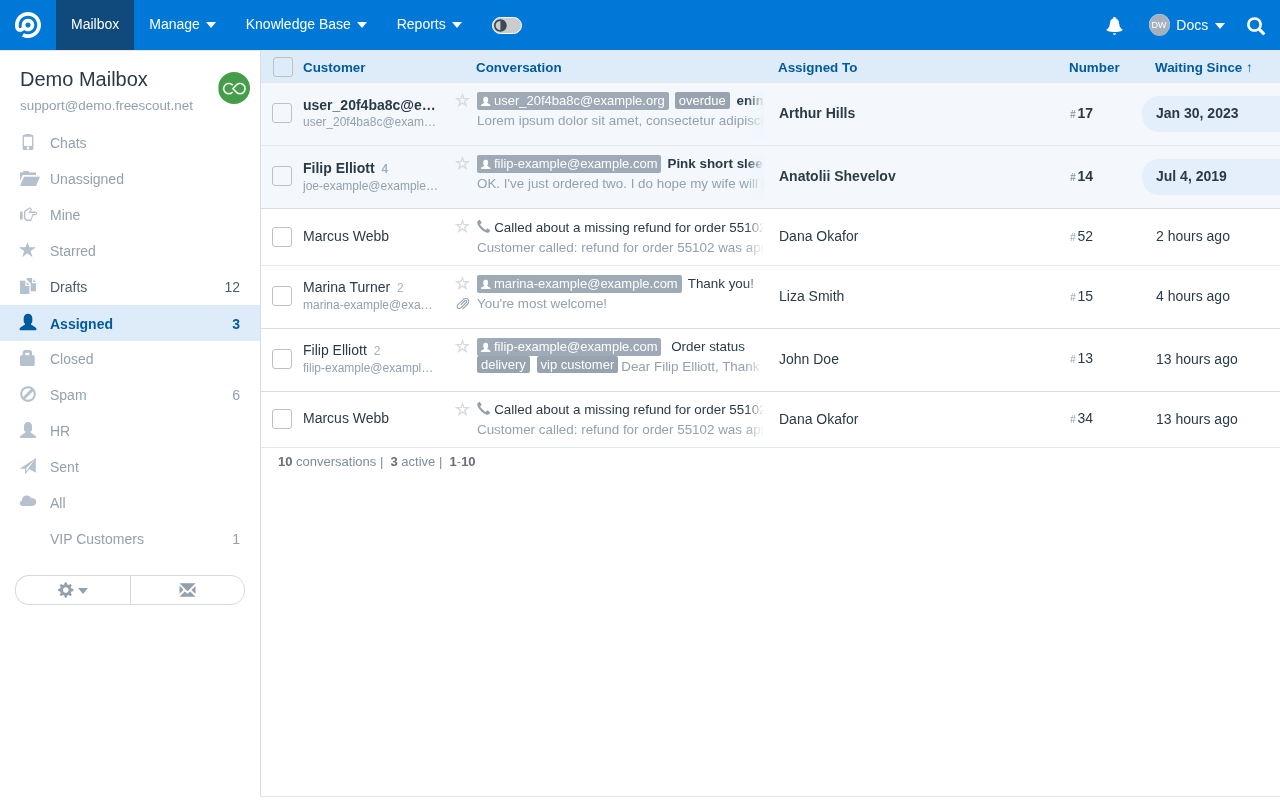
Open a mailbox from the top menu. Folders on the left show Unassigned, Mine, Assigned, Closed, and Spam.
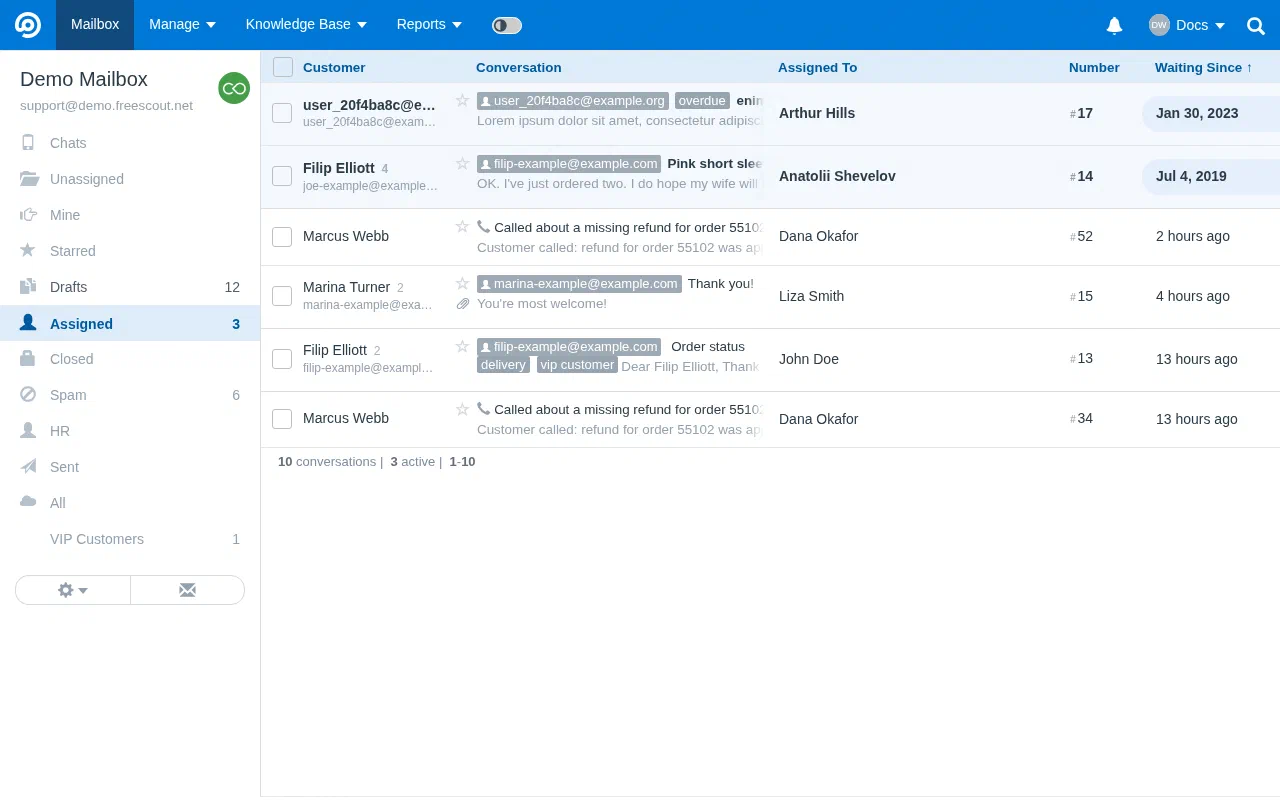
A mailbox, with folders on the left and conversations on the right. Shown on the public demo. Your server may look slightly different. Open a conversation and assign it to yourself (or a colleague) from the toolbar.
Choose Reply to answer the customer, or Note to leave an internal comment.
Set the status when you send:
- Active while you’re working on it.
- Pending when you’re waiting for the customer. It returns to Active when they reply.
- Closed when it’s resolved.
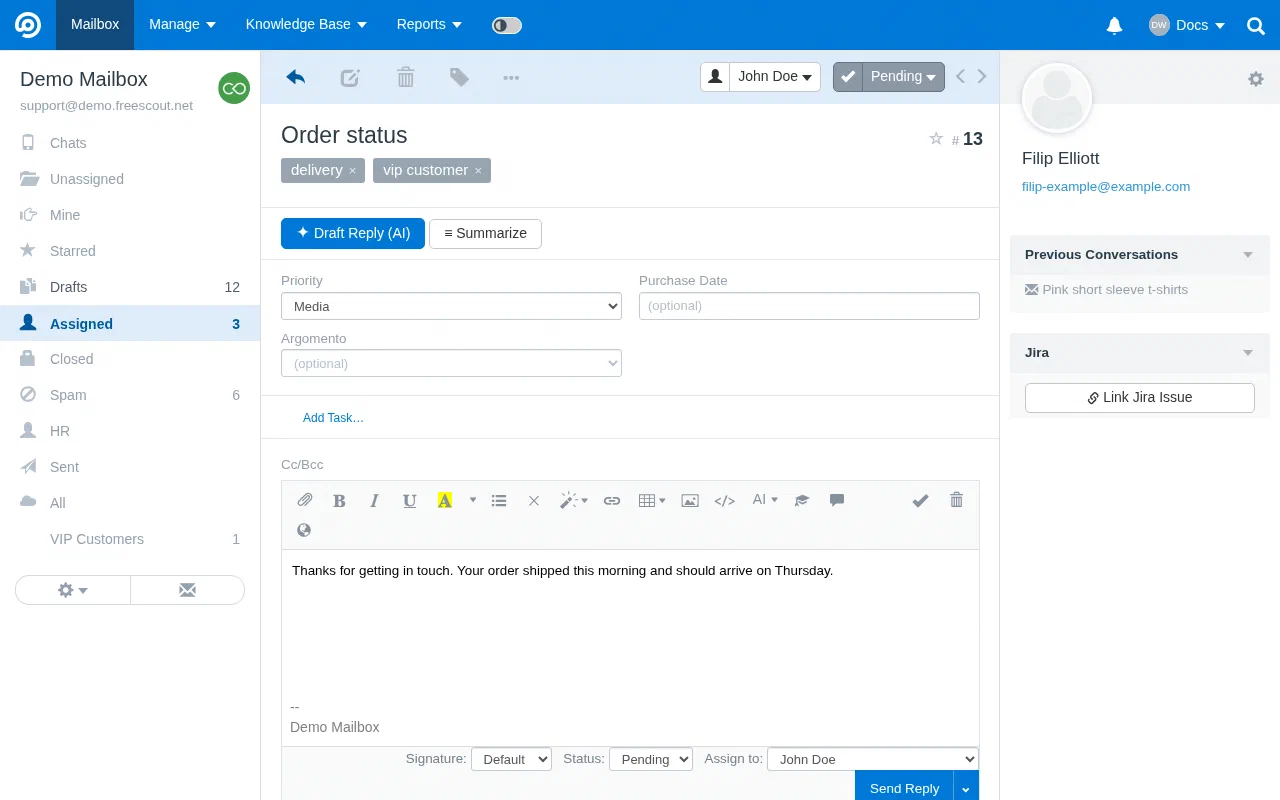
Replying to a customer. The Status and Assign to menus sit under the editor. Shown on the public demo. Your server may look slightly different.
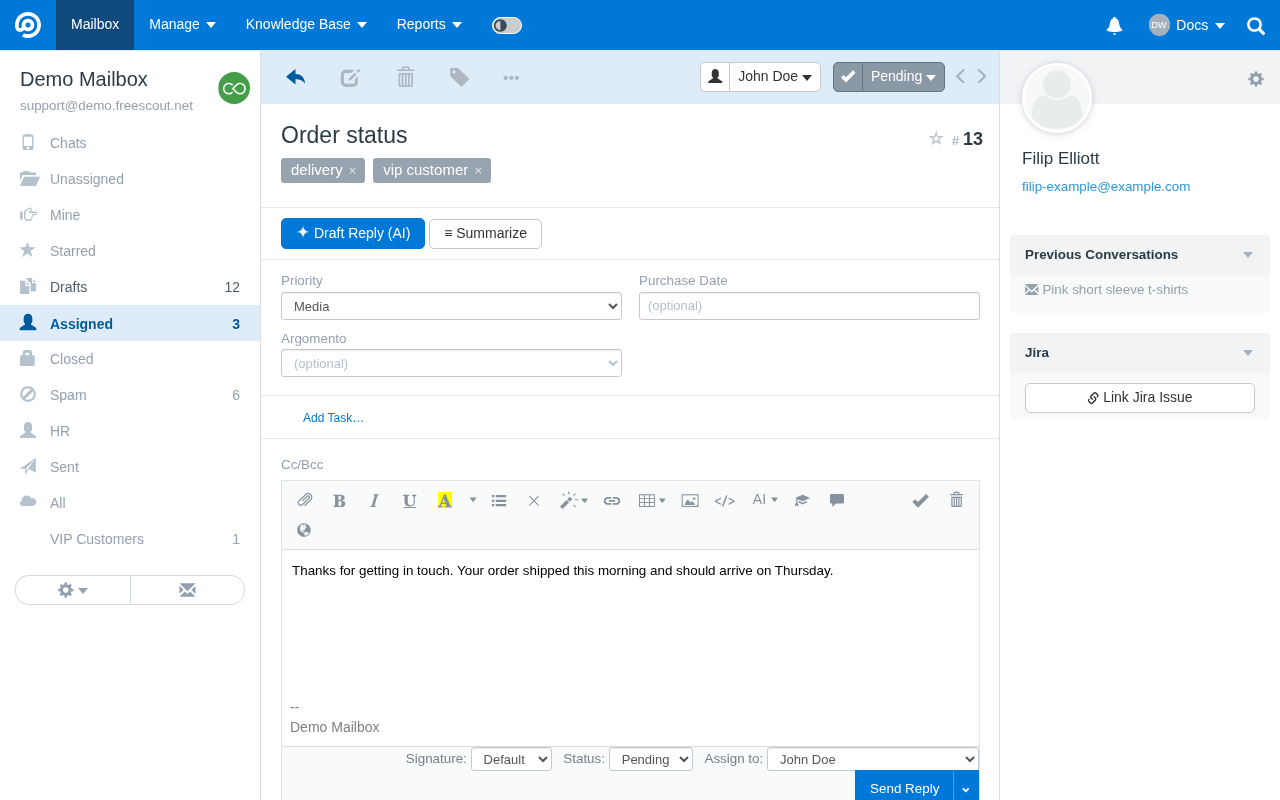
Use Saved replies (the speech-bubble icon in the editor) for answers you send often, and Merge if a customer starts several conversations about the same thing.
Notifications
Under your avatar, Your profile, Notifications, choose which events email you or show in the browser: new conversations, replies to your conversations, mentions, and more.
Set up a mailbox (administrators)
Go to Manage, Mailboxes, New mailbox. Enter the name and support email address.
Open Connection settings:
- Sending emails: choose SMTP and enter your outgoing mail server details.
- Fetching emails: enter the IMAP details for the mailbox so FreeScout can collect new messages.
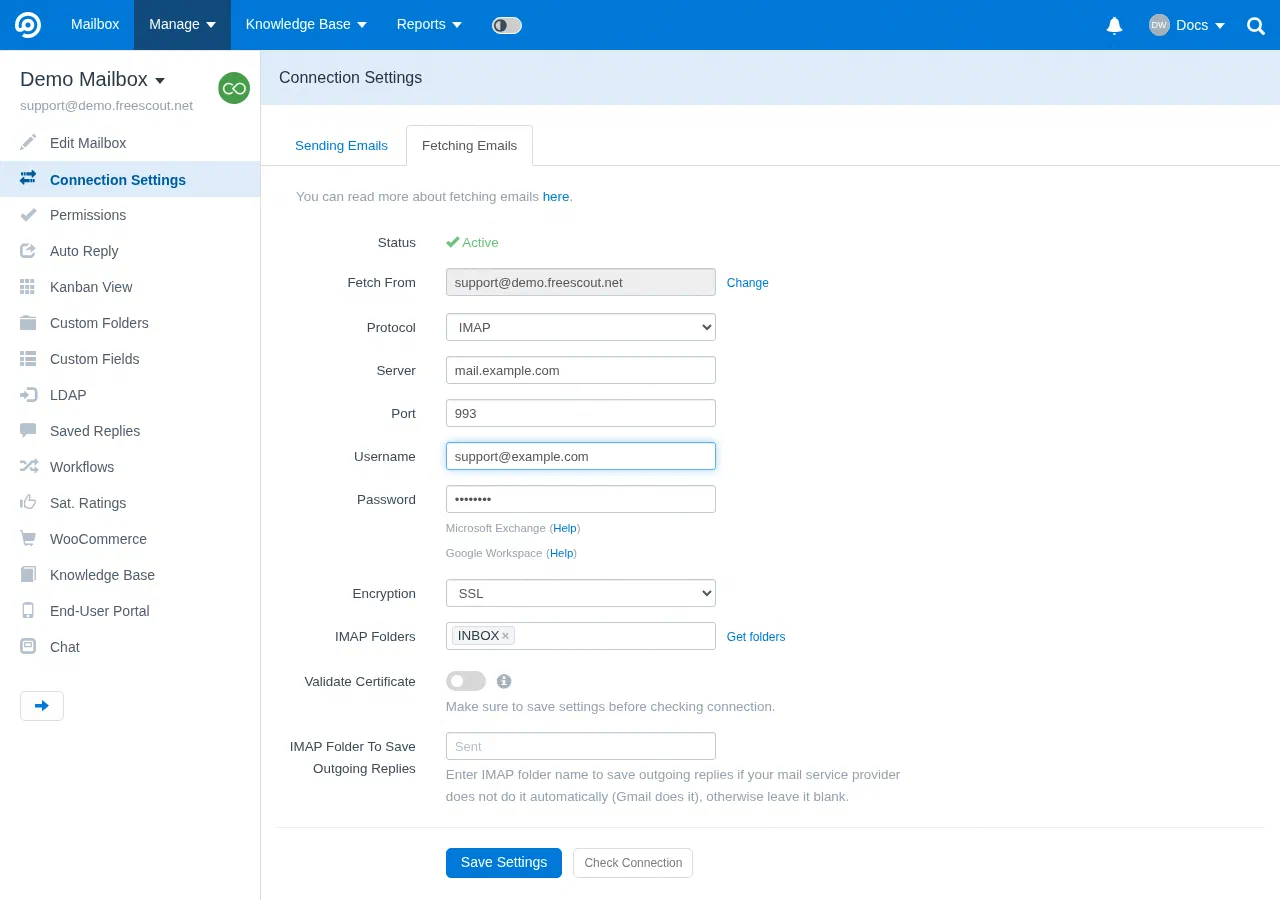
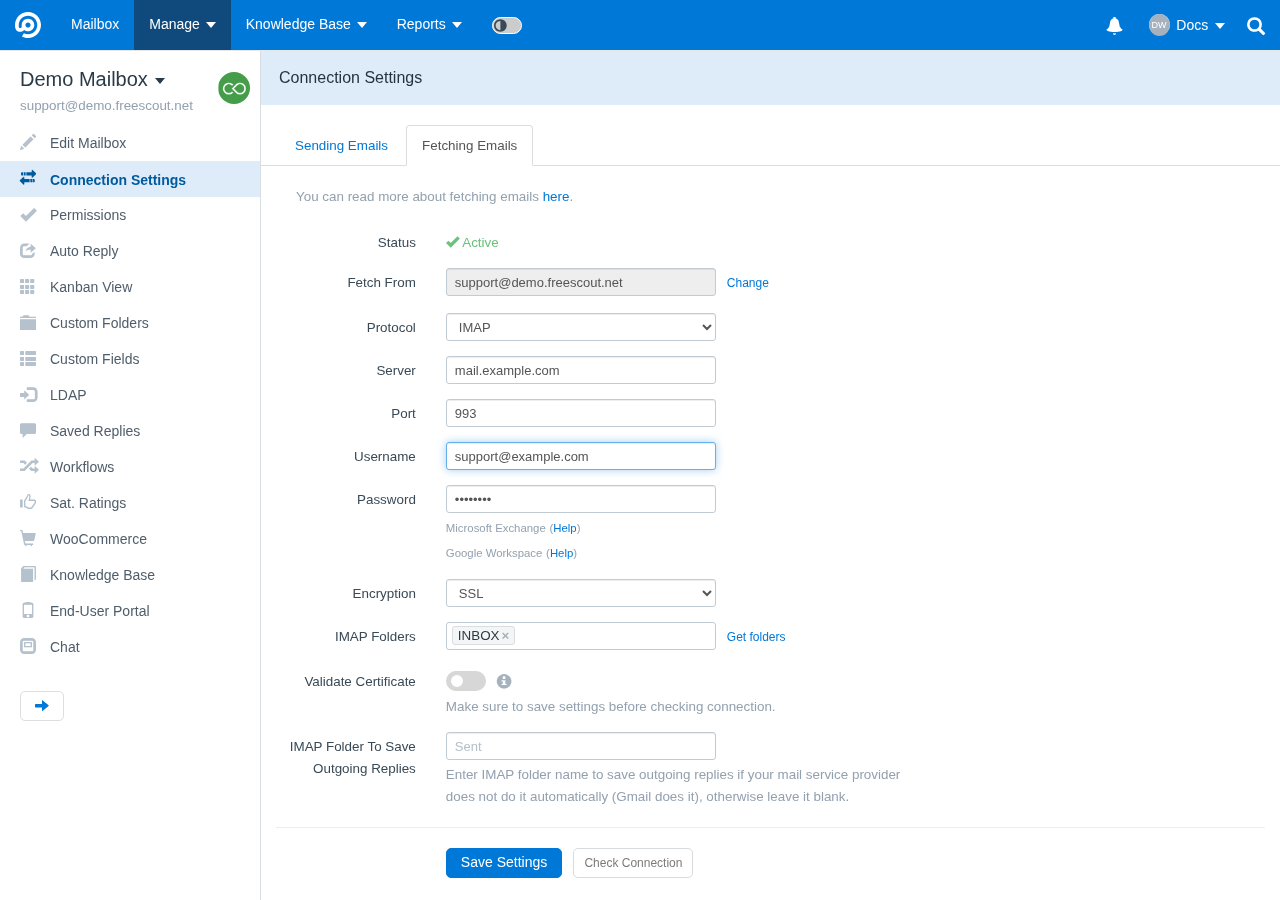
Connection settings, Fetching emails: the IMAP server, port, username, and password for the mailbox. Shown on the public demo. Your server may look slightly different. Under Permissions, choose which users can access the mailbox.
Set the mailbox signature and an auto reply acknowledging new requests.
If your support address is hosted on Federated Core’s mail server, get the IMAP and SMTP details from Superpanel. Create a dedicated mailbox for FreeScout rather than using a person’s own mailbox.
Administer FreeScout
Open Manage:
- Users: invite agents and set their role (User or Administrator).
- Settings: company name, logo, time format, and mail settings for system notifications.
- Modules: install and activate modules. Paid modules require a licence key from FreeScout.
Superpanel settings
- Access: choose which groups are given the FreeScout address.
- Mailboxes: create the shared support mailbox in Superpanel, then connect it in FreeScout.
Fetching email depends on a scheduled task that Federated Computer runs. If new emails stop appearing, check Manage, System, Status, then contact support.