
Gitea
Git hosting with issues, pull requests, wikis, packages, and CI.
- Use instead of
GitHub,GitLab.com,Bitbucket- Typical address
gitea.example.com- Project website
- about.gitea.com
- Official docs
- docs.gitea.com
Overview
Gitea is a lightweight, self-hosted Git service. If you’ve used GitHub, you’ll feel at home: repositories, issues, pull requests, and organizations all work the same way.
Main capabilities:
- Repositories with a web code browser, branches, tags, and releases.
- Issues with labels, milestones, assignees, and project boards.
- Pull requests with code review, required approvals, and branch protection.
- Organizations and teams with fine-grained permissions.
- Wikis per repository.
- Gitea Actions: CI/CD compatible with most GitHub Actions workflows (needs a runner).
- Package registry for container images, npm, PyPI, Maven, and more.
- Mirrors and migrations from GitHub, GitLab, Bitbucket, and others.
- Webhooks and an API compatible with many GitHub tools.
What it replaces
Gitea replaces GitHub, GitLab.com, and Bitbucket for private and internal code hosting.
Signing in
Open your Gitea address and sign in with your organization account (you may see a Sign in with button for single sign-on).
Connect Git on your computer
Over HTTPS (recommended)
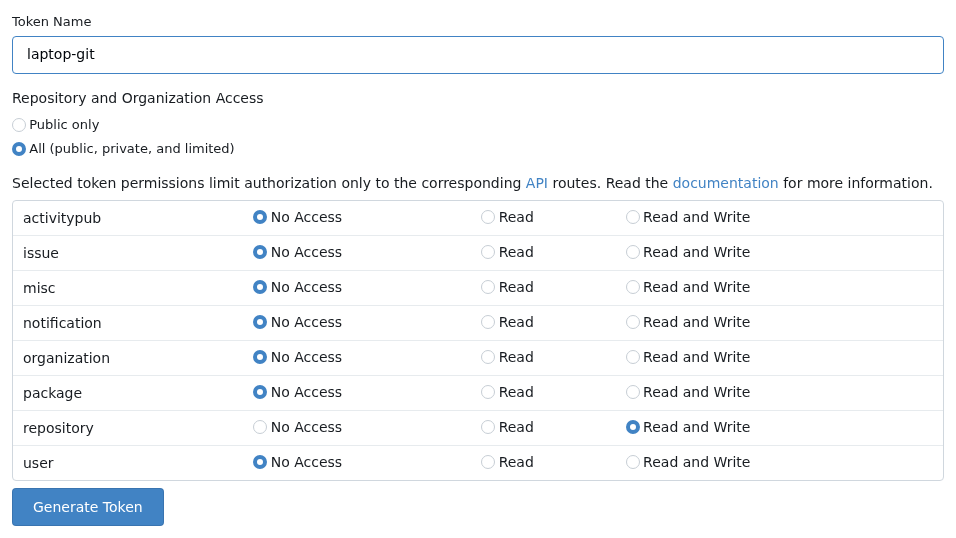
In Gitea, go to your avatar, Settings, Applications, and Generate new token. Give it the scopes you need (for example
repository: read and write).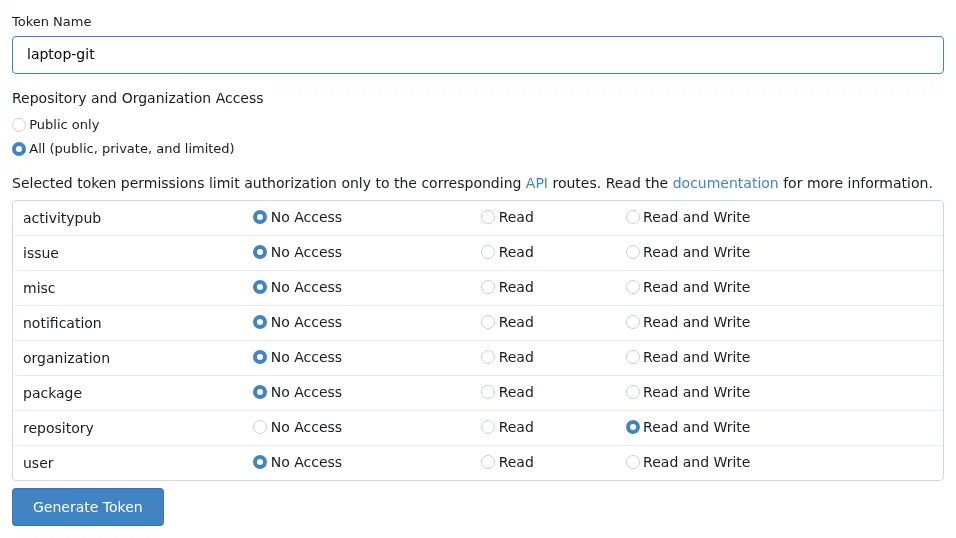
A new token with Read and Write access to repositories. Clone with the HTTPS URL from the repository page:
git clone https://gitea.example.com/your-org/your-repo.gitWhen prompted, enter your Gitea username and use the token as your password. Use a credential manager to remember it.
Over SSH
Add your public key under Settings, SSH / GPG Keys, then use the SSH clone URL. SSH access depends on your server’s network setup; if the SSH URL doesn’t connect, use HTTPS.
Create a repository
Choose +, New Repository.
Pick the owner (you or an organization), name, and visibility. Private repositories are only visible to people you grant access.
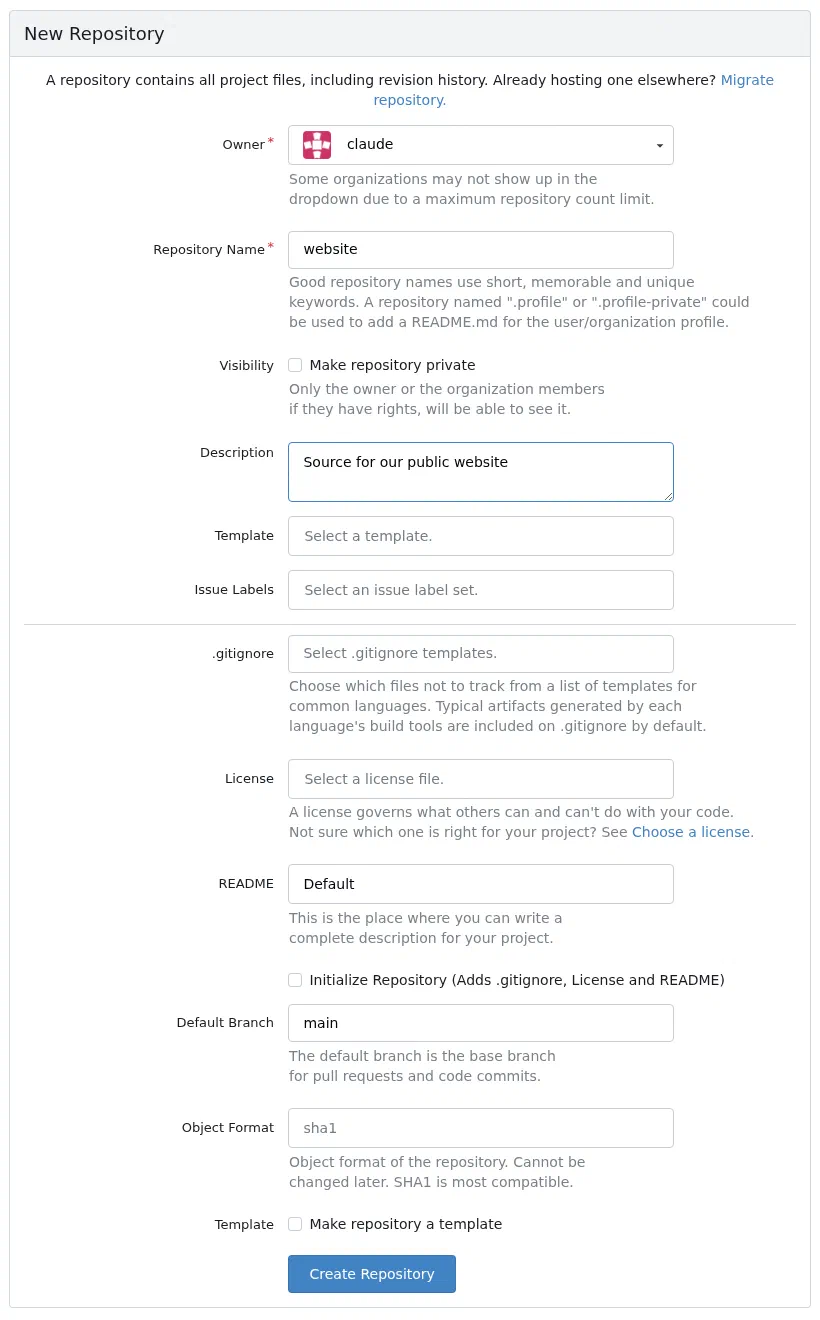
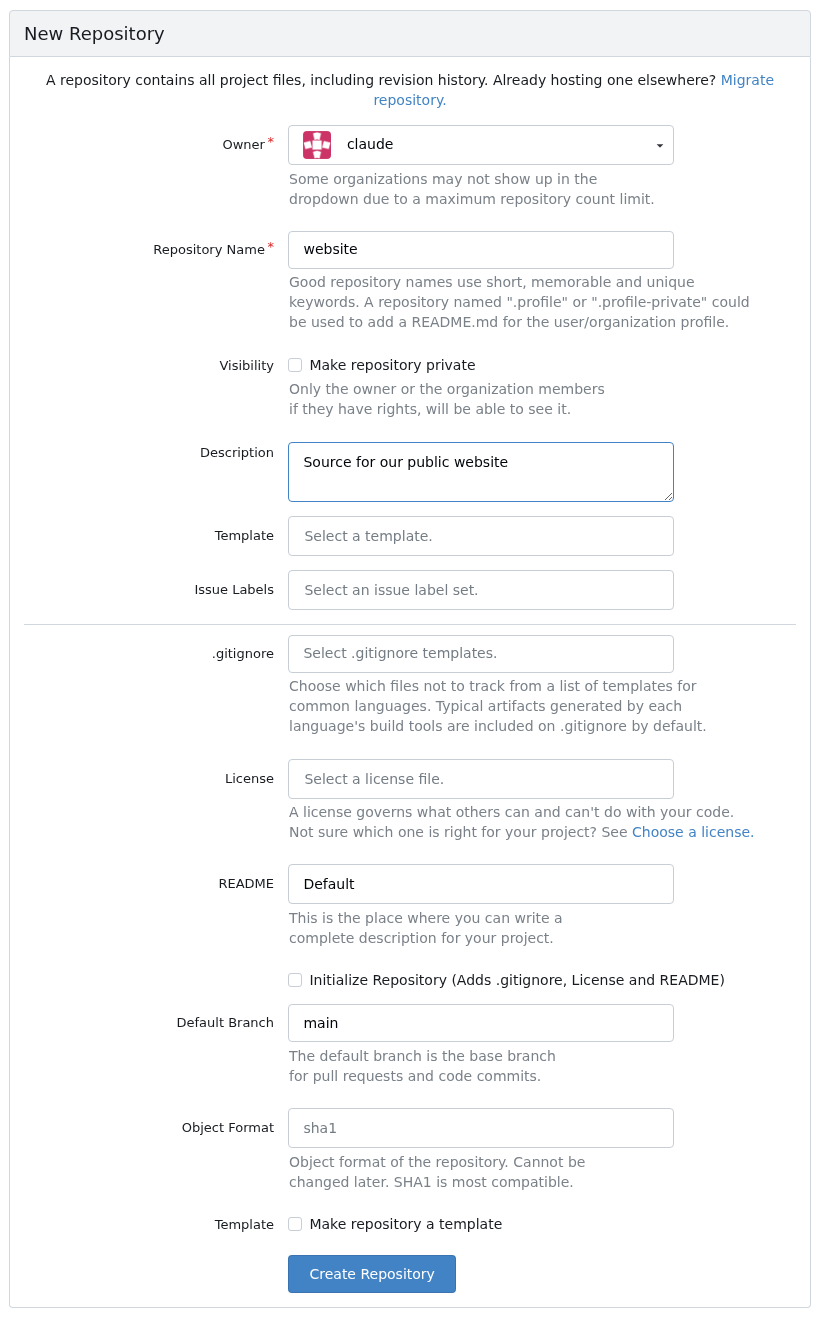
The New Repository form. Optionally initialize with a README,
.gitignore, and licence.
Move a repository from GitHub or GitLab
Choose +, New Migration and select the source service.
Paste the repository URL and an access token from the source service.
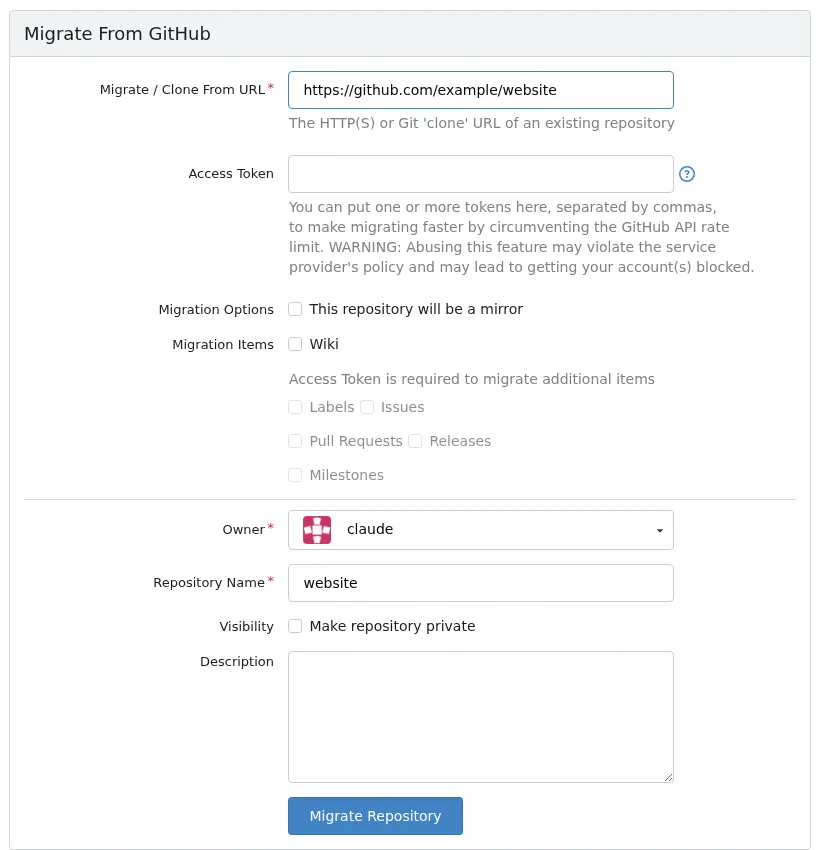
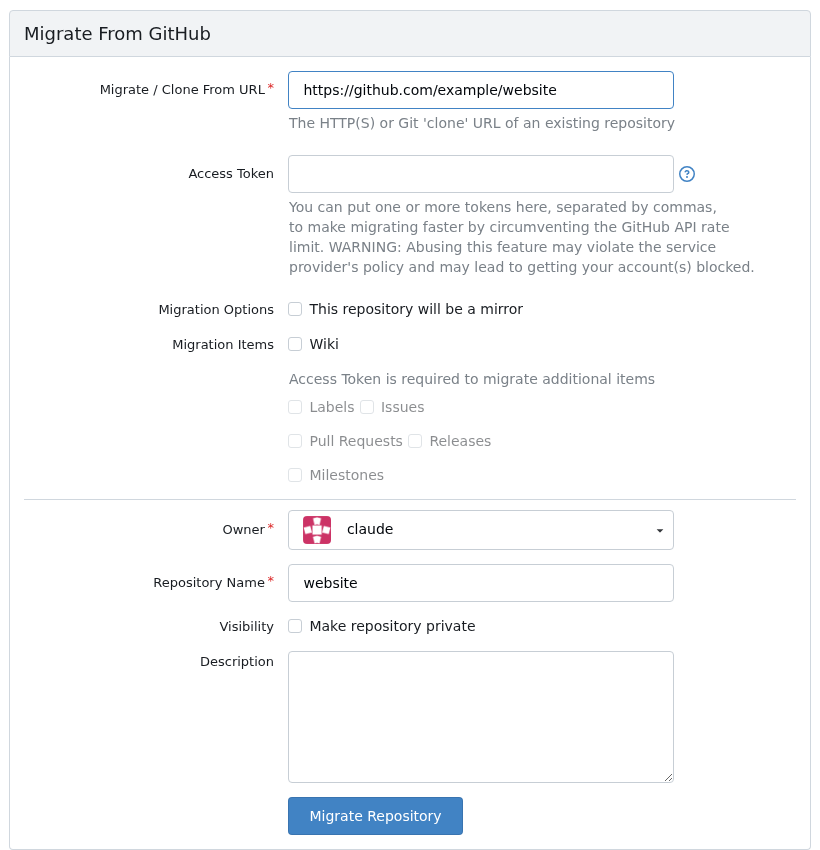
Migrating from GitHub. Issues, pull requests, and the other items need an access token. Choose what to bring across: issues, pull requests, labels, milestones, releases, and wiki.
Optionally tick This repository will be a mirror to keep pulling changes on a schedule.
Work with pull requests
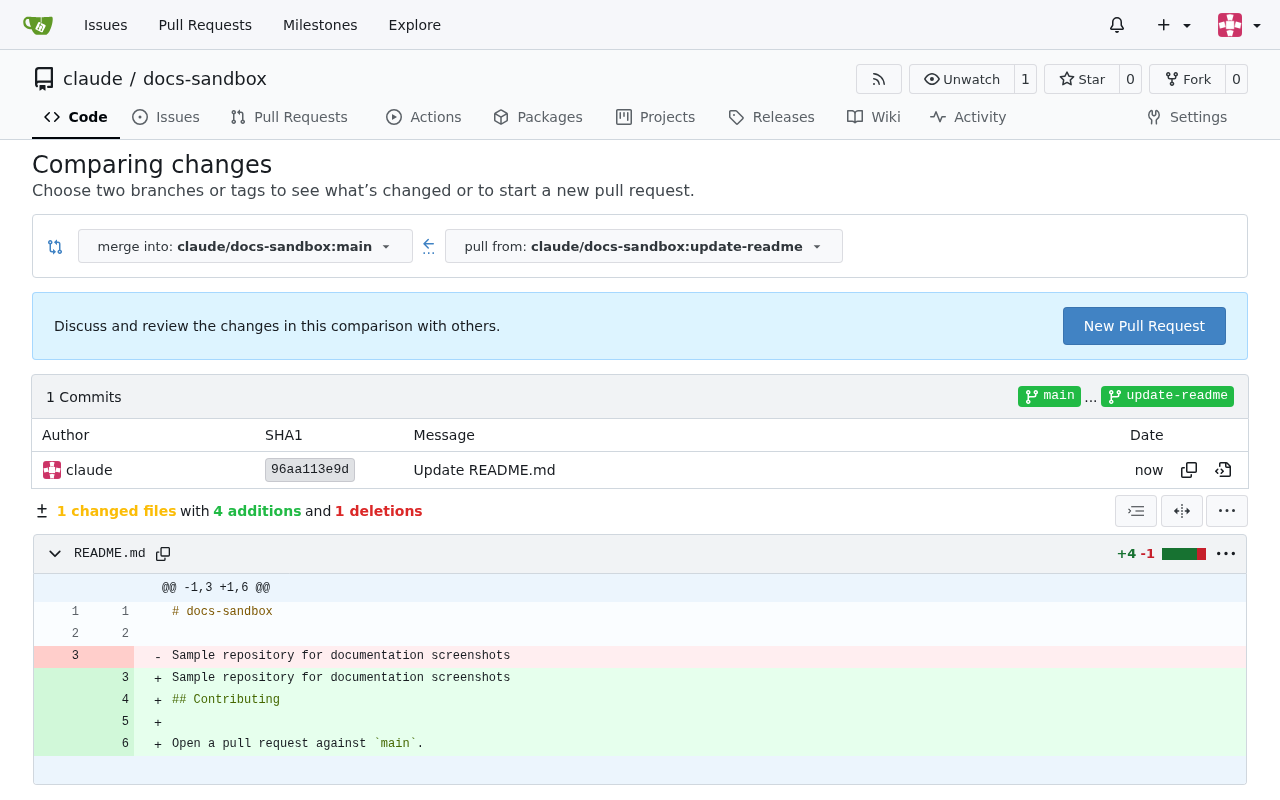
Push a branch, then choose New Pull Request and pick the base and compare branches.
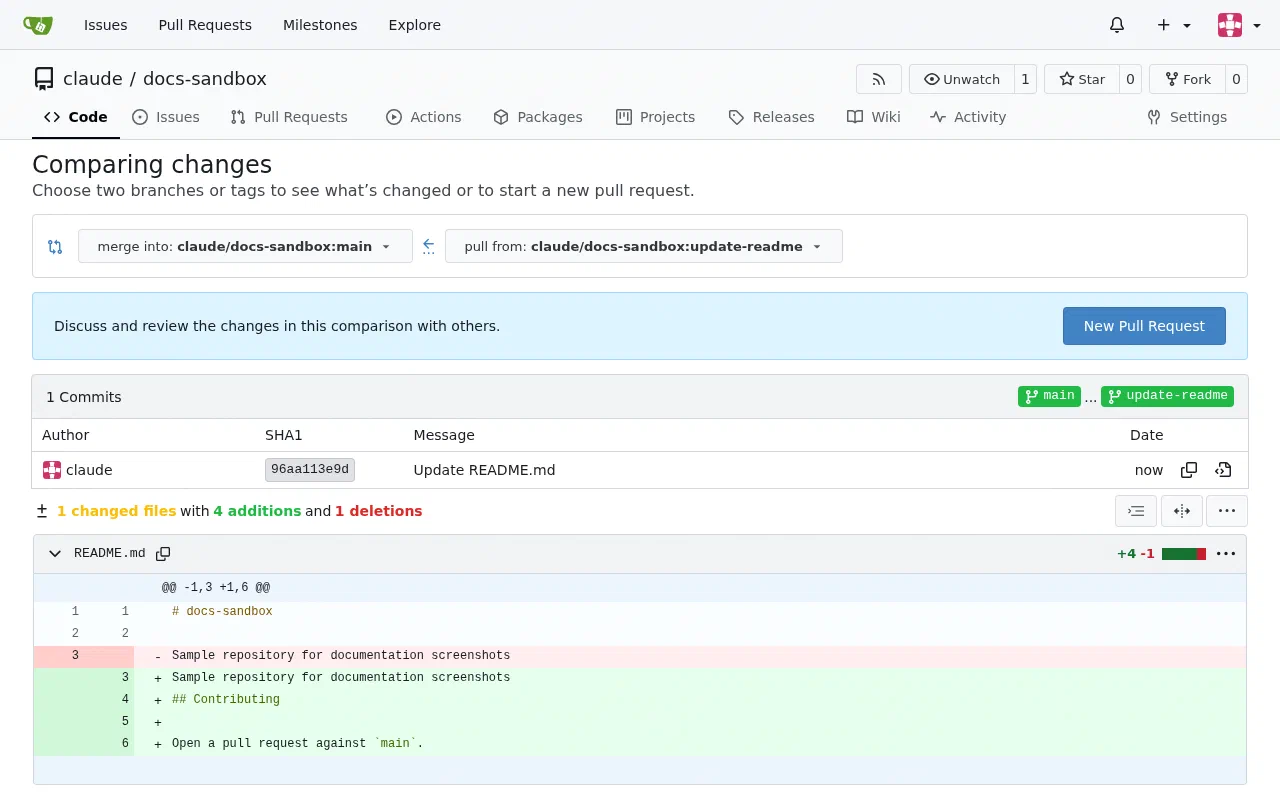
Pick the branch to merge into and the branch to pull from, then choose New Pull Request. Reviewers comment on lines, approve, or request changes.
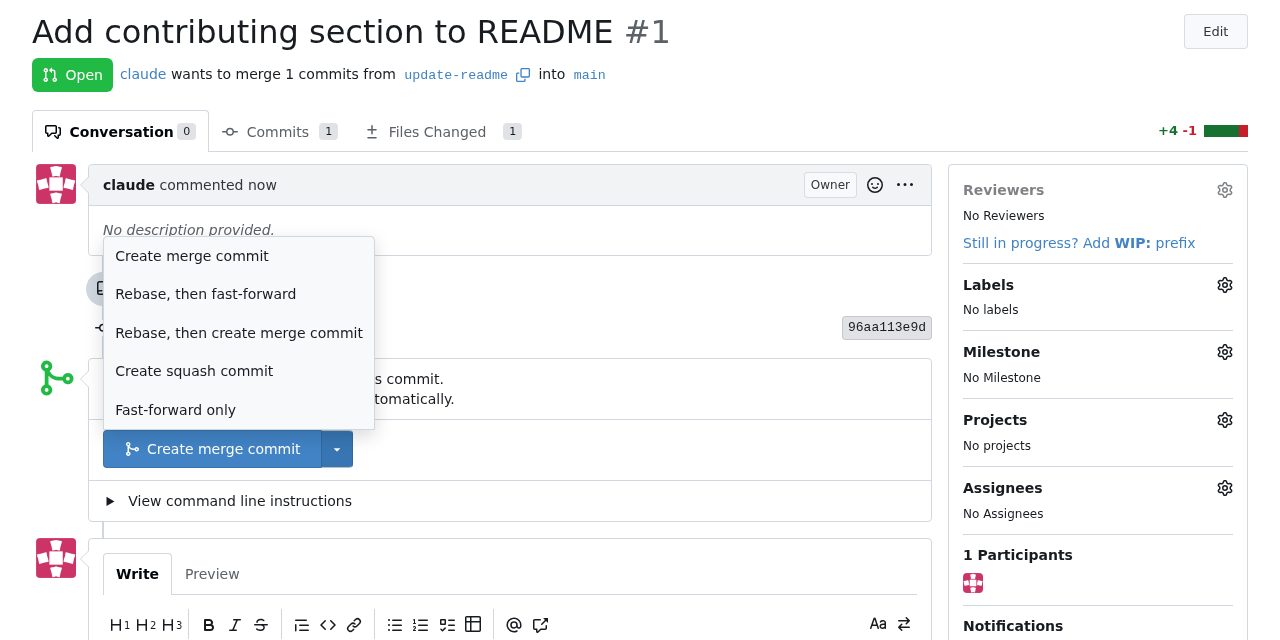
Merge with a merge commit, rebase, or squash, as allowed by the repository settings.
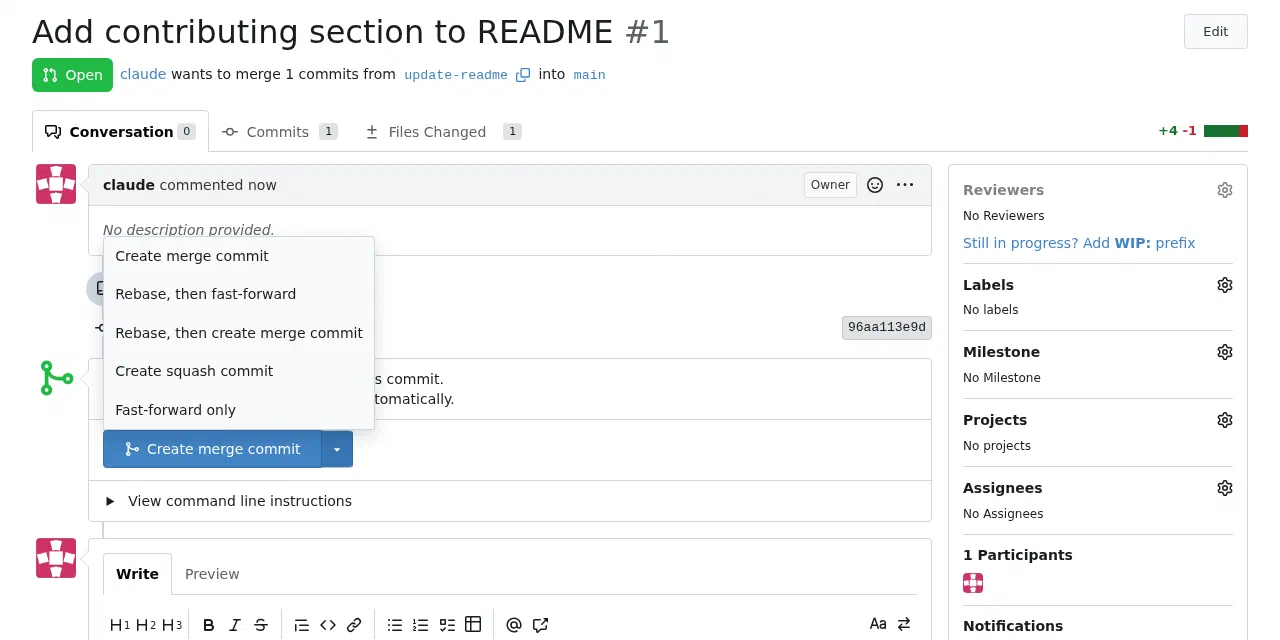
The merge styles allowed by the repository.
Protect important branches under Repository settings, Branches: require pull requests, approvals, and passing status checks.
Organizations and teams
Create an organization for your company or group, then create teams (for example Developers, Reviewers) and give each team access to specific repositories with read, write, or admin rights.
CI with Gitea Actions
Add workflow files under .gitea/workflows/ (or .github/workflows/) using GitHub Actions syntax. Actions need at least one runner registered with your server. Ask Federated Computer whether a runner is available on your installation, or register your own runner on a machine you control using a token from Site Administration, Actions, Runners.
Administer Gitea
Site administrators open Site Administration from the avatar menu to manage users, organizations, repositories, authentication sources, and Actions runners.
Superpanel settings
- Access: choose which groups can sign in to Gitea.
- Administrators: choose who gets site administrator rights.