
Jitsi
Video meetings in the browser, with no downloads or accounts needed for guests.
- Use instead of
Zoom,Google Meet,Microsoft Teams meetings,Webex- Typical address
jitsi.example.com- Project website
- jitsi.org
- Official docs
- jitsi.github.io/handbook/docs/category/user-guide
Overview
Jitsi Meet is a video conferencing app that runs in the browser. You start a meeting by giving it a name, and anyone with the link can join from a browser or the Jitsi Meet mobile app. Guests don’t need an account.
Main capabilities:
- HD video and audio, screen sharing, and tile or speaker views.
- Chat, raise hand, reactions, and polls.
- Lobby (waiting room) and meeting passwords.
- Moderator controls to mute participants, ask them to turn on video, or remove them.
- Breakout rooms.
- Background blur and virtual backgrounds.
- Calendar integration through a meeting link you can paste anywhere.
What it replaces
Jitsi replaces Zoom, Google Meet, Microsoft Teams meetings, and Webex for most day-to-day calls, with no per-host licences or time limits.
Start a meeting
Open your Jitsi address.
Type a meeting name, such as
weekly-ops-review, and choose Start meeting. Use names that are hard to guess for private meetings.
The Jitsi start page. If your server requires it, sign in with your organization account to create the meeting. Guests can still join without signing in once you’re there.
Allow your browser to use your camera and microphone.
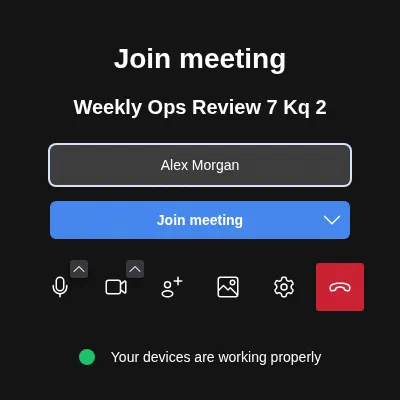
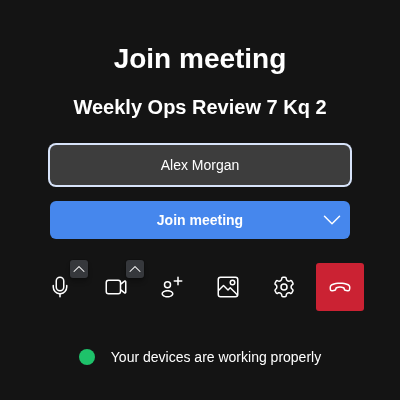
Before you join: enter your name and check your microphone and camera. Share the link from the Invite people button, or copy the address from your browser.

Add the meeting link to a calendar invite in Nextcloud or a booking type in Cal.com so people can join with one click.
During a meeting
| Want to | Do this |
|---|---|
| Mute or unmute | Microphone button, or press M |
| Turn the camera on or off | Camera button, or press V |
| Share your screen | Screen share button, or press D |
| Raise your hand | Hand button, or press R |
| Open chat | Chat button, or press C |
| Switch tile view | Tile button, or press W |
| Blur your background | … menu, then Select background |
Use headphones to avoid echo, and a Chromium-based browser (Chrome, Edge, Brave) for the best performance.
Secure a meeting
As the moderator (usually the person who started the meeting):
- Open Security options (the shield) to enable the lobby. You’ll be asked to admit each person.
- Set a meeting password in the same panel and share it separately from the link.
- From a participant’s tile menu, mute, kick, or grant moderator rights.
- Choose Mute everyone from the participants panel for large meetings.
Breakout rooms
From the participants panel, choose Add breakout room, then drag or assign people. Participants can also move between rooms themselves. Close the rooms to bring everyone back to the main meeting.
Join from a phone
Install Jitsi Meet from the App Store or Google Play. In the app’s Settings, set Server URL to your Jitsi address so meetings open on your server rather than the public meet.jit.si service.
Superpanel settings
- Access: choose whether creating meetings requires signing in. Requiring sign-in stops strangers from using your server for their own meetings; guests can still join meetings you start.
Recording and live streaming need an extra component (Jibri) that isn’t part of every installation. Ask Federated Computer if you need them.