
Kimai
Time tracking for projects and clients, with timesheets, reports, and invoices.
- Use instead of
Toggl Track,Harvest,Clockify,Timely- Typical address
kimai.example.com- Project website
- www.kimai.org
- Official docs
- www.kimai.org/documentation
Overview
Kimai records how much time your team spends on each client, project, and type of work. Use it for billing clients, understanding project costs, or simply knowing where the week went.
Main capabilities:
- One-click start and stop timers, and manual entries.
- A hierarchy of customers, projects, and activities.
- Hourly and fixed rates per user, customer, project, or activity.
- Budgets on customers and projects, in money or hours, with warnings.
- Teams to control who can see and book time to which projects.
- Reports by user, project, month, and more, and exports to Excel, CSV, and PDF.
- Invoices generated from tracked time using customizable templates.
- An API and browser-friendly mobile layout (it can be installed as a web app on your phone).
What it replaces
Kimai replaces Toggl Track, Harvest, Clockify, and similar time trackers, without per-user subscriptions.
Signing in
Open your Kimai address and sign in with your organization account or the Kimai account created for you.
Track time
Start a timer
Choose Start (the play button) in the top bar.
Pick the customer, project, and activity, and optionally add a description and tags.
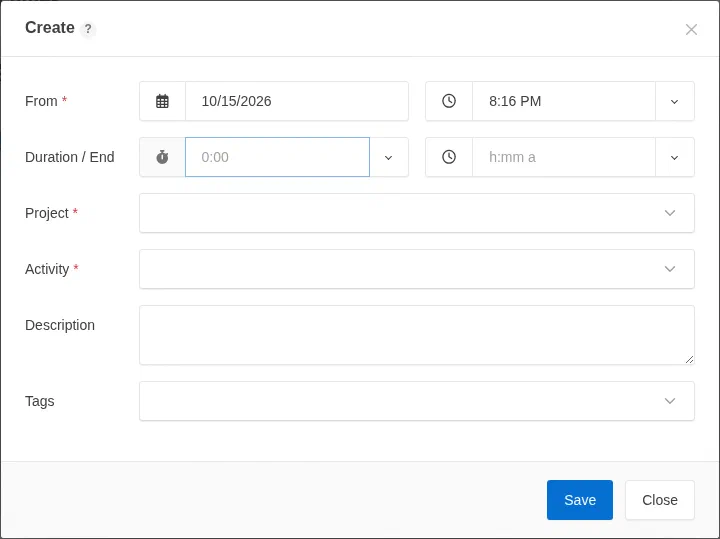
The dialog that opens from the play button. Choose Start. The running timer shows in the top bar. Stop it with the stop button.
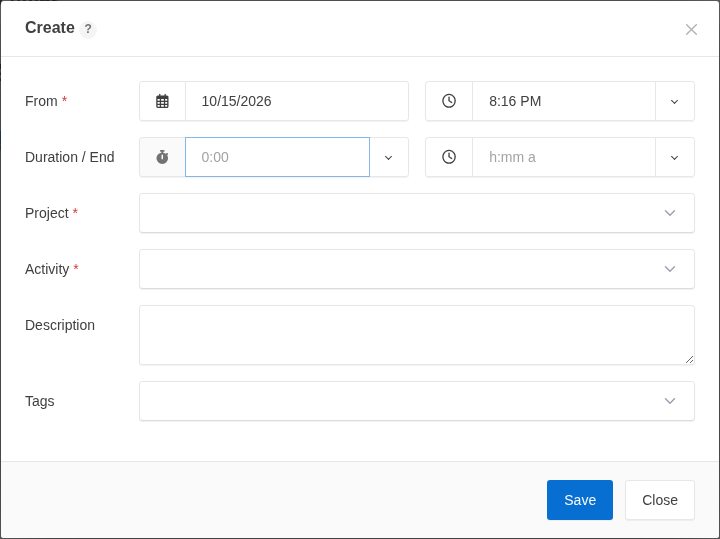
Your recent activities appear in the top bar’s dropdown for one-click restarts.
Add time after the fact
Go to My times and choose Create. Enter the date, start and end time (or duration), and the project and activity.
Fix a mistake
In My times, open the entry’s menu to edit or delete it. Entries may be locked after a period closes, depending on your organization’s settings.
Set up clients and projects
Administrators and team leads:
Create a customer under Customers, with currency and an optional budget.
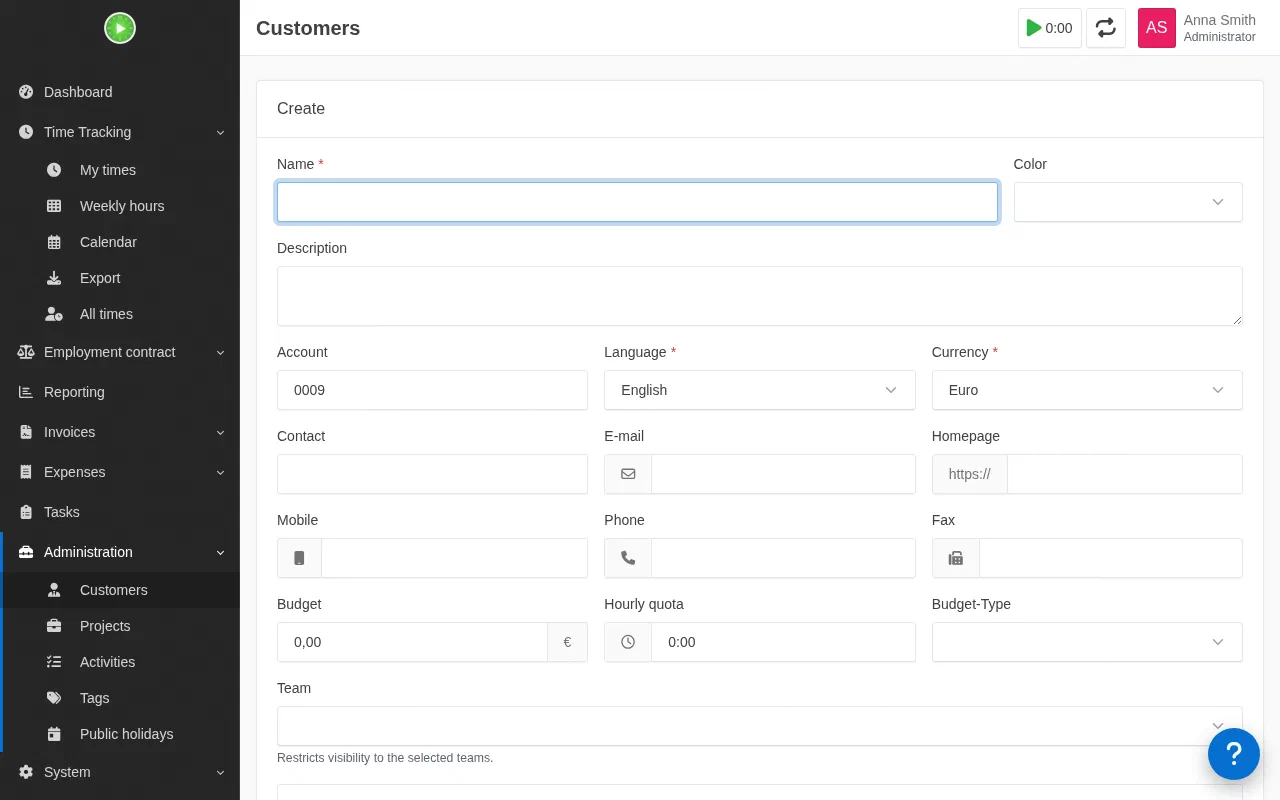
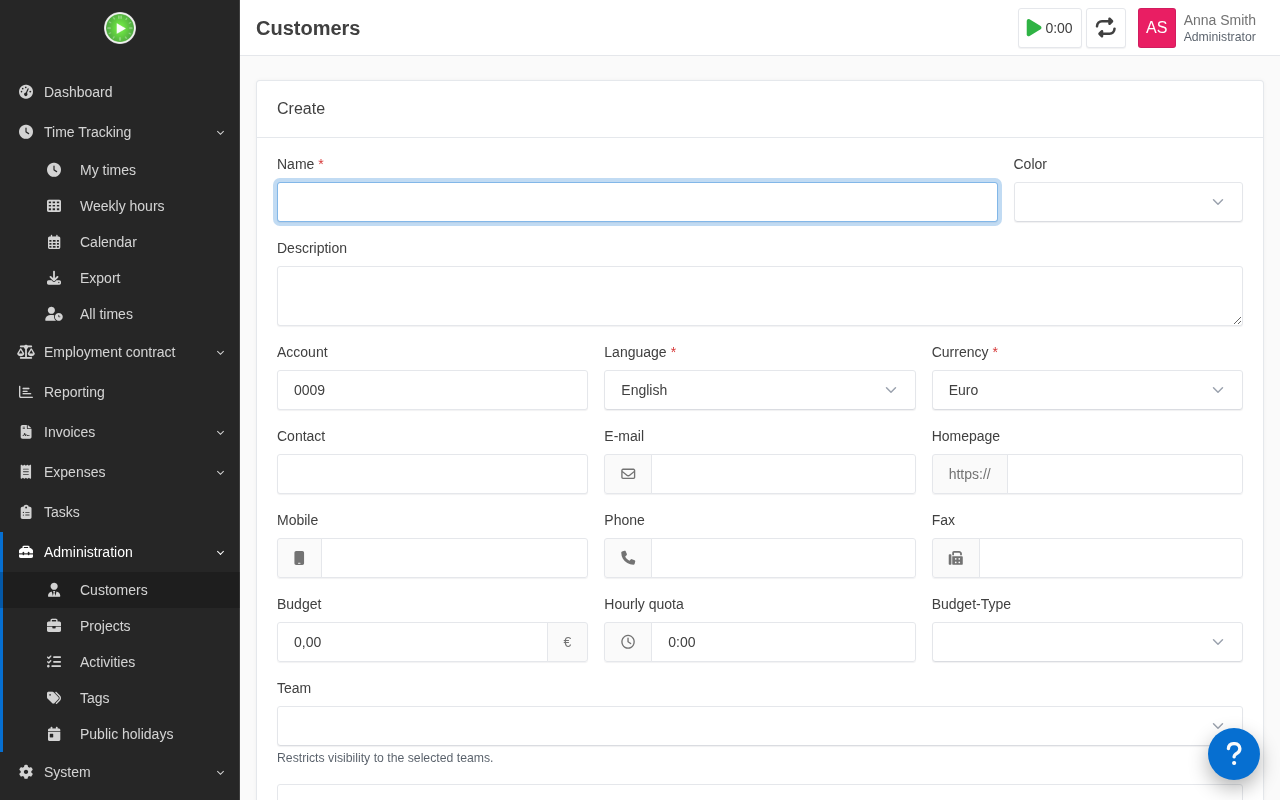
Creating a customer under Administration, Customers. Shown on the public demo. Your server may look slightly different. Create projects for that customer, with optional budget, order number, and start and end dates.
Create activities: global ones (such as “Meetings” or “Development”) that apply to every project, or ones specific to a project.
Set rates on the customer, project, activity, or user. The most specific rate wins.
Reports and exports
- Reporting has ready-made reports, such as weekly hours per user and monthly totals per project.
- Export turns filtered timesheets into Excel, CSV, PDF, or HTML. Mark exported entries so they aren’t billed twice.
Create invoices
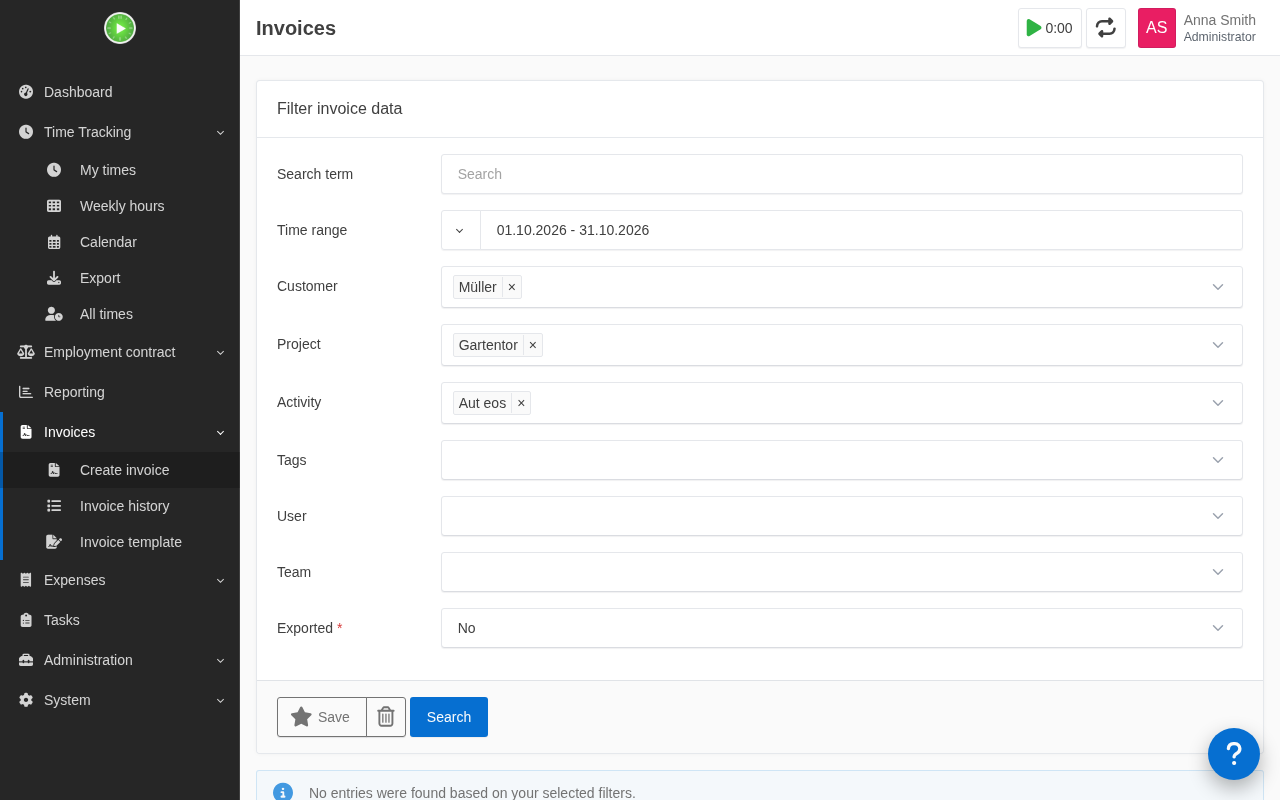
Under Invoices, filter by customer and date range.
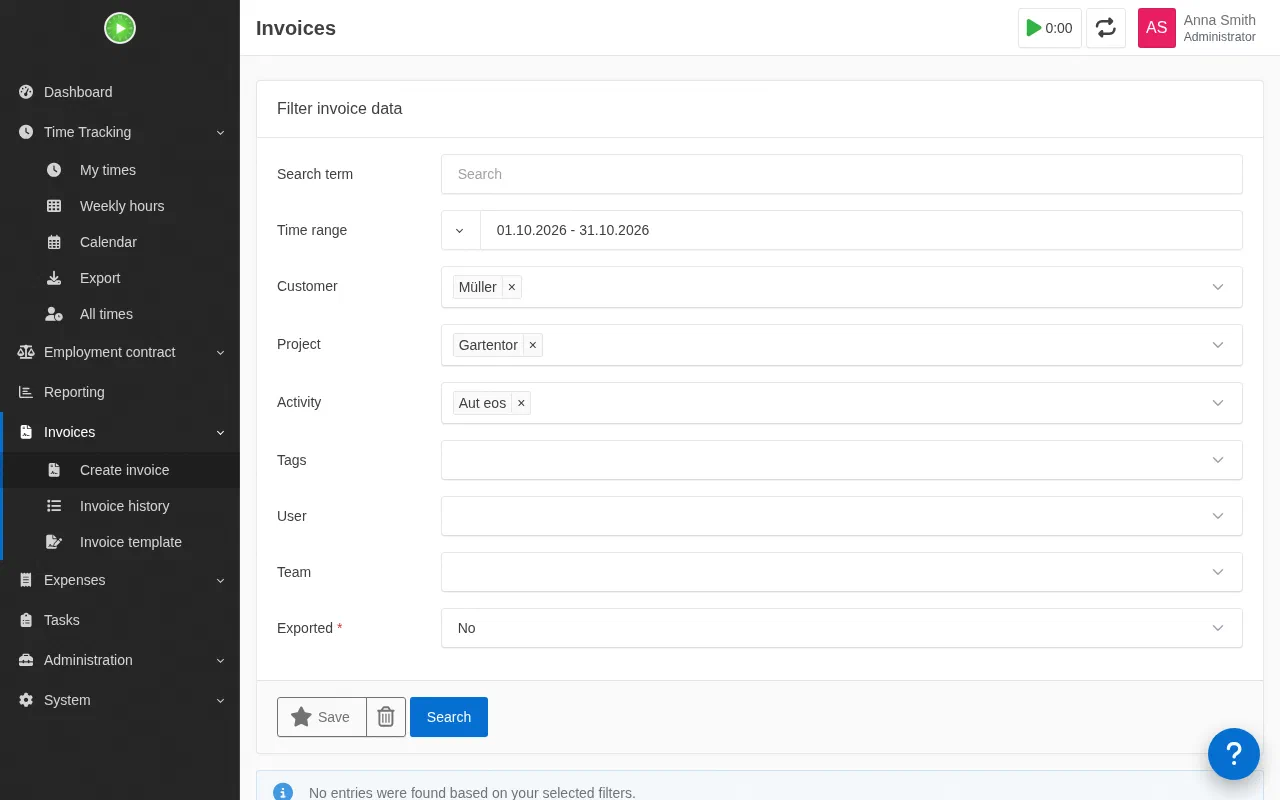
Invoices, Create invoice: filter the time entries to bill. Shown on the public demo. Your server may look slightly different. Choose a template (configure your company details and payment terms under Invoices, Templates).
Preview, then create the invoice. Kimai keeps a numbered invoice archive and can mark the time entries as exported.
Administer Kimai
- Users: set roles (User, Teamlead, Admin, Super-Admin), hourly rates, and preferences.
- Teams: connect users to customers and projects to restrict visibility.
- Settings: time rounding, lockdown periods for completed months, and default work hours.
Superpanel settings
- Access: choose which groups can sign in to Kimai.
- Administrators: choose who gets the Super-Admin role.