
Listmonk
Newsletters and mailing lists: manage subscribers, design campaigns, and track results.
- Use instead of
Mailchimp,Constant Contact,Brevo,Kit (ConvertKit),Substack (email)- Typical address
listmonk.example.com- Project website
- listmonk.app
- Official docs
- listmonk.app/docs
Overview
Listmonk is a newsletter and mailing list manager. It handles subscribers, sign-up forms, campaign sending, and basic analytics, and it’s fast enough for lists of hundreds of thousands of people.
Main capabilities:
- Lists, public or private, with single or double opt-in.
- Subscribers with custom attributes (stored as JSON) for segmentation and personalization.
- Campaigns written in a rich text editor, Markdown, raw HTML, or visual builder, with templates.
- Segmentation using SQL-style queries on subscriber data.
- Analytics: views, clicks, bounces, and link tracking.
- Subscription forms you can embed on your website, and a public archive of past campaigns.
- Transactional email API for one-off messages from your other systems.
- Automatic unsubscribe handling and bounce processing.
What it replaces
Listmonk replaces Mailchimp, Constant Contact, Brevo (Sendinblue), and Kit (ConvertKit) for newsletters, without paying by list size.
Signing in
Open your Listmonk admin address (usually ending in /admin) and sign in with the account provided by your administrator.
Create a list
Go to Lists, then New.
Choose:
- Public (shown on your subscription page) or Private (only you can add people).
- Single opt-in or Double opt-in (subscribers confirm by email). Double opt-in is strongly recommended for public lists.
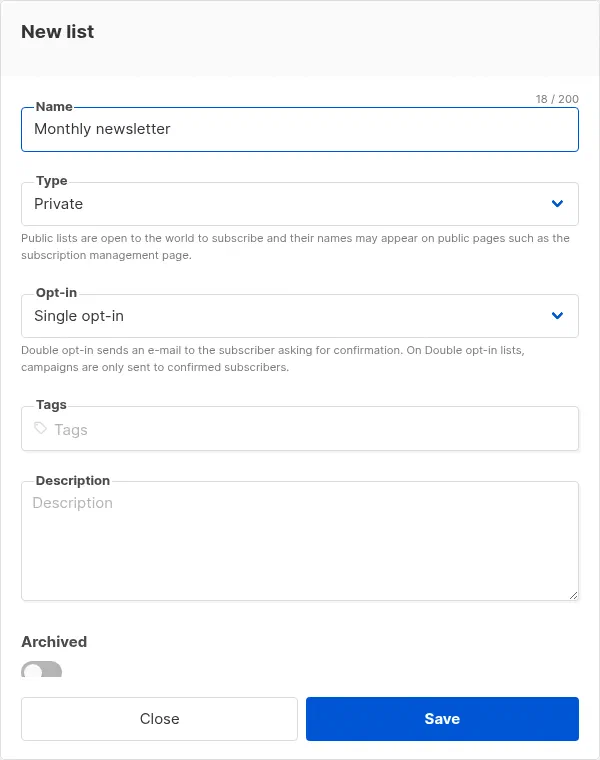
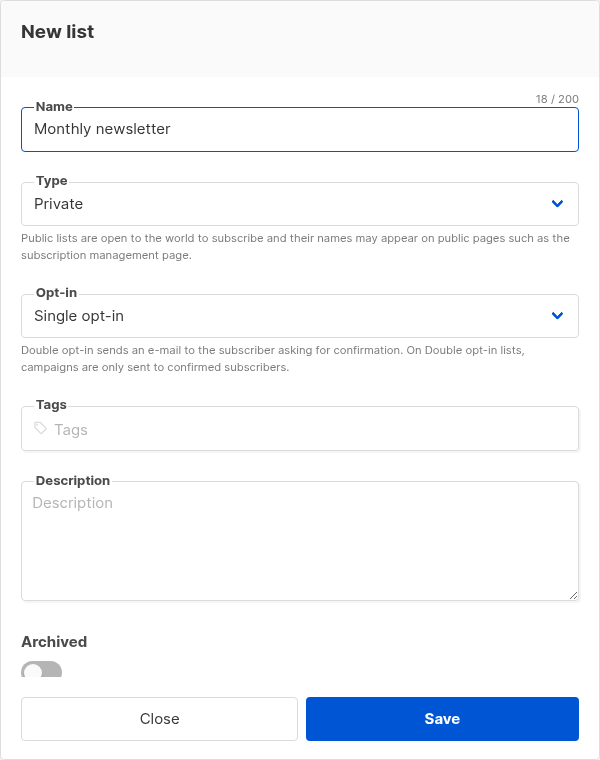
The New list dialog. Save.
Add subscribers
- One at a time: Subscribers, New.
- In bulk: Subscribers, Import. Upload a CSV with at least
emailandnamecolumns. Extra columns can go into theattributescolumn as JSON. Choose the list and whether to overwrite existing subscribers. - From your website: Lists, Forms generates HTML you can paste into a page (or into WordPress).
Only import people who agreed to receive your email. Sending to purchased or scraped lists harms your domain’s reputation and is illegal in many countries.
Send a campaign
Go to Campaigns, New.
Enter a name, subject, and from address, and choose the lists to send to.
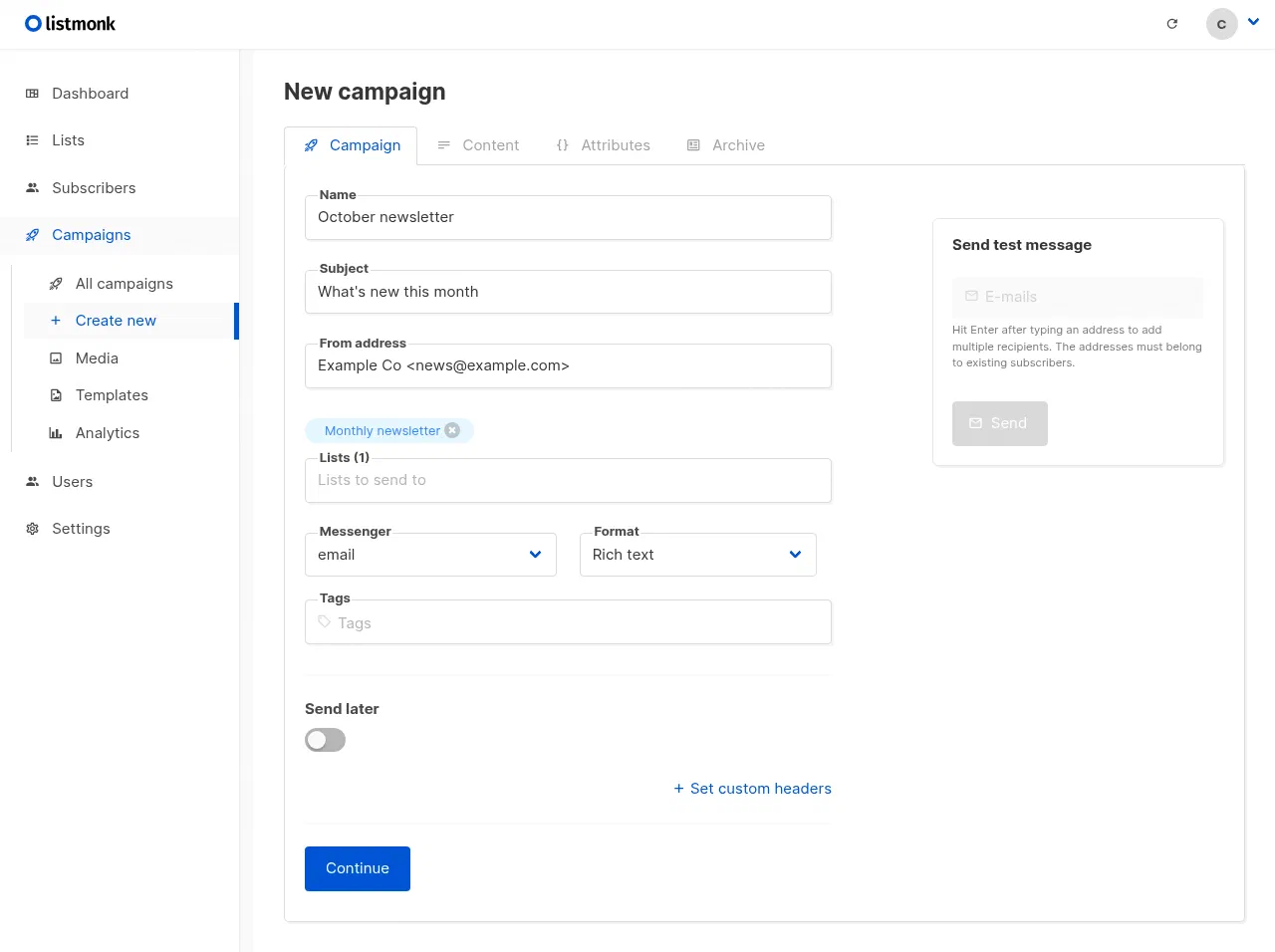
A new campaign. Send test message is on the right. Pick a template and write the content. Personalize with tags such as
{{ .Subscriber.FirstName }}.Select Send test message to send to yourself, and check it on desktop and phone.
Schedule it or select Start campaign to send now.
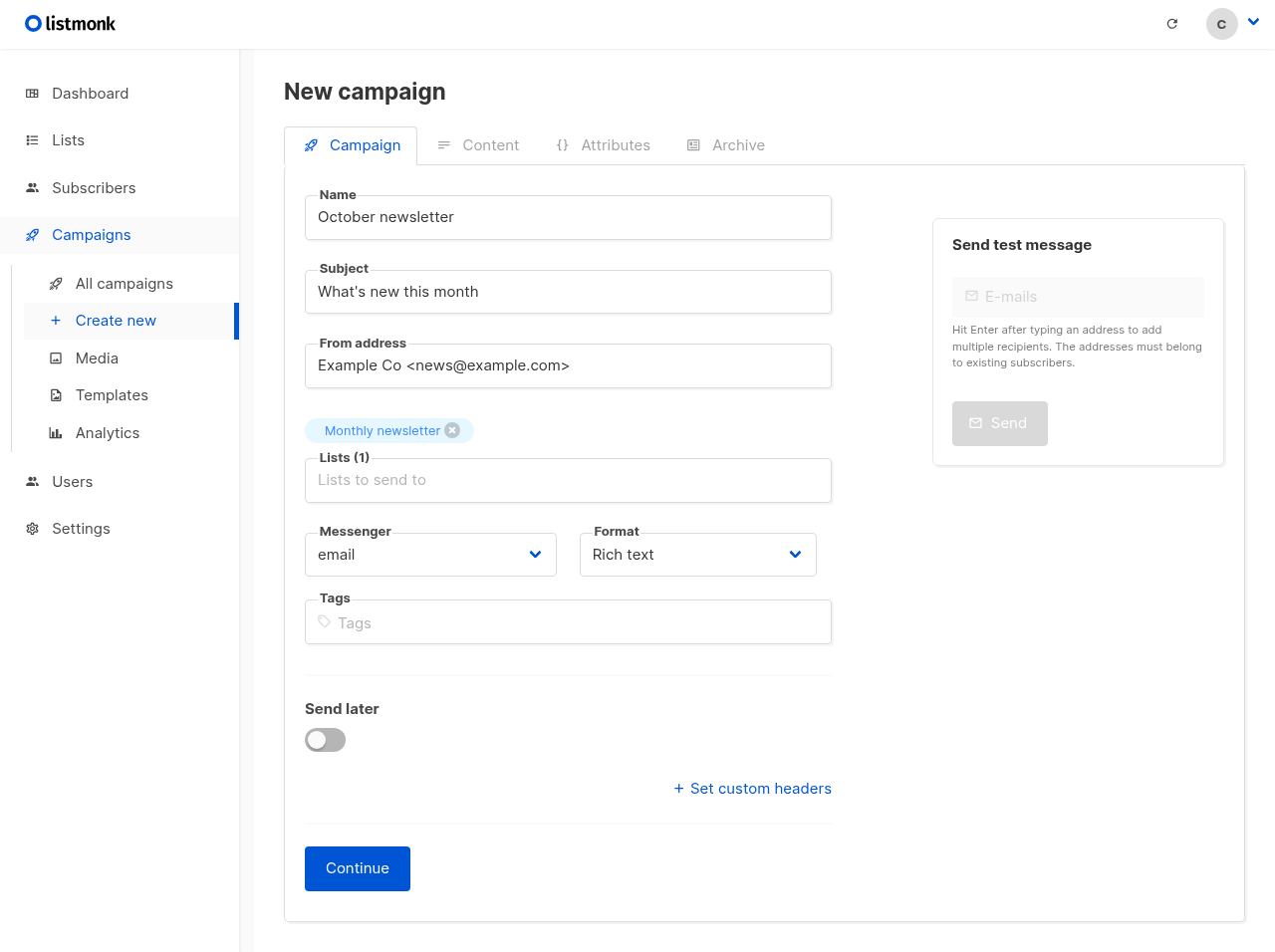
Watch the campaign’s progress and stats under Campaigns. Use Analytics for views and clicks over time.
Templates
Under Campaigns, Templates, edit the layout that wraps every campaign: your logo, colors, footer, and unsubscribe link. Keep {{ template "content" . }} where the campaign body should appear, and always keep the unsubscribe link.
Settings (administrators)
Open Settings:
- General: root URL, default from address, and whether a public archive is enabled.
- SMTP: the mail servers used to send campaigns. Large lists should use a dedicated sending service; see below.
- Bounces: process bounce emails so invalid addresses are blocklisted automatically.
- Privacy: options for individual subscriber data exports and self-service deletion.
- Users and roles: add colleagues and limit them to specific lists.
Superpanel settings
- Access: choose which groups are given the Listmonk admin address.