
n8n
Connect your apps and automate repetitive work with visual workflows.
- Use instead of
Zapier,Make,Microsoft Power Automate,IFTTT- Typical address
n8n.example.com- Project website
- n8n.io
- Official docs
- docs.n8n.io
Overview
n8n is a workflow automation tool. You connect nodes on a canvas: a trigger that starts the workflow (a schedule, a webhook, a new email, a new form entry) followed by steps that fetch, transform, and send data between services.
Main capabilities:
- Hundreds of built-in integrations, plus a generic HTTP Request node for any API.
- Triggers: schedules, webhooks, app events, form submissions, and manual runs.
- Logic: IF, Switch, Merge, Loop, Wait, and error handling.
- Data transformation with expressions, and Code nodes for JavaScript or Python.
- AI nodes for working with language models, if you provide an API key.
- Executions log to inspect every run, step by step.
- Credentials stored encrypted and reused across workflows.
- Templates to start from common automations.
What it replaces
n8n replaces Zapier, Make (formerly Integromat), Microsoft Power Automate, and IFTTT, without per-task pricing.
Signing in
Open your n8n address and sign in with the account created for you. The first account on a new instance becomes the owner.
Build your first workflow
Example: post a message in Element whenever someone submits a Baserow form.
Choose Create workflow.
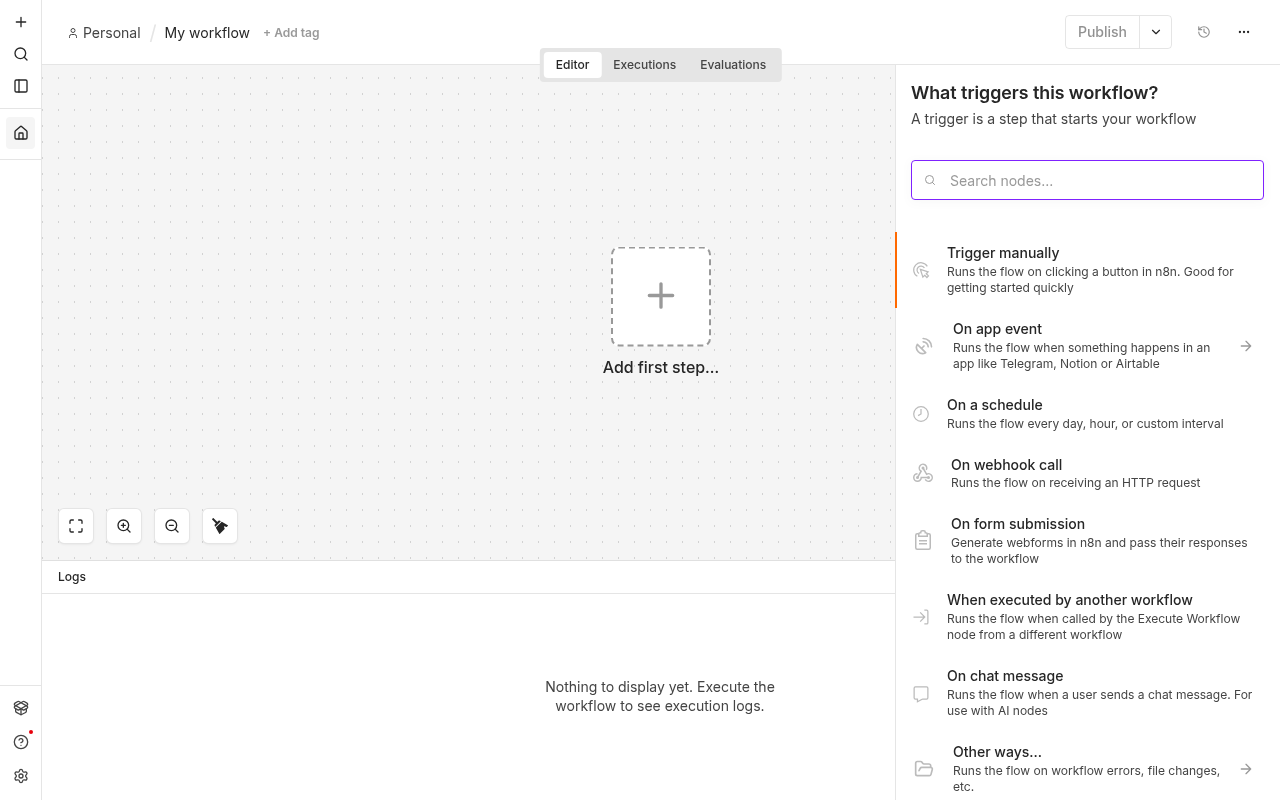
Add a trigger: search for the app (or use Webhook or Schedule Trigger).
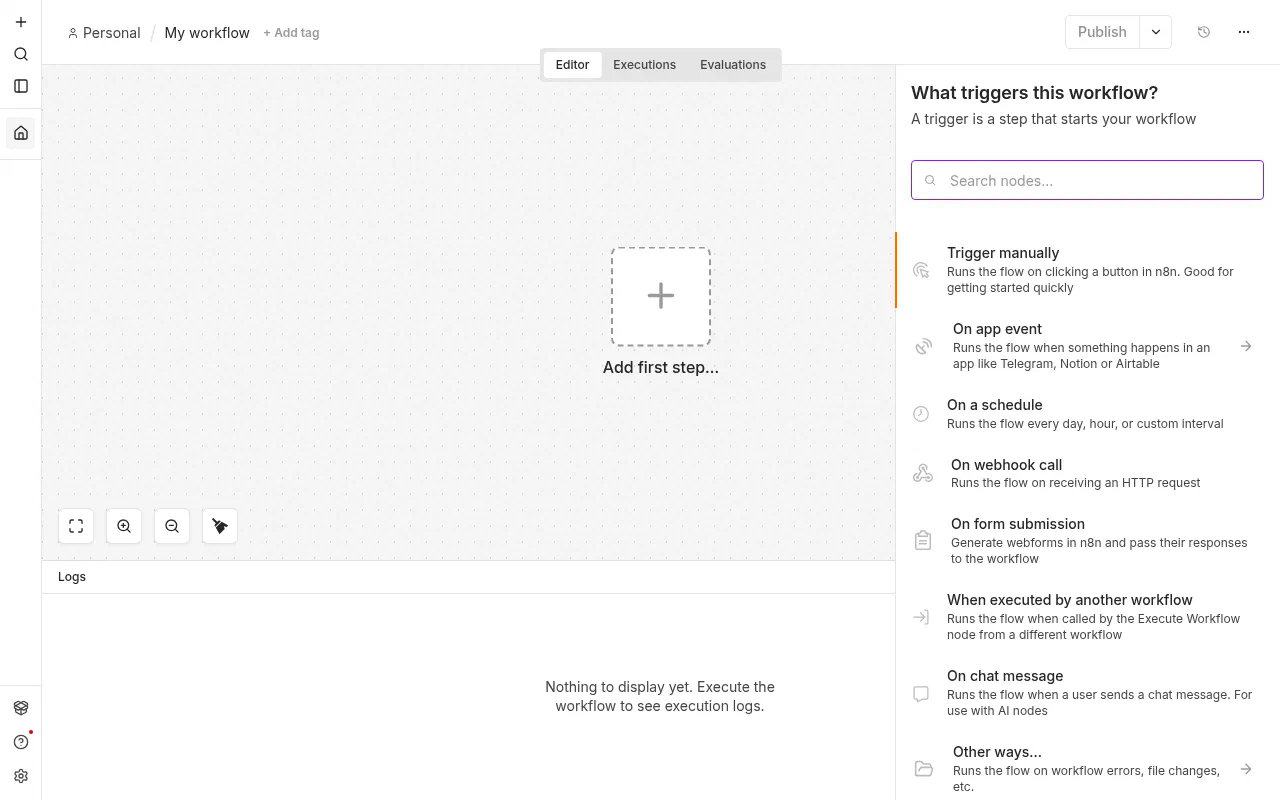
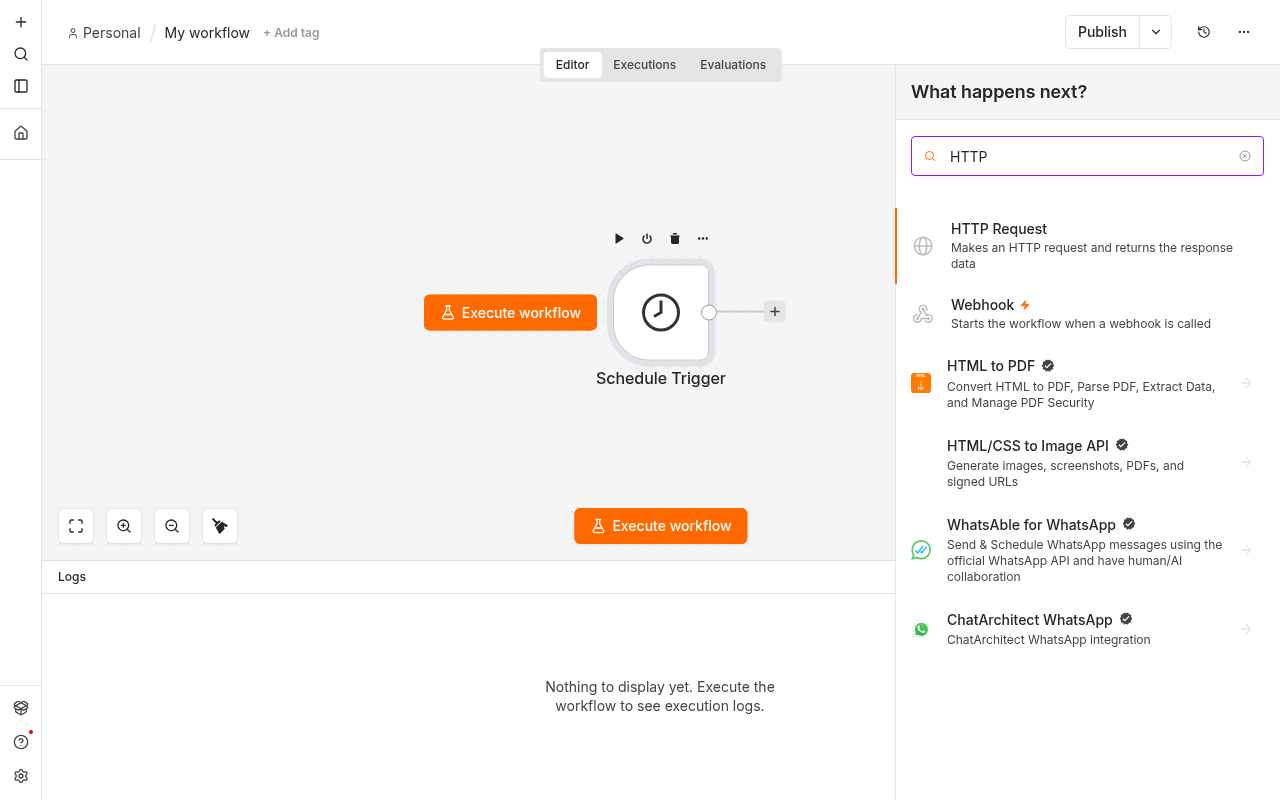
Choosing a trigger for a new workflow. Select + after the trigger to add the next step, and choose an action node.
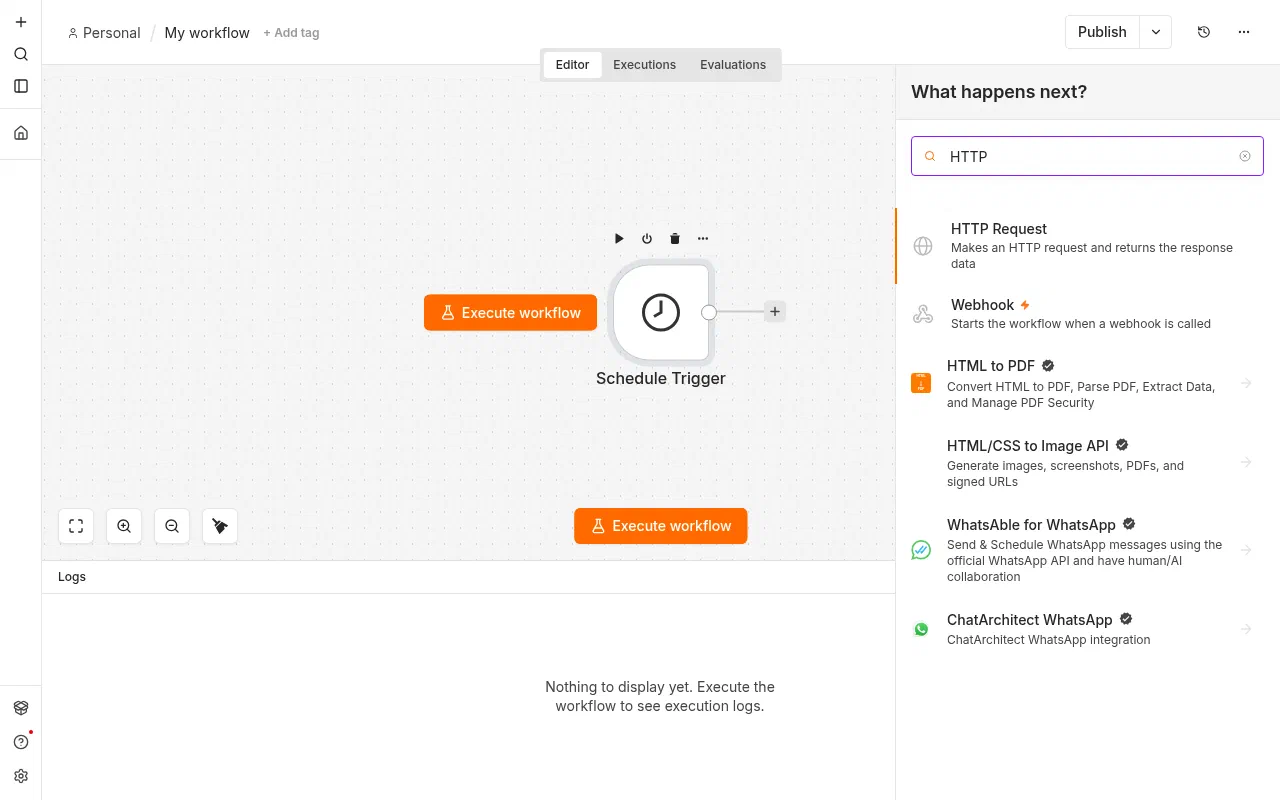
Adding the next step after the trigger. In each node, create or pick credentials for the service.
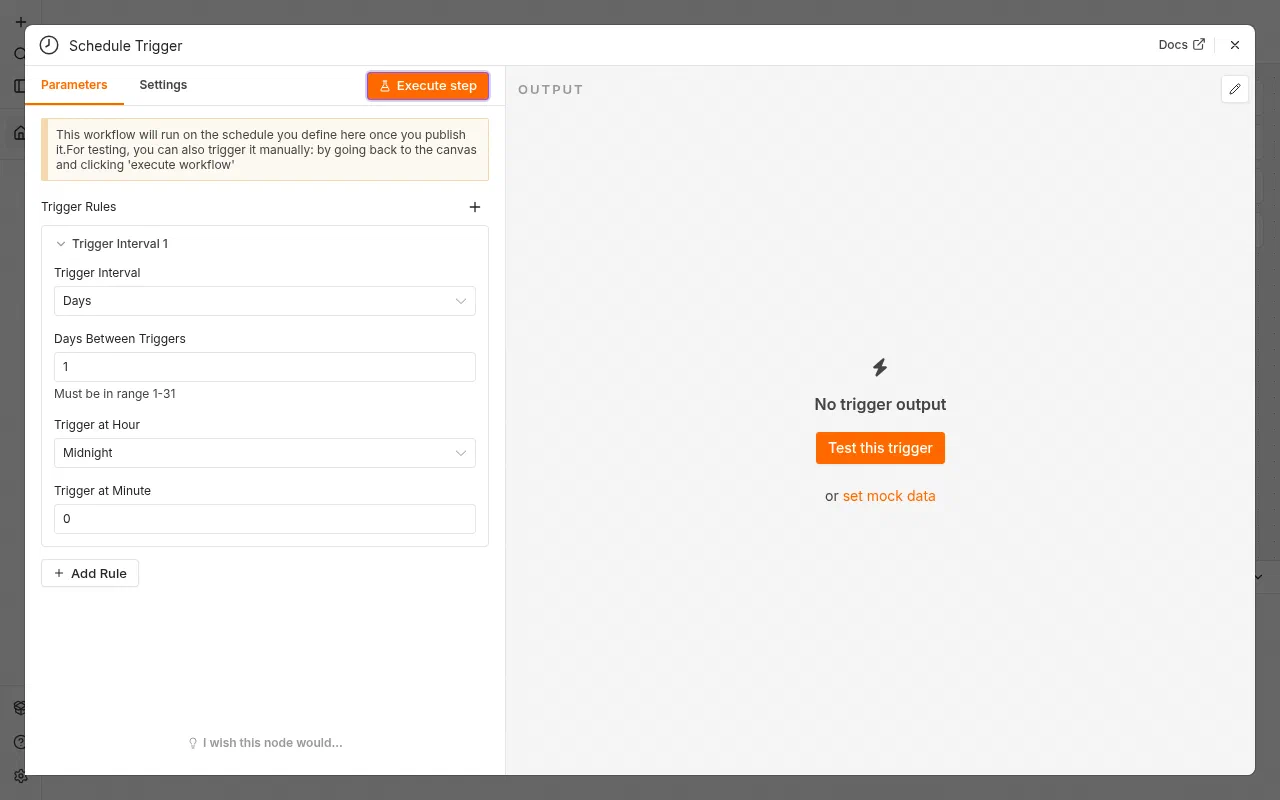
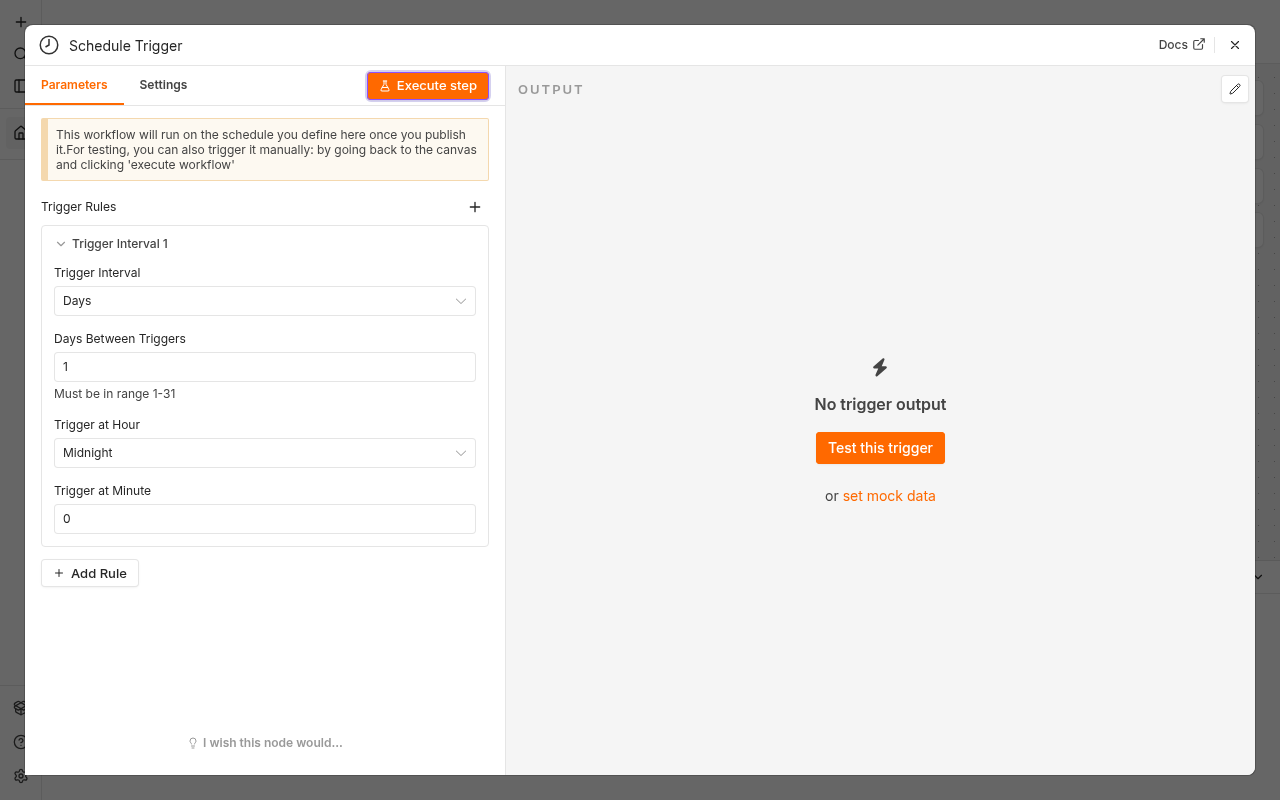
A node’s settings, here for the Schedule Trigger. Use expressions to map data from earlier steps. Drag a field from the input panel into a parameter, or type
{{ $json.fieldName }}.Choose Test workflow (or Execute step) to run it with sample data and check each node’s output.
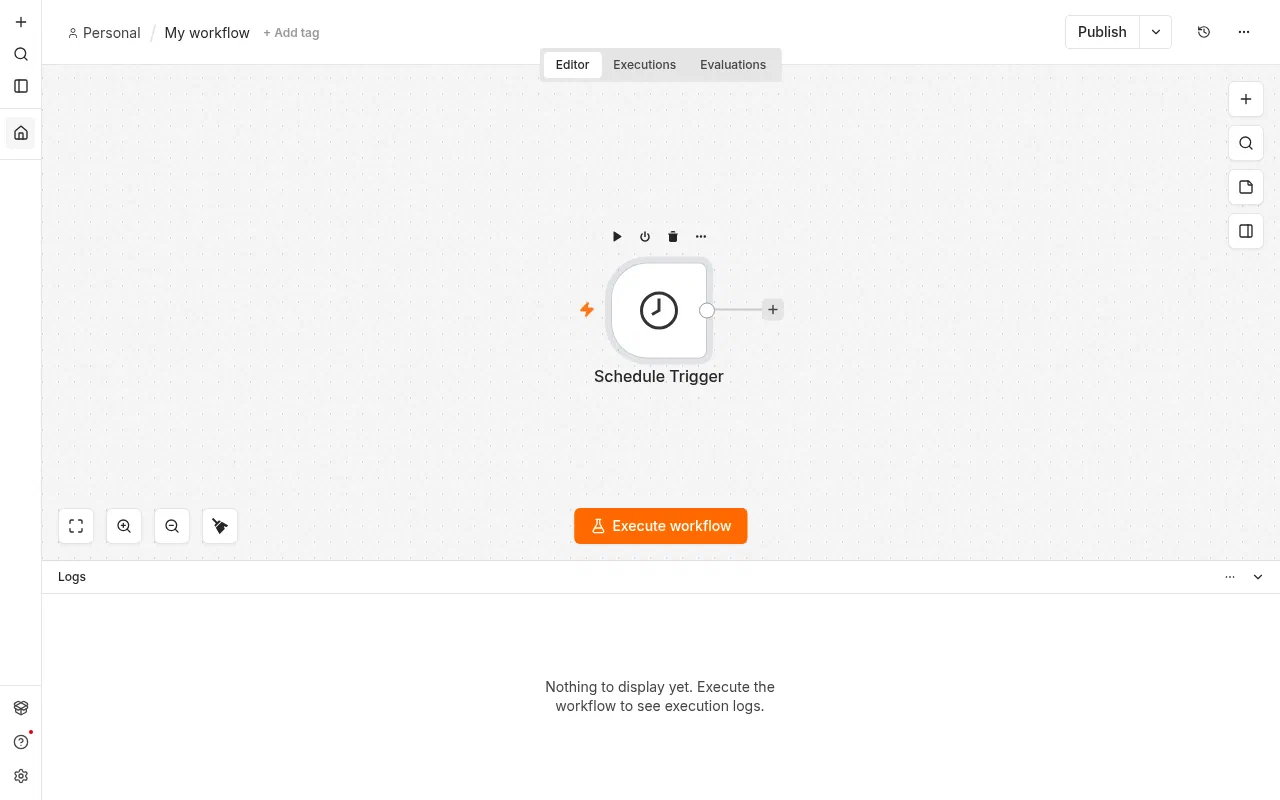
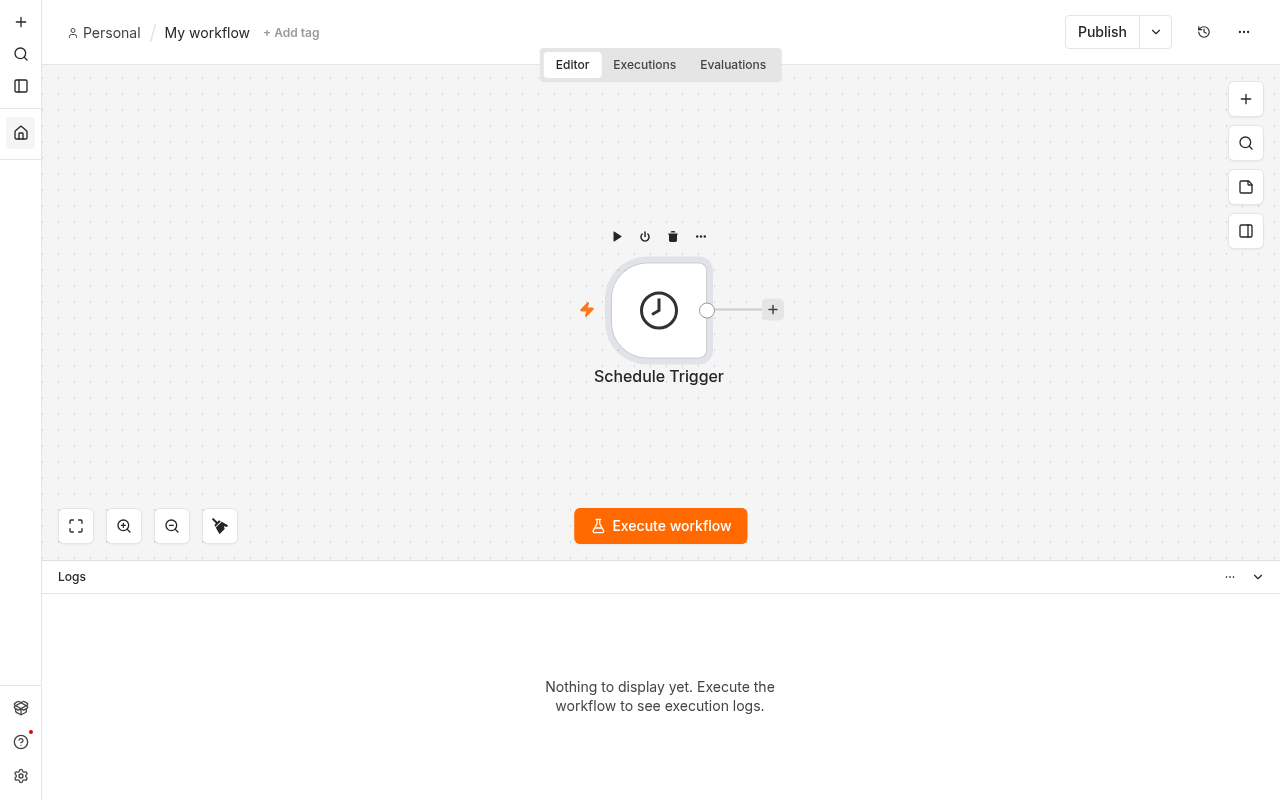
Run the workflow with Execute workflow. Turn it on with Publish at the top right. Save, then switch the workflow to Active so it runs on its own.
Webhooks
The Webhook node gives you two URLs:
- A test URL, which works only while you’re listening in the editor.
- A production URL, which works once the workflow is active.
Use the production URL in other services, such as DocuSeal, Gitea, or Cal.com webhooks.
Monitor and fix workflows
- Executions lists every run with its status. Open one to see the data at each step.
- Create an error workflow (with the Error Trigger node) that notifies you when another workflow fails, and select it in each workflow’s Settings.
- Pin data on a node during development to avoid calling external services repeatedly.
Credentials
Credentials (API keys, passwords, OAuth connections) are stored encrypted on your server. Share a credential with colleagues from its Sharing tab rather than copying secrets around. Use dedicated service accounts or API tokens with the minimum permissions needed.
Administer n8n
The owner and admins can open Settings:
- Users: invite colleagues and set roles.
- Community nodes: install extra nodes published by the community, if enabled on your instance.
- Variables and external secrets are part of n8n’s paid features and may not be available.
Superpanel settings
- Access: choose which groups are given the n8n address.
- Owner account: Federated Computer sets up the initial owner account; contact support to transfer ownership.