
Nextcloud
Files, sharing, calendars, contacts, and collaborative editing in one workspace.
- Use instead of
Google Drive,Dropbox,Microsoft OneDrive,Box,Google Calendar- Typical address
nextcloud.example.com- Project website
- nextcloud.com
- Official docs
- docs.nextcloud.com/server/latest/user_manual/en
Overview
Nextcloud is a file sync and collaboration platform. At its core it keeps your files in sync between your server and your computers and phones, like Dropbox or Google Drive. Around that it adds calendars, contacts, task lists, notes, chat, and in-browser document editing.
Main capabilities:
- Files: upload, organize, search, preview, version history, and a trash bin for deleted files.
- Sharing: share with colleagues, groups, or anyone via a link with optional password, expiry date, and upload-only “file drop” mode.
- Desktop sync for Windows, macOS, and Linux, including virtual files that download on demand.
- Mobile apps for iOS and Android with automatic photo upload.
- Calendar, Contacts, and Tasks, which sync to phones and desktop clients using the standard CalDAV and CardDAV protocols.
- Office editing of Word, Excel, and PowerPoint documents in the browser when an office suite (Nextcloud Office or OnlyOffice) is enabled on your server.
- Talk for chat and video calls, Deck for kanban boards, Notes, Forms, and hundreds more apps.
What it replaces
Nextcloud replaces file services such as Google Drive, Dropbox, Microsoft OneDrive, and Box, and the calendar and contacts parts of Google Workspace and Microsoft 365. With an office suite enabled it also covers basic Google Docs and Office Online editing.
Signing in
Open your Nextcloud address and sign in with your organization account. If you’re sent to the Authelia portal, sign in there first.
Work with files
Upload and organize
- Drag files or folders onto the Files page, or select + New to upload, create a folder, or create a new document.
- Use Favorites (the star) for files you open often, and Tags to group files across folders.
- Search from the magnifier at the top: it searches file names and, where enabled, file contents.
Recover a deleted or overwritten file
- Deleted files go to Deleted files in the left sidebar, where you can restore them.
- To get back an older version, open the file’s details (the … menu, then Details), go to the Versions tab, and restore the version you want.
Retention for deleted files and versions is limited by storage space and server settings, so don’t rely on it as a long-term archive.
Install the desktop client
- Download the desktop client from nextcloud.com/install.
- Enter your Nextcloud address, for example
https://nextcloud.example.com, and sign in through the browser window that opens. - Choose which folders to sync. On Windows and macOS, enable virtual files to see everything without downloading it all.
Share files and folders
Open the file’s Sharing tab (the share icon next to the name).
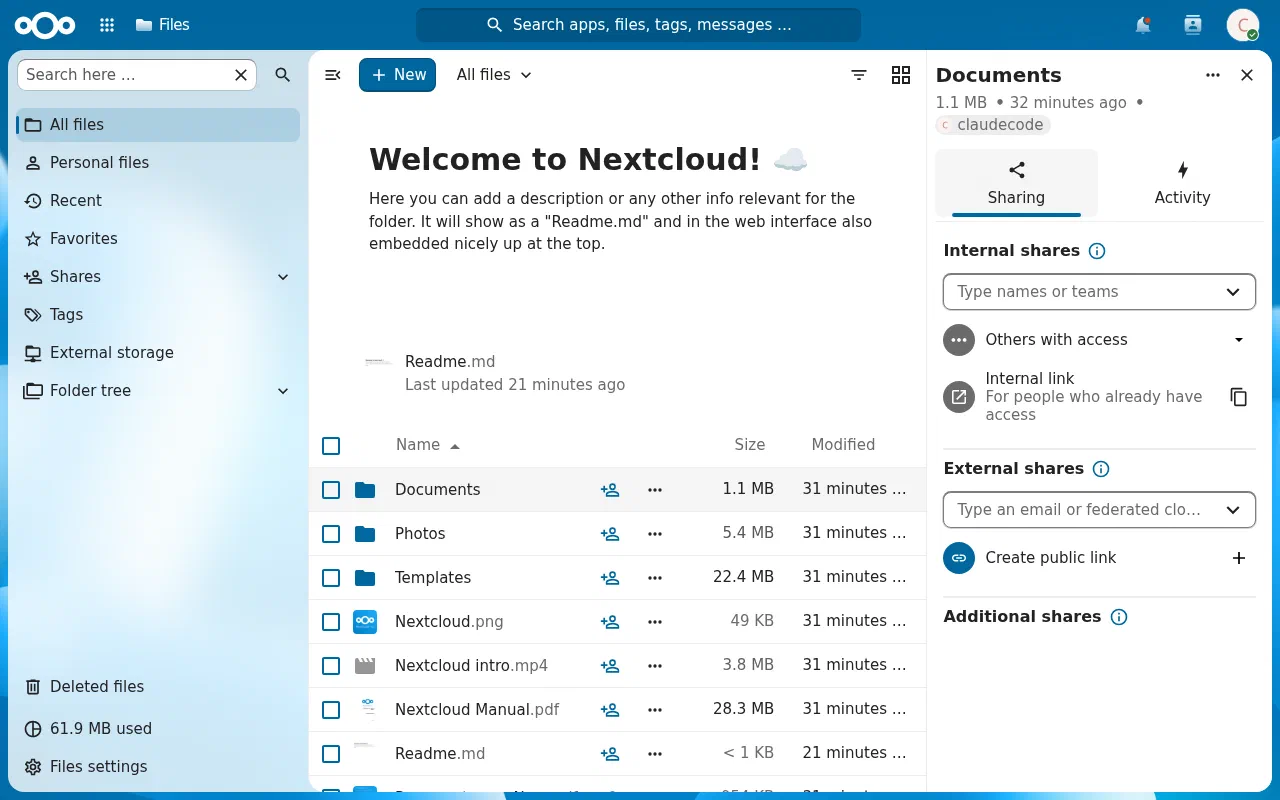
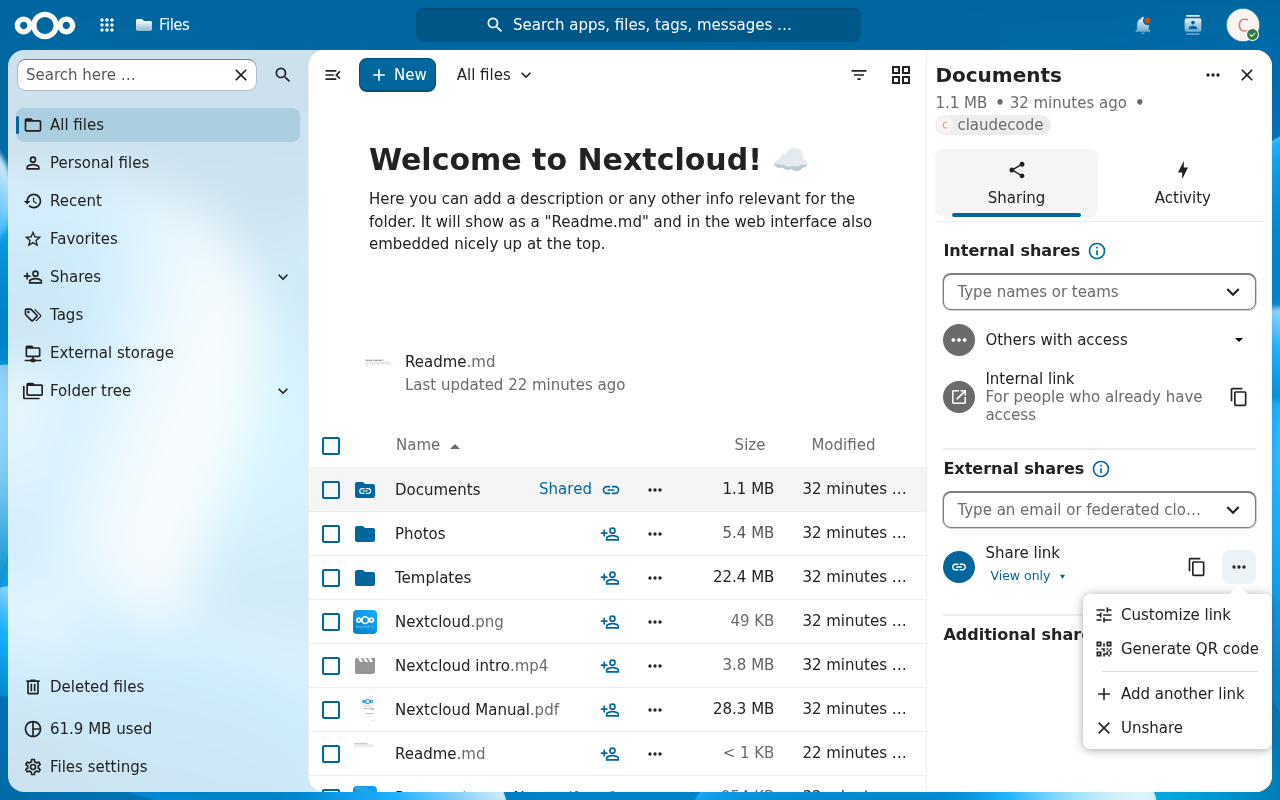
The Sharing tab. Share with colleagues under Internal shares, or create a public link under External shares. To share with a colleague, type their name or a group name. Choose whether they can edit, re-share, or only view.
To share with anyone, select Create a new share link. Open the link’s … menu to set a password, an expiry date, or hide download.
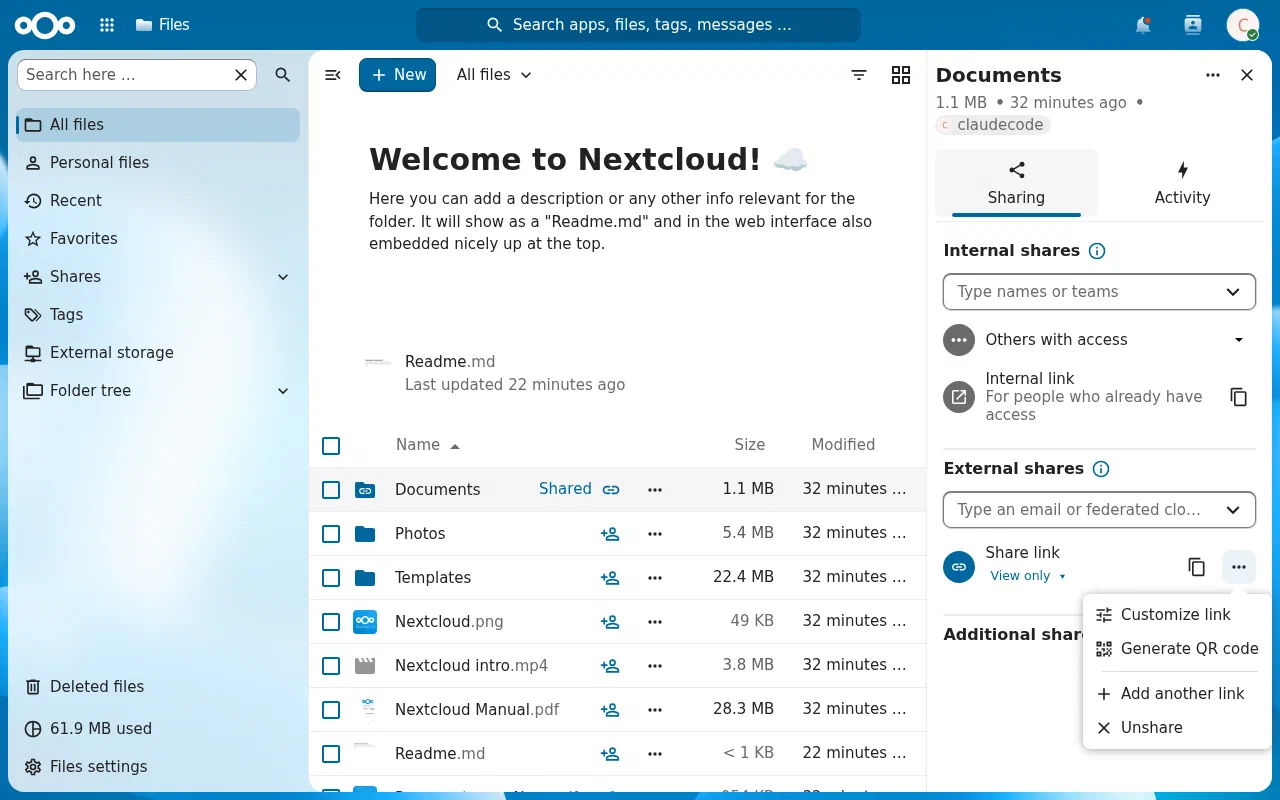
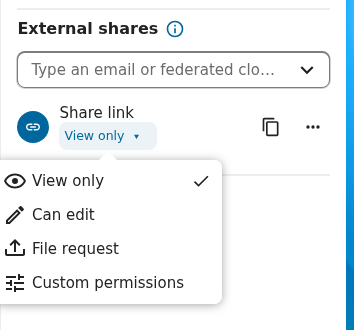
A link’s … menu. Password, expiry date, and download options are under Customize link. For a folder where people outside your organization can upload without seeing other files, choose File drop (upload only) in the link’s permissions.
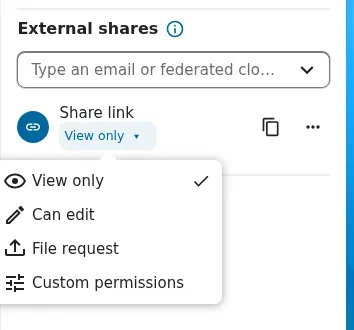
A link’s permissions. Current Nextcloud versions call upload-only links File request.
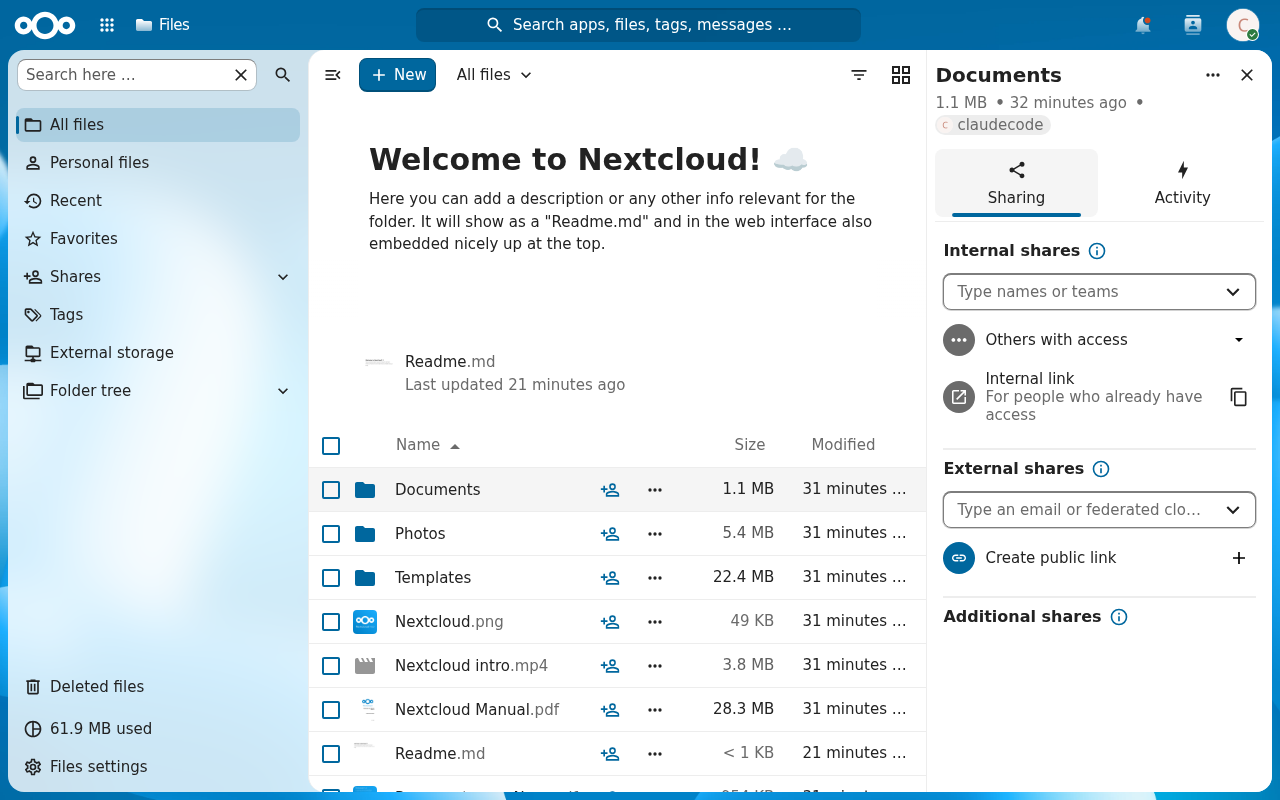
Shares appear in the Shares section of the sidebar, where you can review and revoke them.
Calendars and contacts
The Calendar and Contacts apps work in the browser. To use them in other apps:
- iPhone and iPad: in Settings, add a CalDAV and a CardDAV account with server
nextcloud.example.com, your username, and an app password. - Android: install DAVx⁵, add an account with your Nextcloud address and an app password, and choose which calendars and address books to sync.
- Thunderbird and macOS Calendar: add a CalDAV account using the link copied from the calendar’s … menu, Copy internal link.
Calendars can be shared with colleagues or published as a read-only link. Use the Appointments feature for simple booking pages, or Cal.com for more advanced scheduling.
Edit documents in the browser
If an office suite is enabled on your server, click any .docx, .xlsx, .pptx, or OpenDocument file to open it in the editor. Several people can edit at once, and changes are saved automatically. Use + New to create a document, spreadsheet, or presentation.
Administer Nextcloud
Administrators see Administration settings in the avatar menu. Common tasks:
- Apps: enable or disable apps from the Apps menu. Only enable apps you need; each one adds maintenance.
- Sharing: under Administration settings, Sharing, decide whether public links are allowed, whether they need passwords, and default expiry dates.
- Theming: set your organization’s name, logo, colors, and background.
- Groups and quotas: see the Accounts page. Accounts come from your central directory, so add people in Superpanel, then use Nextcloud to set storage quotas or group folders.
- Overview shows security and setup warnings. Some warnings relate to server settings managed by Federated Computer; contact support if you’re unsure.
Superpanel settings
- Access: choose which groups can sign in to Nextcloud.
- Administrators: choose who gets Nextcloud admin rights.
- Storage: see how much space your VM has. Contact Federated Computer to increase it.