
Plane
Project and issue tracking with sprints, roadmaps, and docs, for software and beyond.
- Use instead of
Jira,Linear,Asana,Monday.com,ClickUp- Typical address
plane.example.com- Project website
- plane.so
- Official docs
- docs.plane.so
Overview
Plane is a project management tool for planning, tracking, and shipping work. It’s popular with software teams as a Jira or Linear alternative, but it works for any team that manages work as tasks moving through stages.
Main capabilities:
- Work items (issues) with states, priorities, assignees, labels, due dates, estimates, and sub-items.
- Cycles: time-boxed iterations (sprints) with progress charts.
- Modules: groups of work items for a feature, initiative, or milestone.
- Views: list, kanban board, spreadsheet, calendar, and Gantt, with saved filters.
- Pages: documents for specs, meeting notes, and plans, linked to work.
- Intake for requests from outside the project team.
- Workspaces and projects with member roles.
Some features (for example certain importers, advanced views, and workflows) are part of Plane’s paid editions. The community edition is what most installations run.
What it replaces
Plane replaces Jira, Linear, Asana, Monday.com, ClickUp, and Trello.
Signing in
Open your Plane address and sign in. If it’s your first time, you’ll be asked to join or create a workspace; your administrator will usually have invited you to an existing one.
Set up a project
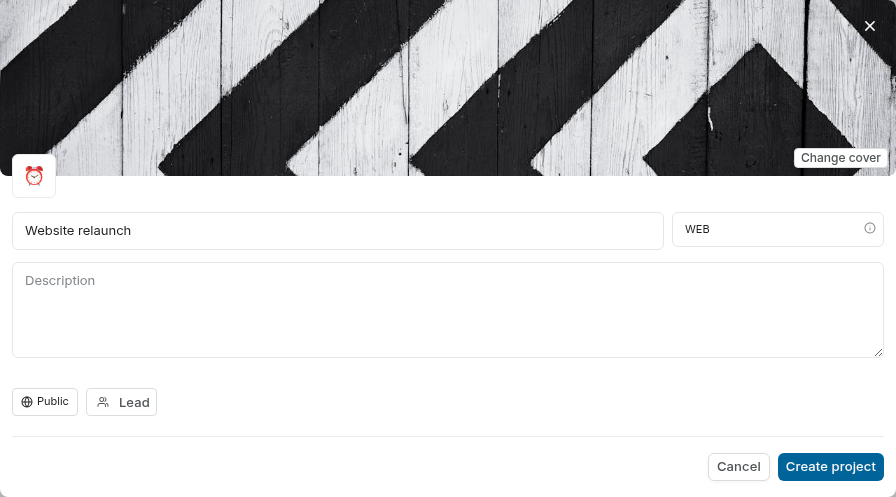
In the sidebar, select + next to Projects and give the project a name and identifier (a short code, such as
WEB, used in work item IDs likeWEB-42).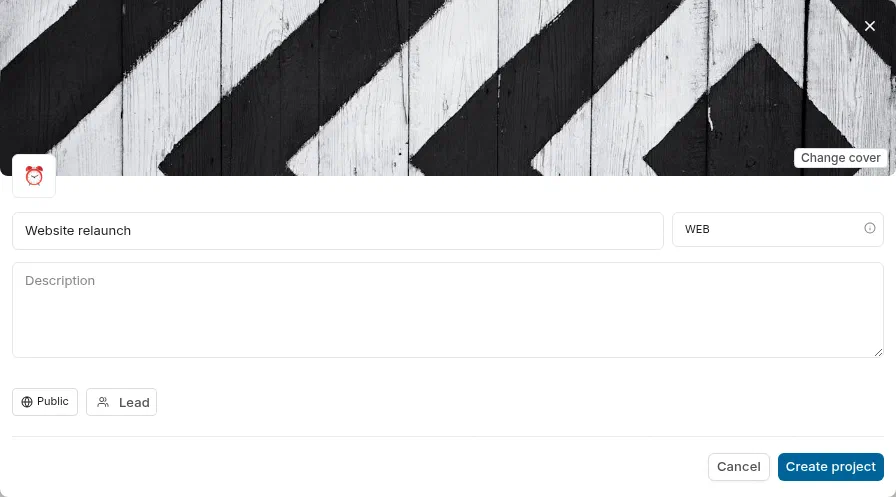
A new project with the identifier WEB.Open Project settings to:
- Add members and set their roles.
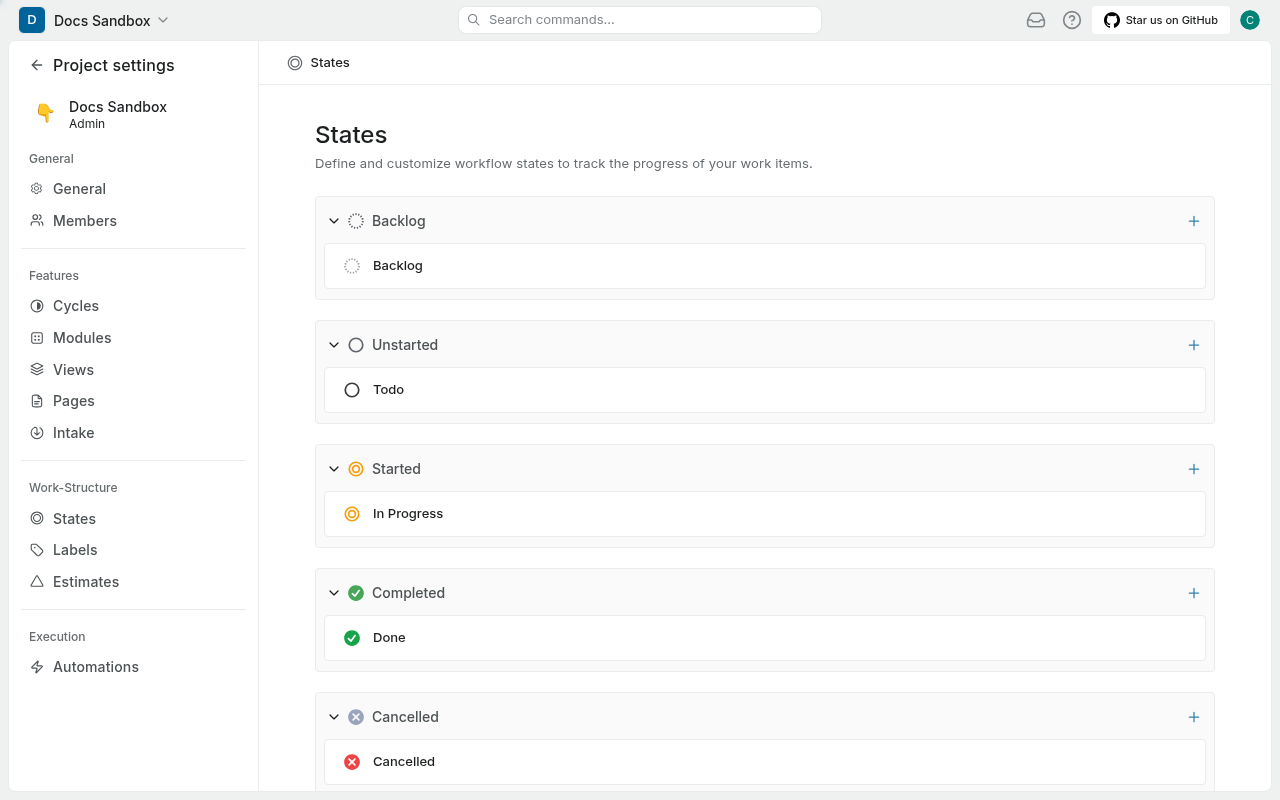
- Customize states (for example Backlog, Todo, In progress, In review, Done).
- Create labels and set an estimate system (points or hours).
- Turn features like Cycles, Modules, Pages, and Intake on or off.
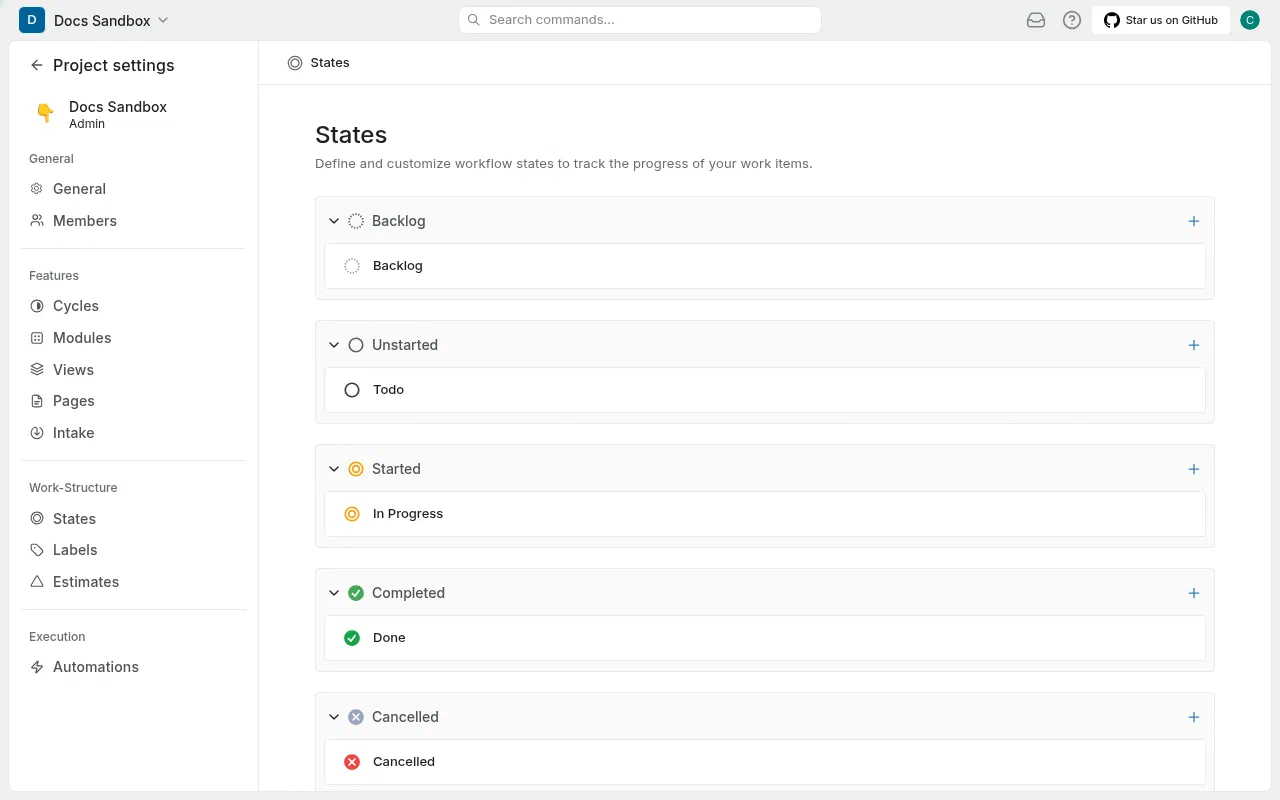
Project settings, States.
Work items
- Press C anywhere in a project to create a work item.
- Set the state, priority, assignee, labels, and dates from the item’s properties.
- Add sub-items to break work down, and relations (blocking, blocked by, duplicate) to link items.
- Comment and @mention colleagues. Mentions and assignments show up in Inbox (notifications).
Plan with cycles and modules
- Cycles: create a cycle with start and end dates, then drag work items into it. The cycle page shows a burn-down chart and progress by state, assignee, and label. Unfinished items can be carried over to the next cycle.
- Modules: group items that make up a feature or project, with a lead, members, and target date.
Views
Switch the layout from the top bar: List, Kanban, Spreadsheet, Calendar, or Gantt. Apply filters and display options, then save as a View to share with the team.
Pages
Create pages under Pages in a project for specs and notes. Type / for blocks (headings, lists, tables, images), and convert lines into work items directly from the page.
Administer Plane
- Workspace settings (from the workspace name menu): members, invites, billing (for paid editions), and integrations.
- Instance admin (sometimes called “god mode”, at
/god-mode): instance-wide settings such as sign-up rules, email, and authentication methods. Only instance administrators can open it.
Superpanel settings
- Access: choose which groups are given the Plane address.
- Instance administrator: Federated Computer sets up the first instance admin; contact support to change it.