
PowerDNS
Authoritative DNS for your domains, so names point to the right servers and email gets delivered.
- Use instead of
Cloudflare DNS,Amazon Route 53,Registrar DNS (GoDaddy, Namecheap)- Typical address
dns.example.com- Project website
- www.powerdns.com
- Official docs
- doc.powerdns.com/authoritative
Overview
PowerDNS is an authoritative DNS server. It answers the question “where is www.example.com?” for the domains it’s responsible for. On Federated Core, it can host the DNS for your domain so that your applications, website, and email all resolve correctly.
What it does:
- Hosts zones (domains) and their records: A, AAAA, CNAME, MX, TXT, SRV, CAA, and more.
- Serves records quickly and reliably to the whole internet.
- Supports DNSSEC signing to protect against spoofed answers.
- Lets Federated Computer add the records your applications need automatically.
What it replaces
PowerDNS replaces the DNS service you’d otherwise get from Cloudflare, Amazon Route 53, or your domain registrar.
How DNS on Federated Core works
There are two separate things:
- Your registrar (where you bought the domain) says which nameservers are authoritative for it.
- Those nameservers hold the actual records.
To have PowerDNS on your Federated Core server serve your domain, the nameservers at your registrar must point to it. Federated Computer gives you the nameserver names during setup. If you prefer to keep DNS at your registrar or with Cloudflare, you can: copy the records shown in Superpanel into that provider instead.
Manage records
DNS records are managed through Superpanel (and, where provided, a web interface for PowerDNS at the address shown in Superpanel). To add or change a record:
Open the zone for your domain.
Add a record with:
- Name: the part before your domain, such as
www, or@for the domain itself. - Type: for example
A,CNAME,MX, orTXT. - Content: the IP address, hostname, or text value.
- TTL: how long other servers cache the answer.
3600(one hour) is a sensible default; lower it to300a day before planned changes.
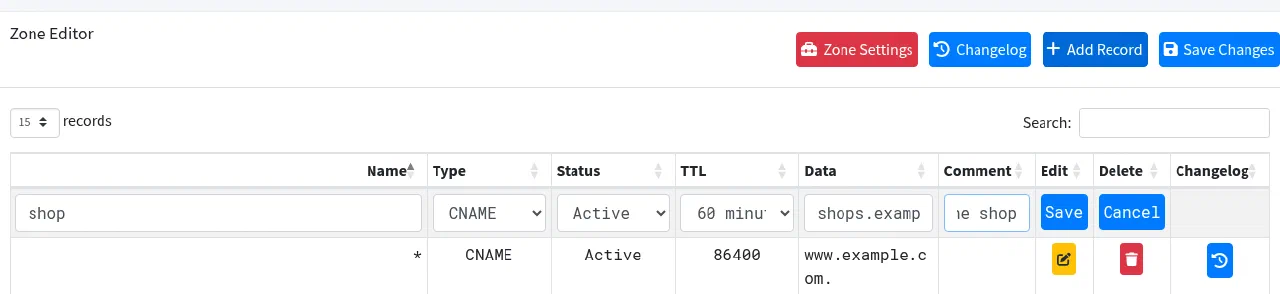
A new record in the zone editor. Choose Save on the row, then Save Changes to apply it. - Name: the part before your domain, such as
Save. Changes reach most of the internet within the TTL of the old record.
Common record types
| Type | What it does | Example |
|---|---|---|
| A | Points a name to an IPv4 address | www → 203.0.113.10 |
| AAAA | Points a name to an IPv6 address | www → 2001:db8::10 |
| CNAME | Makes one name an alias of another | shop → shops.myshopify.com. |
| MX | Says which server receives email | @ → 10 mail.example.com. |
| TXT | Holds text, used for verification and email security | @ → "v=spf1 mx -all" |
| CAA | Limits which certificate authorities can issue certificates | @ → 0 issue "letsencrypt.org" |
Email records
For email sent from your domain to reach inboxes rather than spam folders, these records must be correct:
- MX: points to the server that receives your mail.
- SPF (a TXT record on
@): lists the servers allowed to send mail for your domain. If you also send through a newsletter service, include it here; a domain may have only one SPF record. - DKIM (a TXT record on a selector such as
default._domainkey): a public key used to verify your mail’s signature. Federated Computer provides the value for your mail server. - DMARC (a TXT record on
_dmarc): tells receivers what to do with mail that fails SPF and DKIM, and where to send reports. Start withv=DMARC1; p=none; rua=mailto:dmarc@example.comand tighten toquarantineorrejectonce reports look clean.
Verify your changes
Use a lookup tool such as Google Admin Toolbox Dig, or from a terminal on your own computer:
dig +short MX example.com
dig +short TXT _dmarc.example.com
Superpanel settings
- DNS records: the records your Federated Core applications need, and, where your plan includes it, the ability to add your own.
- Nameservers: the nameserver names to set at your registrar if you want Federated Core to host your DNS.