
Roundcube
Webmail for your organization's email accounts, with filters, signatures, and contacts.
- Use instead of
Gmail (web),Outlook on the web,Yahoo Mail- Typical address
mail.example.com- Project website
- roundcube.net
- Official docs
- docs.roundcube.net/doc/help/1.1/en_US
Overview
Roundcube is a webmail app: it lets you read and send email from your organization’s mailboxes in a browser, from any computer. It works with the mail server on your Federated Core installation, so the same mailbox is also available in desktop and phone mail apps.
Main capabilities:
- Read, write, search, and organize mail in folders, with drag and drop.
- Conversation (thread) view, flags, and attachment previews.
- Identities and signatures, including multiple sending addresses.
- Filters that sort, forward, or reply to mail automatically, including out-of-office replies.
- An address book with groups and import from vCard or CSV.
- Light and dark themes, and a responsive layout for phones and tablets.
What it replaces
Roundcube replaces the web interfaces of Gmail, Outlook on the web, and other hosted email services when your mail is hosted on your own domain with Federated Computer.
Signing in
Open your Roundcube address and sign in with your full email address (or username, if told to) and your password.
Read and write mail
- Select Compose to write a message. Attach files with the paperclip or by dragging them in.
- Choose HTML in the editor options for formatted mail, or keep plain text for maximum compatibility.
- Use the search box with the dropdown to search in the subject, sender, body, or all folders.
- Right-click (or use the More menu) to mark messages as read, flag them, or move them.
Set up your signature and sending addresses
Go to Settings, then Identities.
Edit your identity to set your display name and signature.
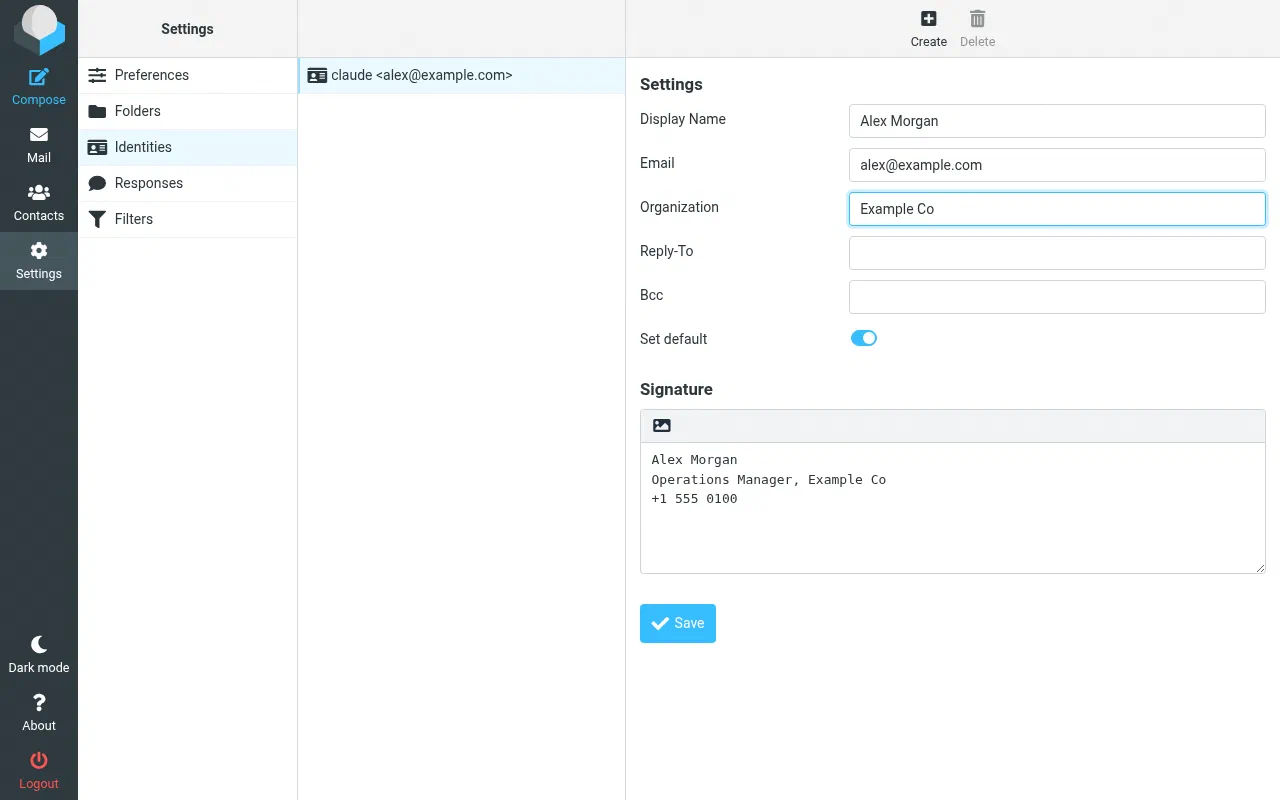
Editing an identity. If you’re allowed to send from other addresses (such as
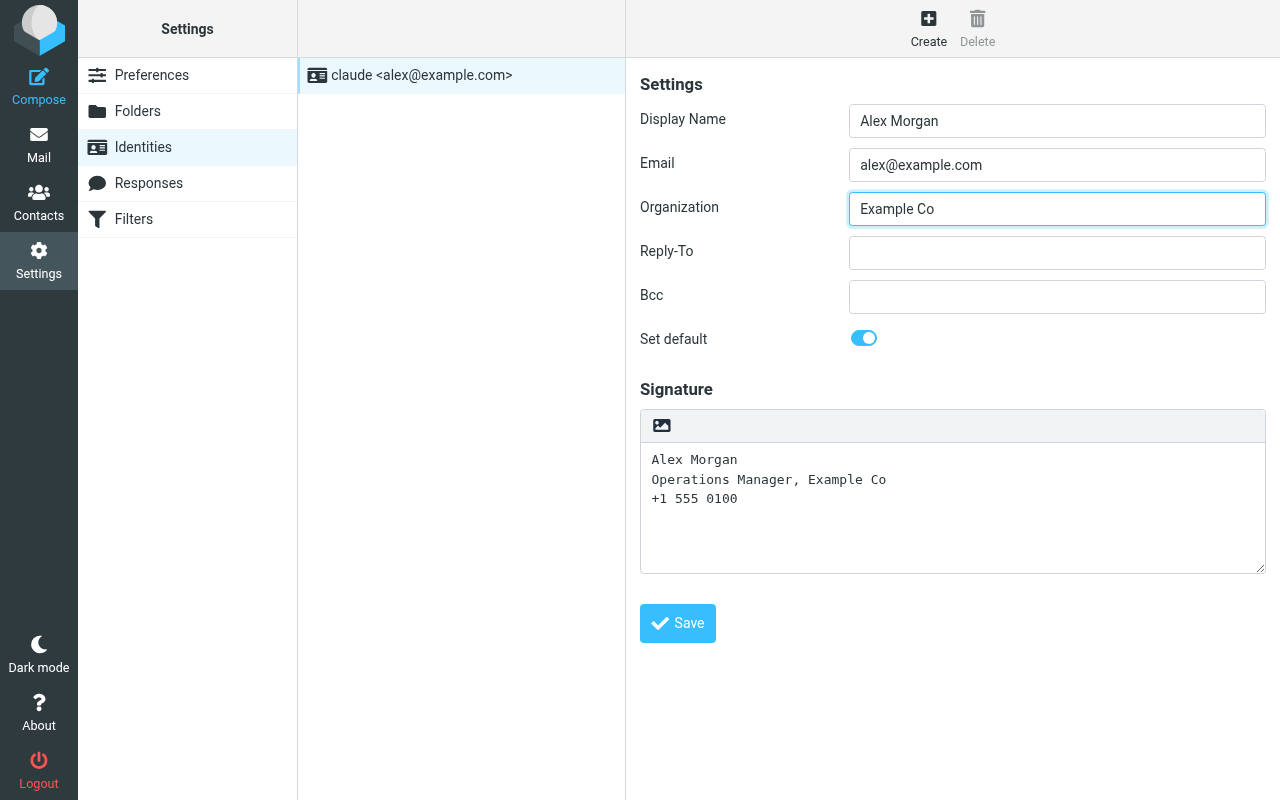
info@), add them as extra identities. You can then pick the address in the From field when composing.
Filters and out-of-office replies
Filters run on the server, so they work even when Roundcube isn’t open.
Go to Settings, then Filters.
Select Create and give the filter a name.
Set the rules (for example, “From contains newsletter@”) and the actions (move to a folder, forward, mark as read, or delete).
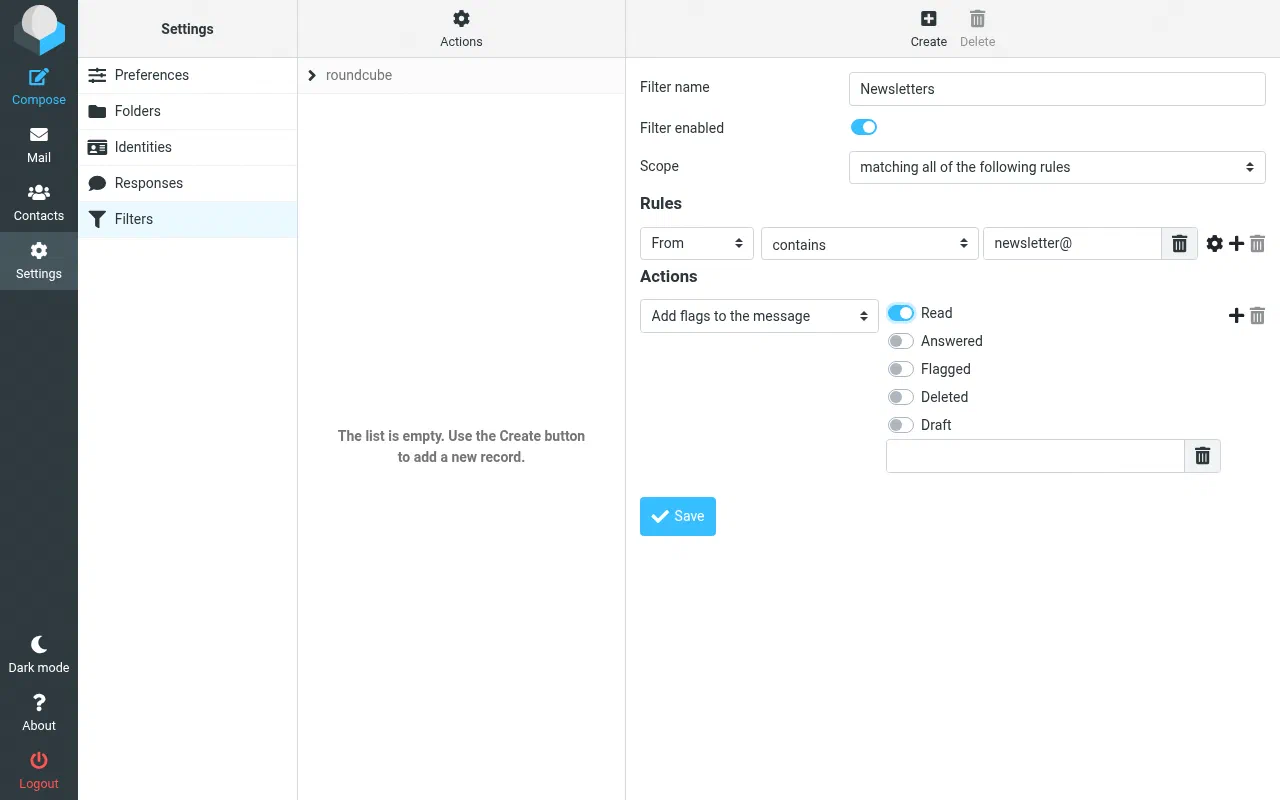
A filter that marks newsletters as read.
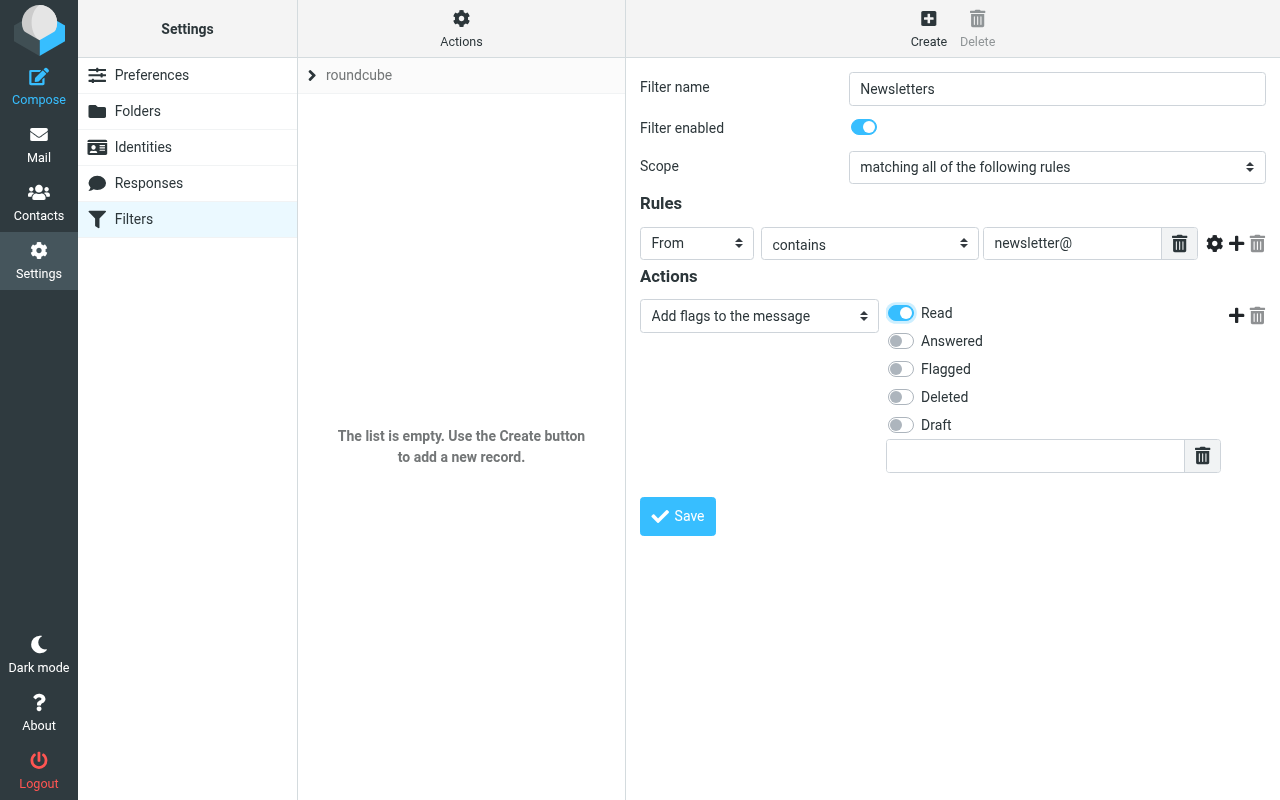
For an automatic out-of-office reply, use Settings, then Out of Office (or Vacation, depending on your version). Set the dates, subject, and message, and turn it on.
Contacts
Open Contacts to add people and create groups. Use Import to load contacts from a .vcf or .csv file exported from another service. Addresses you type are suggested automatically when composing.
Use your mailbox in other apps
Your mailbox works with any email app that supports IMAP and SMTP, such as Thunderbird, Apple Mail, Outlook, or the mail app on your phone. Get the server names and ports from Superpanel or from Federated Computer support. Changes, such as reading or moving a message, sync everywhere.
Superpanel settings
- Mailboxes: email accounts are created with your users in Superpanel.
- Aliases and shared addresses: where offered, add extra addresses that deliver to an existing mailbox.
- Mail client settings: the IMAP and SMTP server names and ports to use in desktop and mobile apps.
For mail to be delivered reliably, your domain needs correct MX, SPF, DKIM, and DMARC DNS records. See PowerDNS.