
Vaultwarden
A password manager for you and your team, compatible with all Bitwarden apps.
- Use instead of
1Password,LastPass,Dashlane,Bitwarden cloud,Keeper- Typical address
vaultwarden.example.com- Project website
- github.com/dani-garcia/vaultwarden
- Official docs
- bitwarden.com/help
Overview
Vaultwarden is a password manager server that works with the official Bitwarden apps, browser extensions, and command-line tool. Your encrypted vault is stored on your Federated Core server instead of a vendor’s cloud. Because the vault is encrypted on your device with your master password, nobody on the server side, including Federated Computer, can read your passwords.
What you can store and do:
- Logins, credit cards, identities, and secure notes, with custom fields and file attachments.
- Autofill in Chrome, Firefox, Safari, and Edge, and on iOS and Android.
- A password generator and a health report that flags weak, reused, or exposed passwords.
- Organizations to share passwords with your team, organized into collections with per-person permissions.
- Send, for sharing a piece of text or a file with an expiry date and optional password.
- Two-step login, emergency access for a trusted contact, and authenticator codes (TOTP) stored alongside logins.
What it replaces
Vaultwarden replaces paid team password managers such as 1Password Business, LastPass Teams, Dashlane, and Bitwarden’s own hosted Teams and Enterprise plans. Features that Bitwarden charges for, like organizations and attachments, are included.
Before you start: your master password
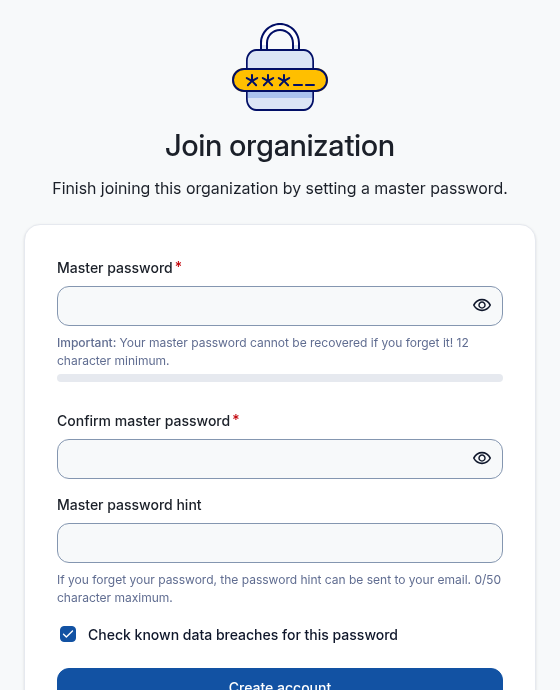
Your vault is protected by a master password that is separate from your organization sign-in. It is never sent to the server, so it can’t be reset or recovered. If you forget it, your vault is lost.
- Choose a long passphrase you can remember, for example four or five random words.
- Set a master password hint that only makes sense to you.
- Consider writing it down and storing it somewhere physically safe.
Create your account
How accounts are created depends on how your organization set things up:
- By invitation. Your administrator invites you to the organization. Open the invitation email and follow the link to create your account.
- Open registration. If enabled, go to your Vaultwarden address and choose Create account.
Use your work email address, set your master password, and sign in.
Connect the apps to your server
All Bitwarden apps connect to Bitwarden’s cloud by default. Point them at your server instead:
Install the Bitwarden browser extension, desktop app, or mobile app from bitwarden.com/download.
On the sign-in screen, find the Logging in on or region selector and choose Self-hosted.
Enter your server URL, for example
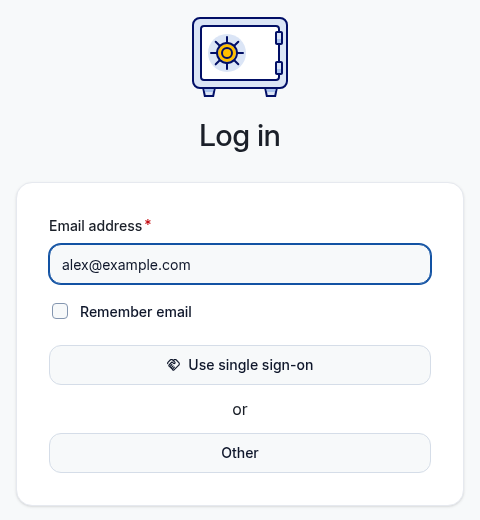
https://vaultwarden.example.com, and save.Sign in with your email address and master password.
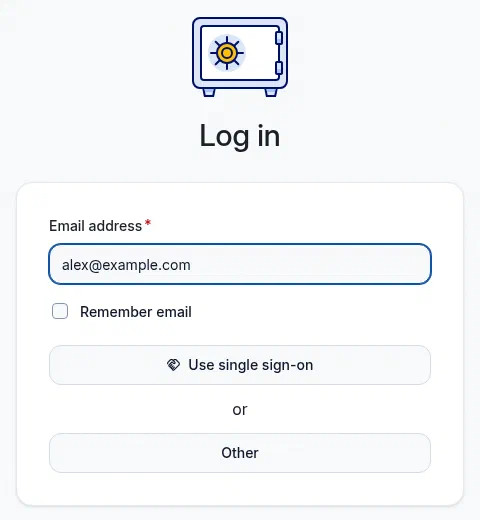
The web vault sign-in page.
Everyday use
Save and fill passwords
- When you sign in to a website, the browser extension offers to save the login. Accept, and choose a folder if you like.
- To fill, select the extension icon and pick the login, or use the keyboard shortcut (Ctrl/Cmd + Shift + L in most browsers).
- On mobile, enable Bitwarden as your autofill service in your phone’s settings.
Generate strong passwords
Use the Generator tab to create a random password or passphrase. When changing a password on a website, generate it from the extension so it’s saved at the same time.
Store two-factor codes
Edit a login and paste the site’s 2FA setup key into the Authenticator key (TOTP) field. Vaultwarden then shows the current code next to the login and can copy it after autofill.
Share passwords with your team
Shared passwords live in an organization, grouped into collections (for example “Finance”, “Social media”, “Infrastructure”).
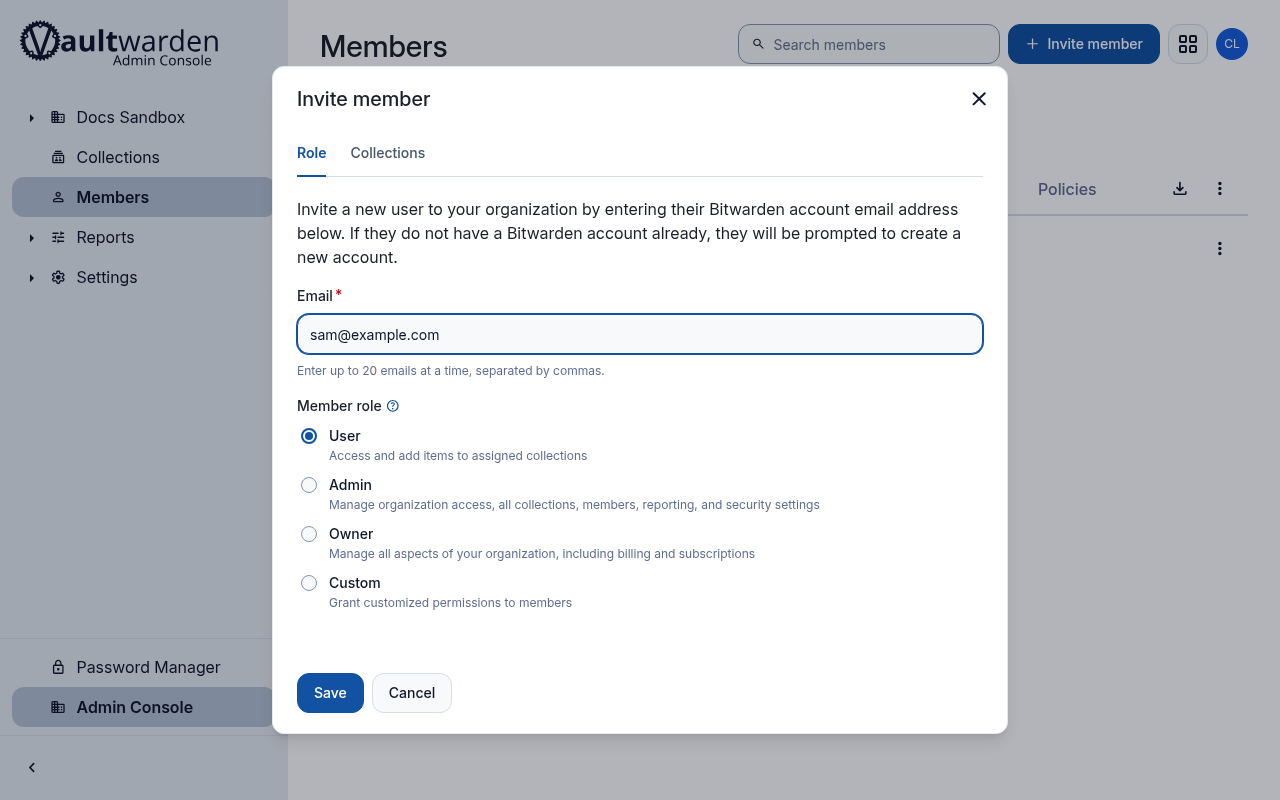
In the web vault, open your organization. Administrators create collections and invite members under Members.
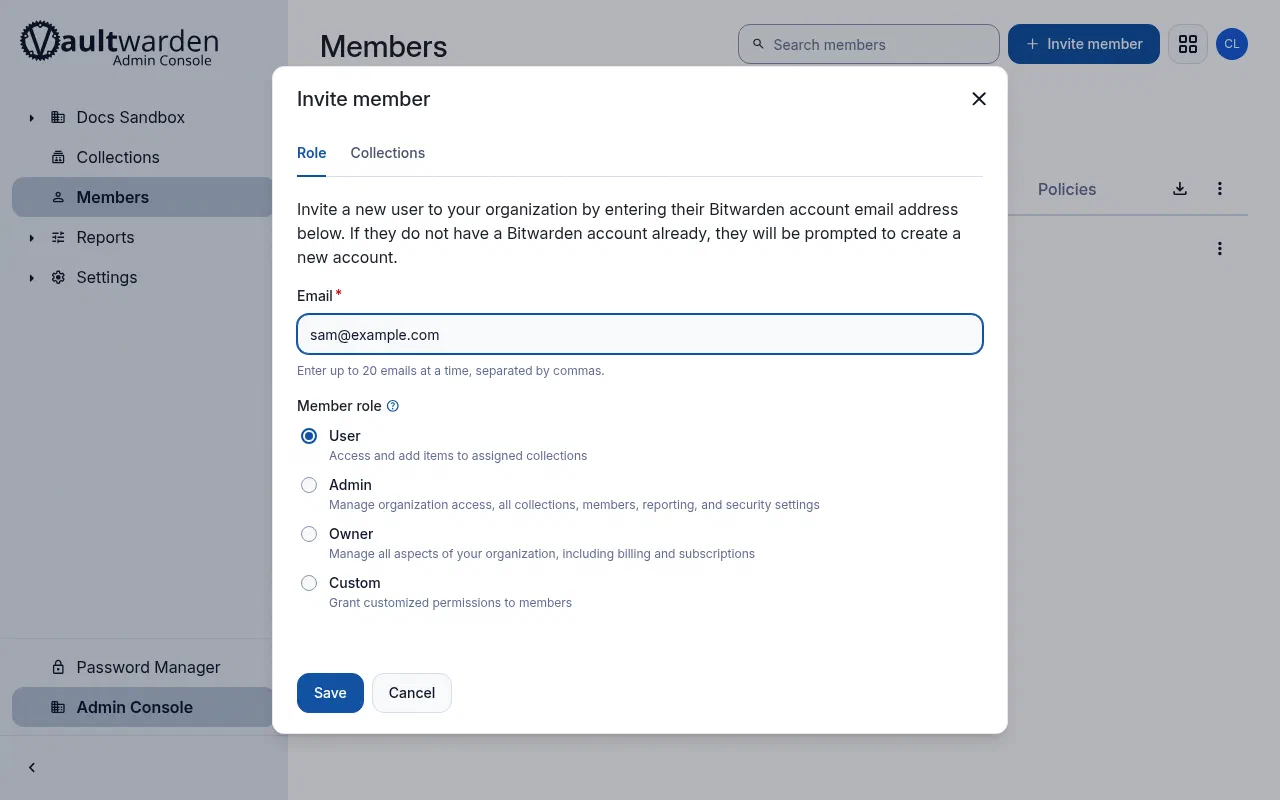
Inviting a member from the organization’s Members page. To share an item you already have, open it and choose Assign to collections or move it to the organization.
Members only see the collections they have been given access to, and can be limited to read-only or “hide passwords” access.
When someone leaves, remove them from the organization and change any passwords they had access to.
Secure your account
- Turn on two-step login under Settings, then Security, then Two-step login. An authenticator app or a security key is recommended.
- Save the recovery code shown when you enable two-step login. It’s the only way back in if you lose your second factor.
- Set up Emergency access if you’d like a trusted person to be able to request access to your vault.
Import from another password manager
Export your data from your old password manager (most offer a CSV or JSON export).
In the web vault, go to Tools, then Import data, choose the format, and upload the file.
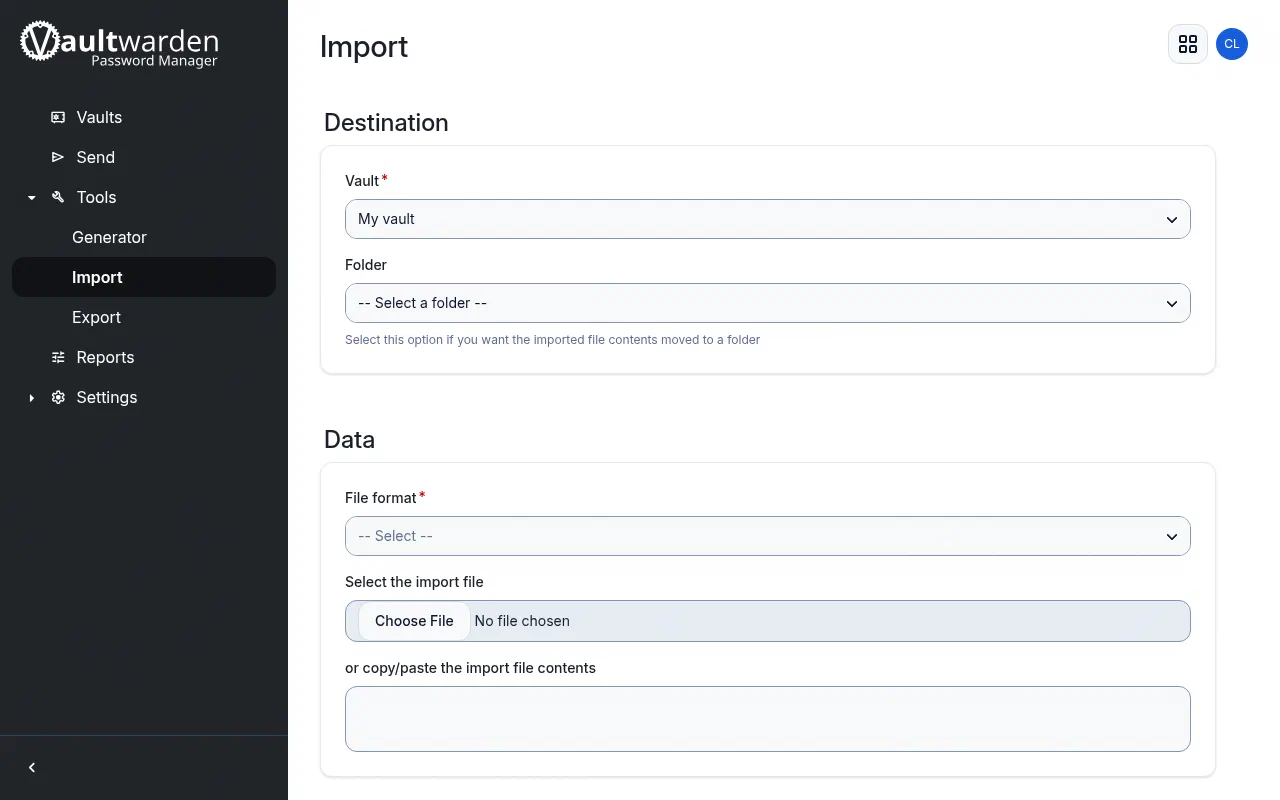
The Import page. Delete the export file afterwards: it contains your passwords unencrypted.
Superpanel settings
- Access. Choose which groups should be told about Vaultwarden and given its address.
- Registration and invitations. Where offered, choose whether anyone can create an account or only people invited to an organization.
Vaultwarden also has a server admin page (/admin). On Federated Core it’s managed by Federated Computer; contact support if you need a server-level change such as allowing sign-ups for a new email domain.