
Accounts and signing in
One account for your organization's apps, protected by Authelia.
One account, many apps
People in your organization are created once, in Superpanel. That account is stored in a central user directory on your server, and most applications check sign-ins against it. In practice this means:
- The same username and password work across the apps that are connected to the directory.
- When someone’s password changes, it changes everywhere.
- When someone leaves and their account is disabled in Superpanel, they lose access to the connected apps at the same time.
Many apps also sign you in through Authelia, the single sign-on portal. When you open one of these apps and aren’t signed in yet, you are sent to the Authelia sign-in page first, then returned to the app.
Signing in for the first time
Look for the welcome email from your administrator or from Federated Computer. It contains your username and either a temporary password or a link to set one.
Open any application address on your domain. If you’re sent to the Authelia portal, enter your username and password there.
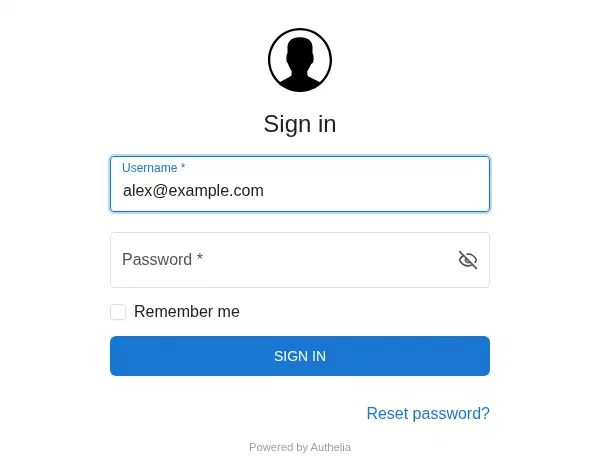
The Authelia sign-in page. If your organization requires two-factor authentication, Authelia will ask you to register a second factor. See Set up two-factor authentication.
Change any temporary password straight away.
Forgotten passwords
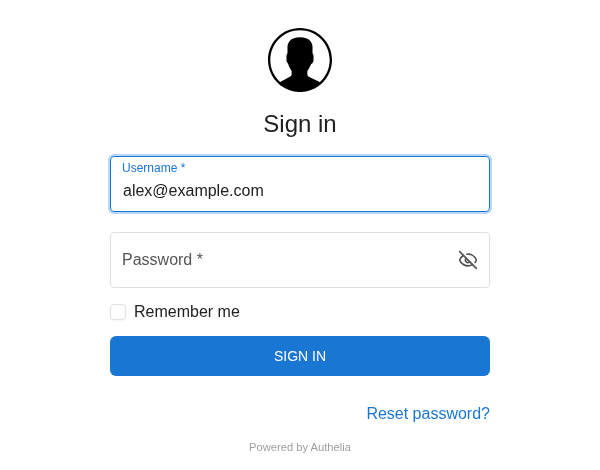
Use the Reset password link on the Authelia sign-in page. A reset link is sent to the email address on your account. If you no longer have access to that mailbox, ask an administrator to reset your password in Superpanel.
Good habits
- Turn on two-factor authentication, even if it’s optional for your organization.
- Store your password in Vaultwarden rather than reusing it.
- Sign out on shared computers. Signing out of Authelia ends your single sign-on session for all connected apps.